Connecting cars with Smartcar and tracking mileage
See location, fuel, battery and odometer readings from the car itself, with no hardware to fit. Lock and unlock supported cars, and turn odometer readings into mileage charges.
Overview
Smartcar reads data from a car's own connected services, so there's no device to install. You use your own Smartcar account, and Smartcar bills you directly, per car. RentHive never sees your card.
Once connected, the Fleet page shows a live map. Each car's panel shows its location, odometer, battery, charging, fuel, tire pressure, oil life and any fault codes, as far as the car reports them, plus its current or next booking. You can lock and unlock supported cars, start and stop charging on EVs, and see the route a car drove on a given day.
Odometer readings at pickup and return come from the car, or you type them in. If a trip goes over its mileage allowance, RentHive works out the overage and suggests the charge. You decide whether to bill it.
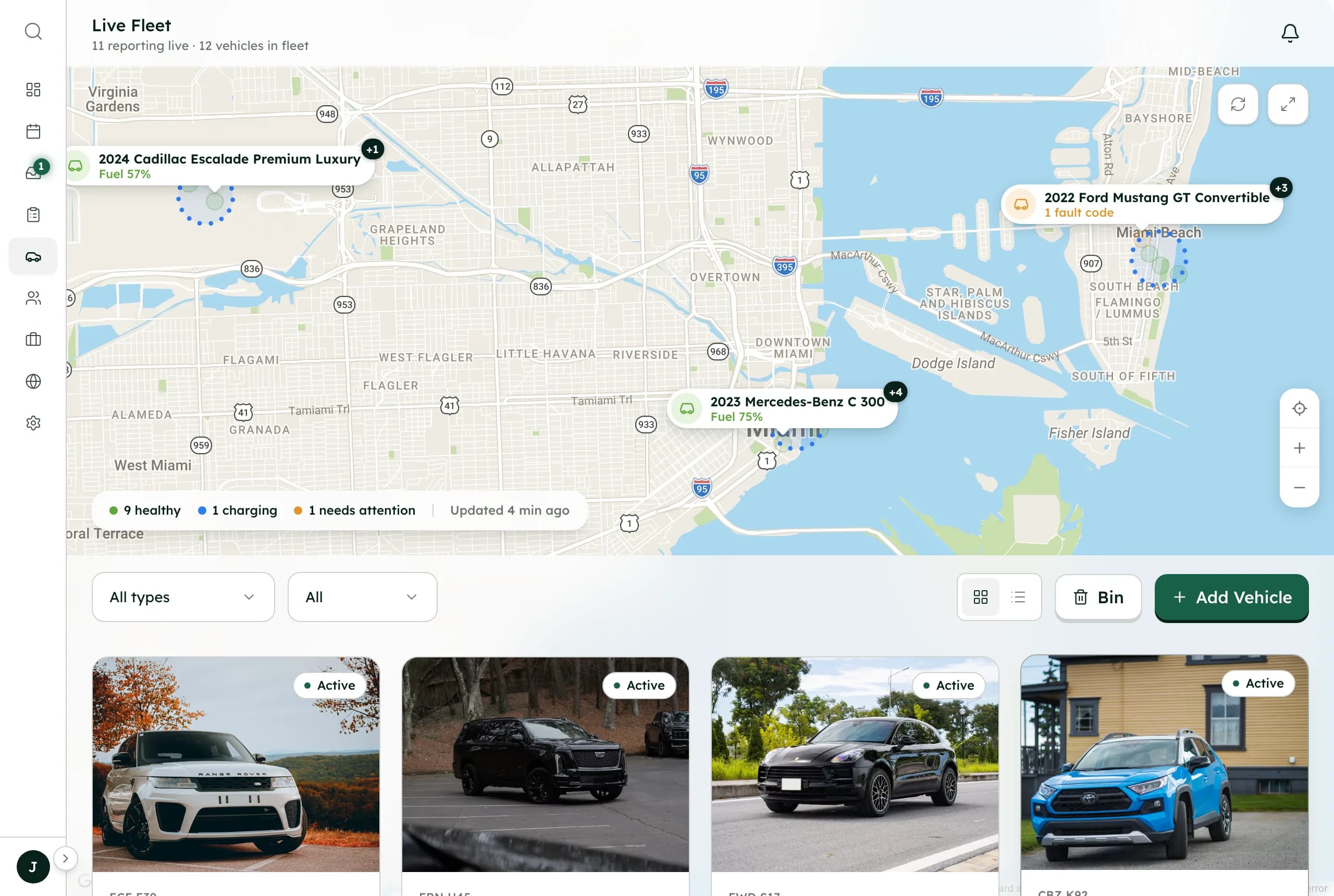
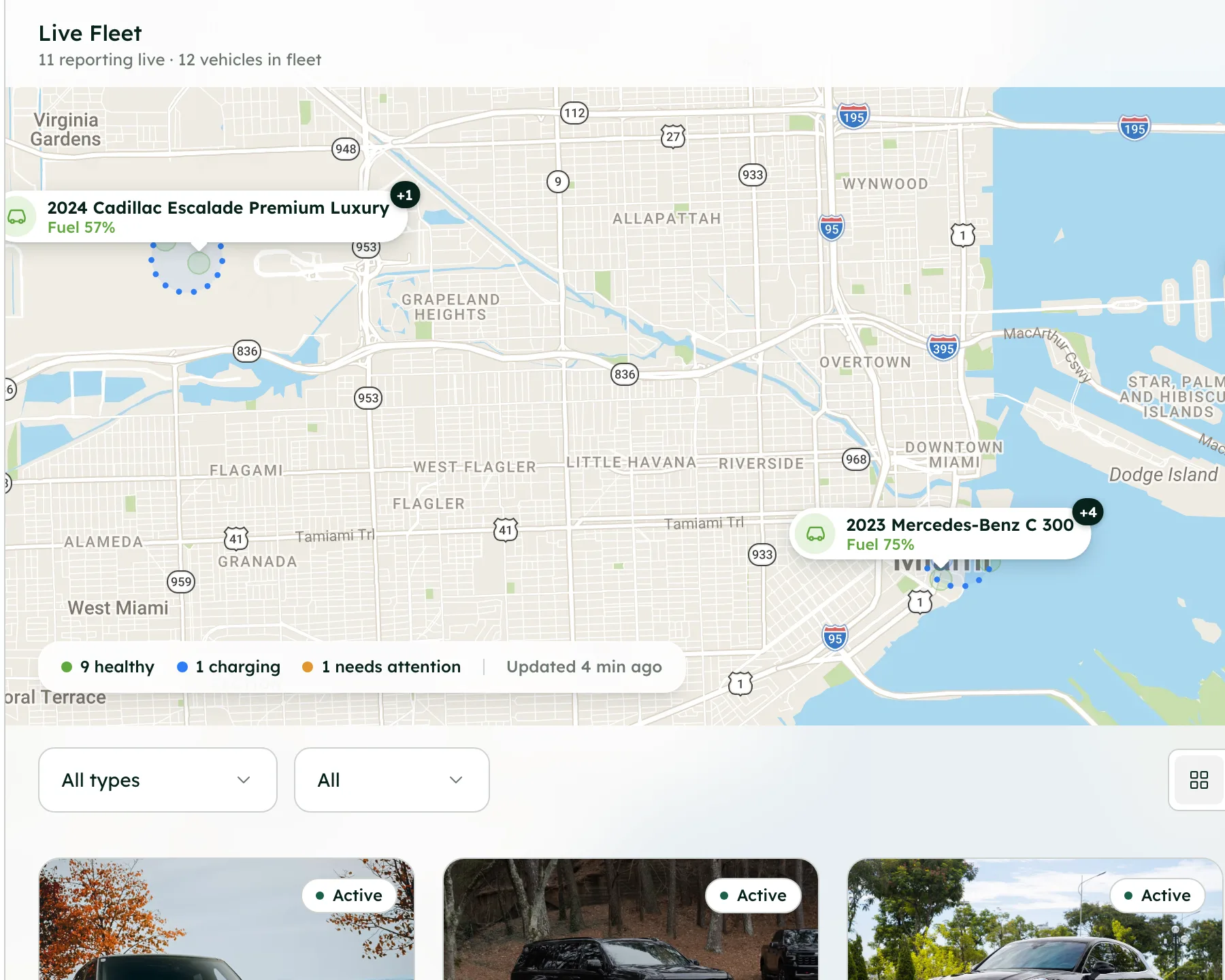
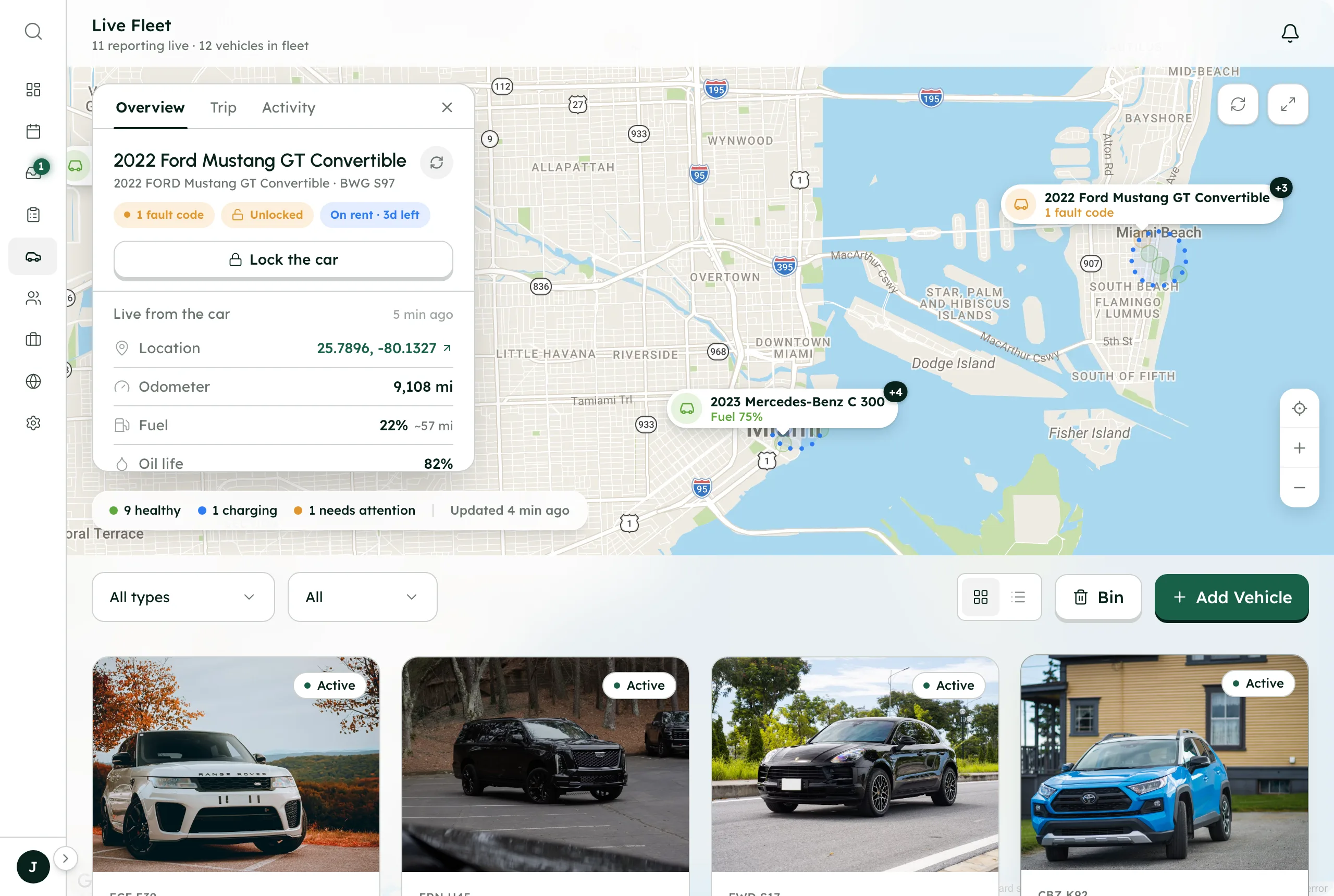
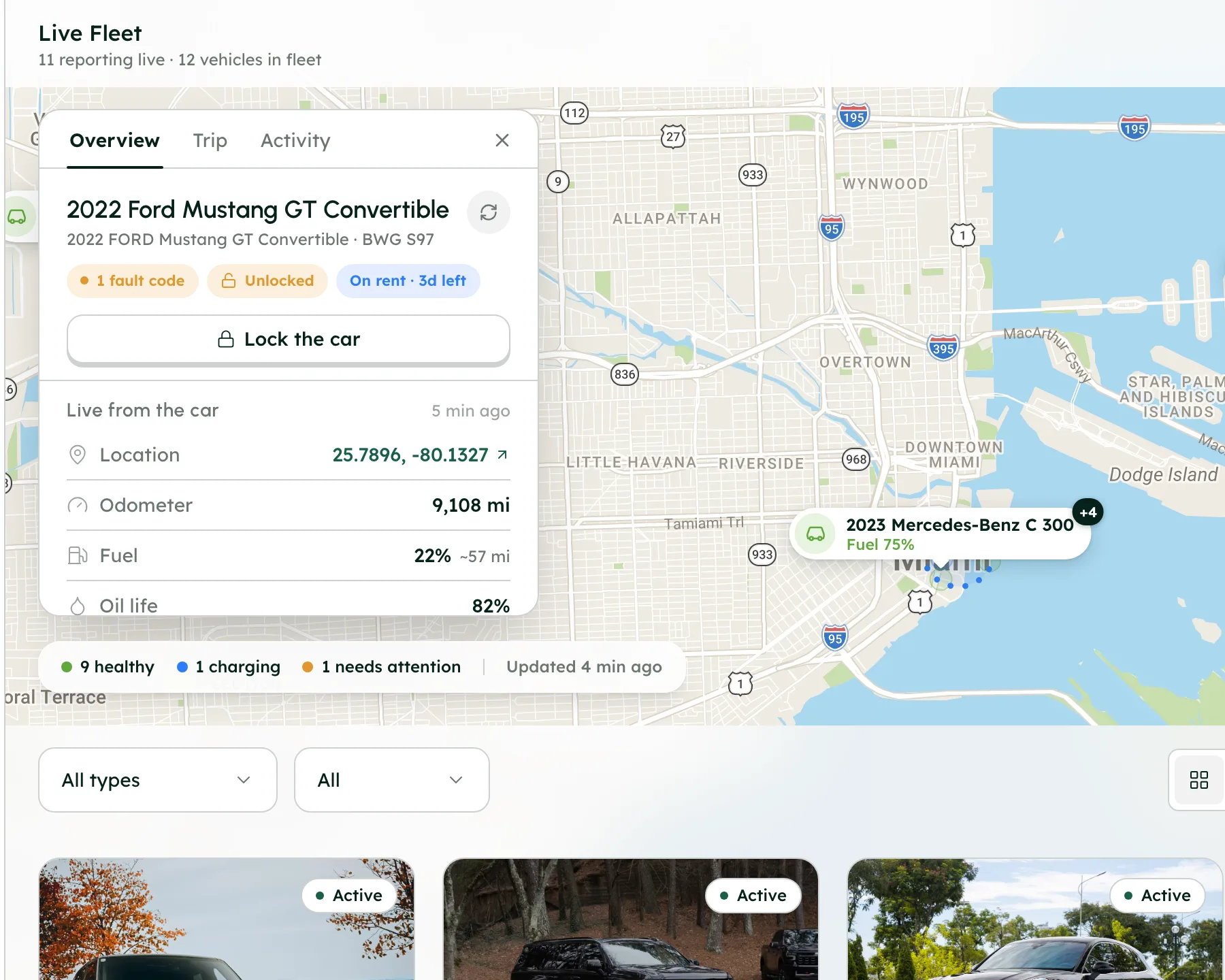
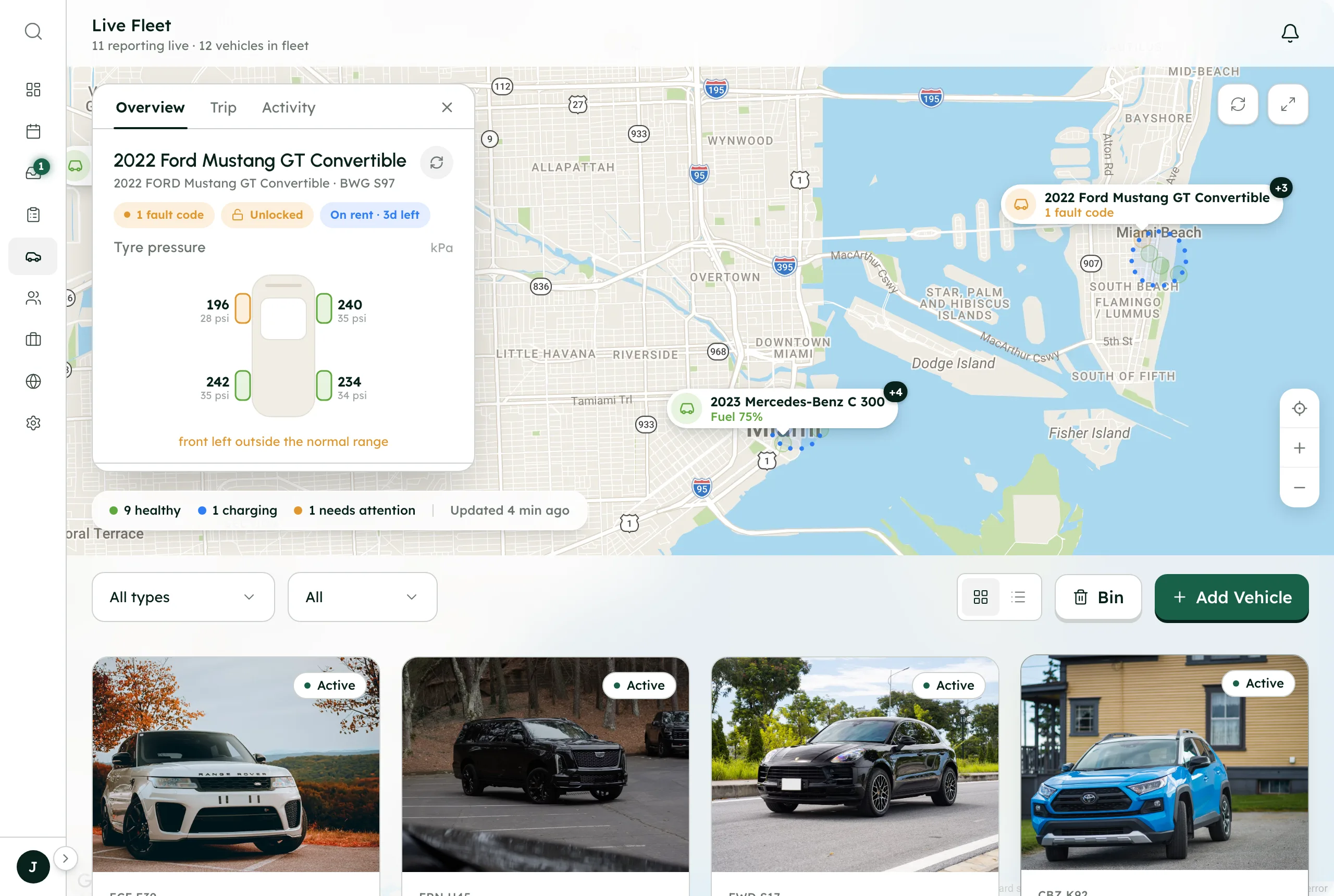
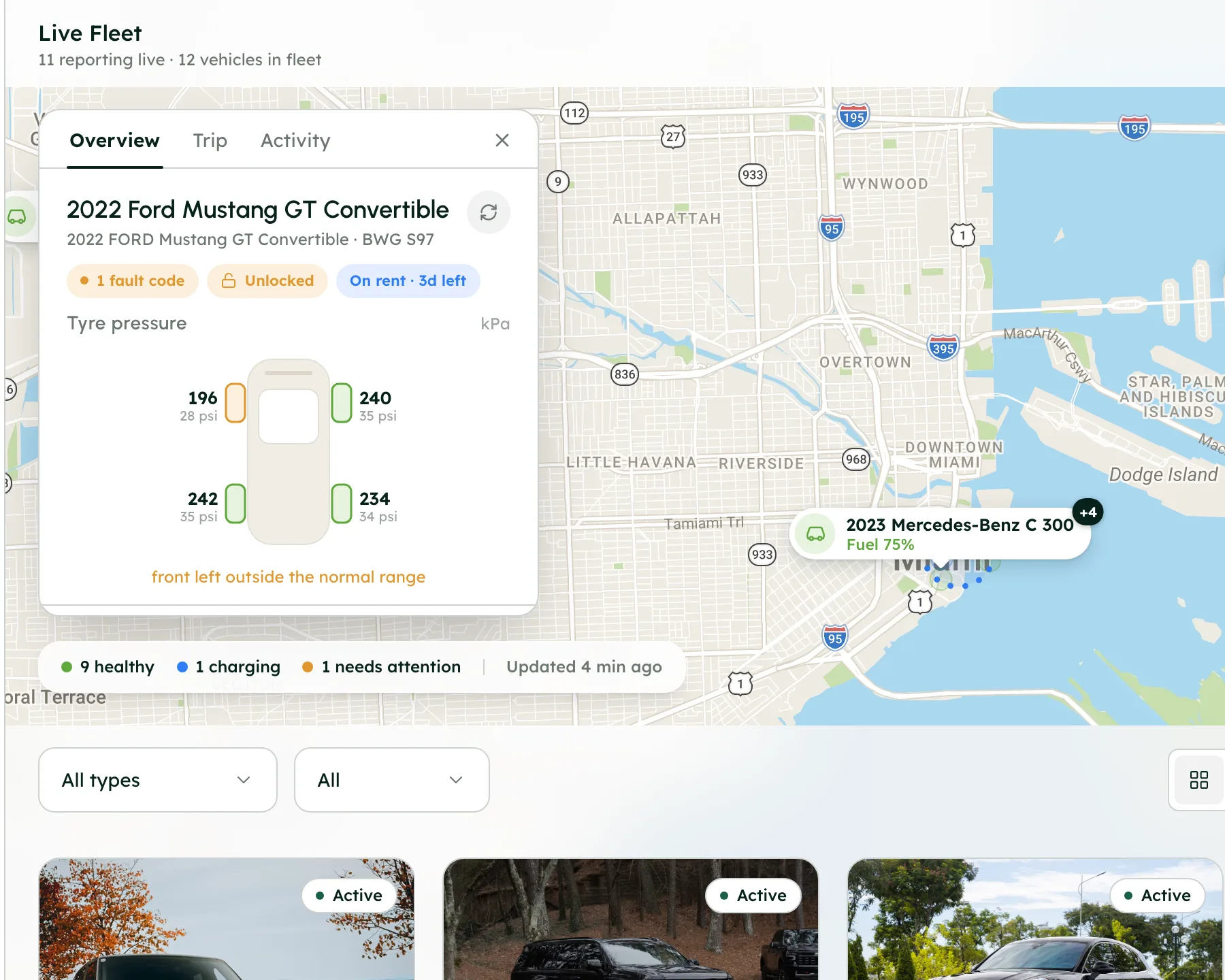
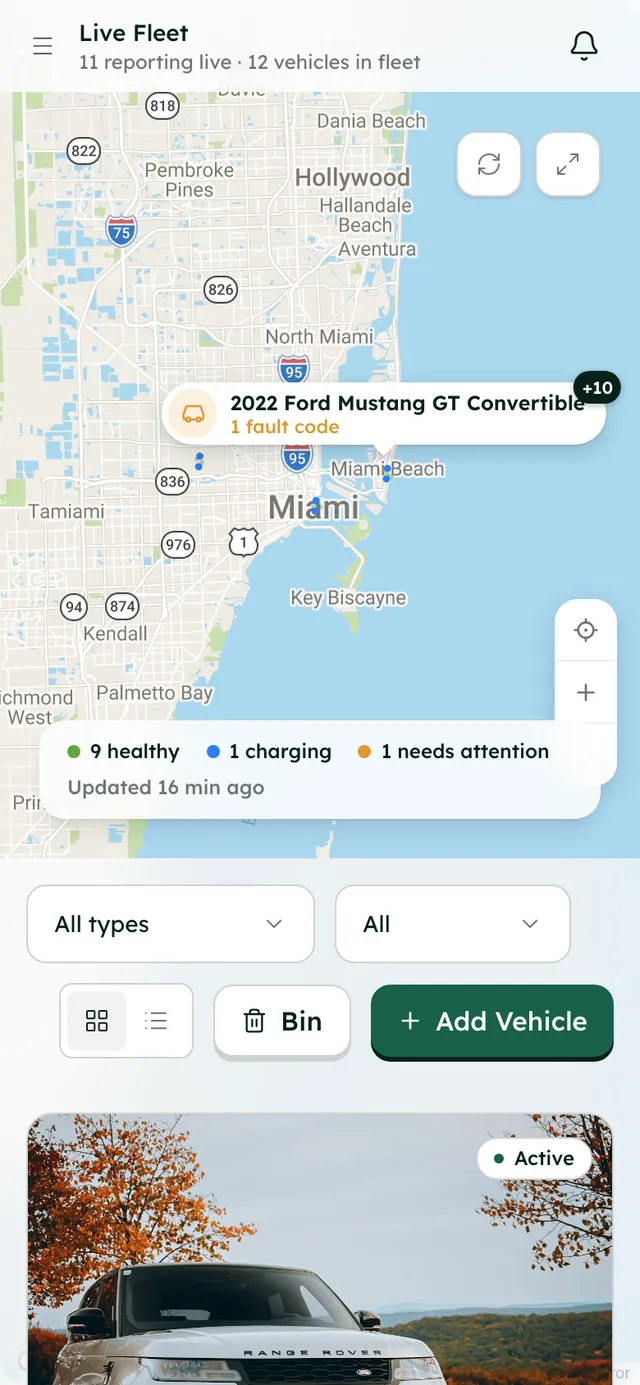
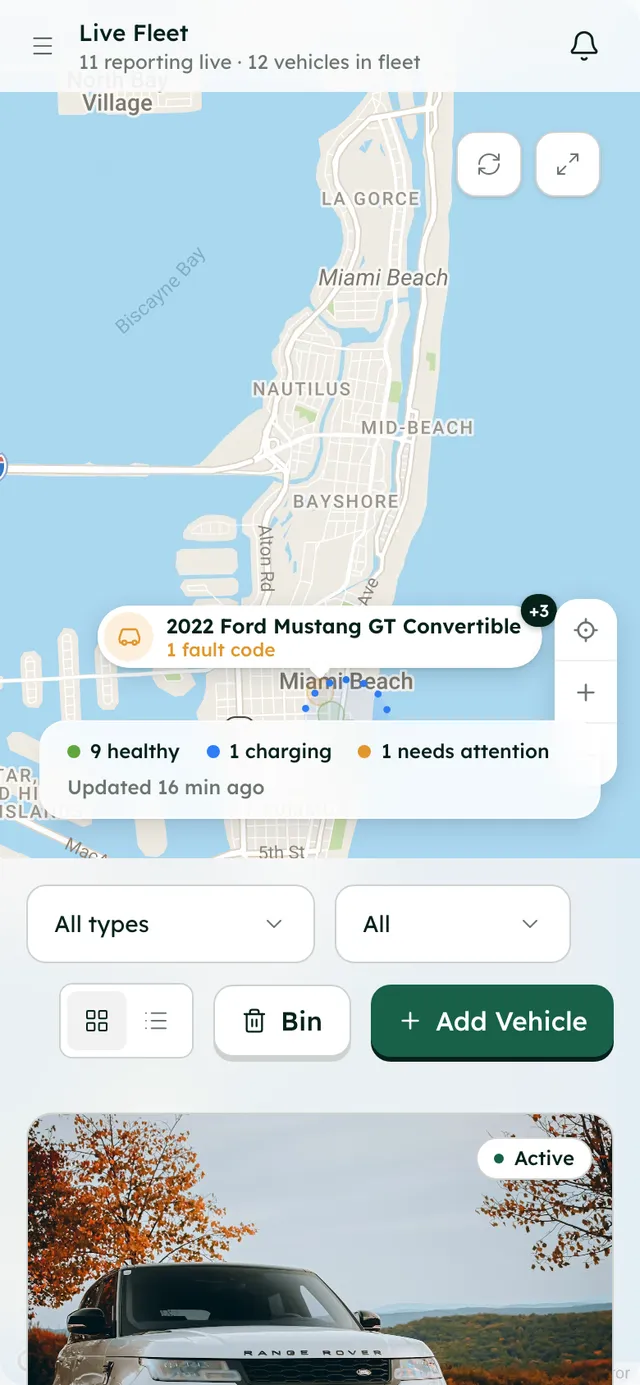
The live fleet map, with a connected car's location, fuel or battery, tyres and lock.
How it works
- 1
Open the Smartcar card
Go to Settings → Integrations → Smartcar and press Manage. Under Connect your Smartcar account, RentHive shows a redirect URI and a webhook URL to copy.
- 2
Create your Smartcar application
In your own Smartcar account, create an application and paste in the redirect URI and webhook URL. Copy back the Application ID, Client ID and Client secret, choose a Mode (Live for your real cars, or Test for demo cars) and press Check and save.
- 3
Connect your cars
Press Connect Smartcar, sign in to the car maker's account on Smartcar's screen and approve the cars. Use Connect more cars to add others later.
- 4
Match cars to vehicles
Connected cars are matched to your vehicles by VIN. Fill in VIN number on each vehicle's Overview tab. The Smartcar card shows how many cars are connected and matched.
- 5
Use the fleet map
On Fleet, click a car on the map to open its panel, with Overview, Trip and Activity tabs. Press Refresh reading for a fresh reading, and use Lock, Unlock, Start charge or Stop charge where the car supports them.
- 6
Set the mileage allowance
In Settings → Invoicing → Mileage, set Miles included per day (or No limit) and the Extra mile fee. Change it for one car in the Mileage card on the vehicle's Settings tab.
- 7
Record the odometer and bill overage
On the booking, the Odometer card records the reading Out and Back, from the car or typed in. If the trip went over, press the Bill extra miles button to add the charge to the invoice. Show the trip opens the route map, with fuel at pickup and return.
Best practices
- Add VINs to your vehicles before you connect, so cars match on their own.
- Record the odometer at every pickup and return. Odometer at pickup is on the readiness checklist.
- Use Test mode first if you want to see how it works with demo cars.
Things to keep in mind
- Smartcar works with many makes and models, but not all. If a car isn't supported, you're told when you connect it.
- Not every car reports every reading. Missing ones show as Not supported or Not reported.
- Smartcar bills you per car on your own Smartcar account. It isn't part of your RentHive plan.
- Readings aren't continuous. A car that's asleep or out of signal may not answer straight away.
- Overage is never charged by itself. You decide whether to add it to the invoice.
What's automated
- Cars are matched to your vehicles by VIN.
- Each booking keeps the mileage allowance it was sold with, so a later change can't re-bill it.
- The overage suggestion shows the arithmetic: miles driven, miles included and the fee per mile.
- Every lock, unlock and charging command is logged.
Common questions
Do I need to install a GPS tracker?
No. Smartcar uses the car's own connected services. RentHive doesn't use any tracking hardware.
Who pays for Smartcar?
You do, directly to Smartcar, per connected car.
Are renters charged for extra miles automatically?
No. RentHive suggests the charge with the arithmetic shown, and you choose whether to bill it.