Tracking maintenance and team tasks
Book cars into the workshop so they're blocked on the calendar and website, log the cost as an expense, and let booking events create and close your team's tasks.
Overview
Maintenance lives in Management → Maintenance. A job moves from Booked in to In the workshop to Back. Saving a job takes the car off your calendar and website for those days. Marking it Back, or calling the work off, gives the days back.
Tasks live in Management → Tasks, on a board with To do, In progress, Stuck and Done. Built-in task types cover the work around each trip: check their licence and insurance, make sure they've paid, get the agreement signed, photos before and after the trip, release or take the deposit, and clean the car.
Rules decide which of those tasks are made automatically and who gets them. Tasks marked with a bolt tick themselves off when the work is done, like when the renter's ID check passes.
To do0
Waiting to be picked up
In progress0
Somebody is on it
Done0
Finished in the last fortnight
#tasks
4 members · Work assigned to the team, and finished.
“Settle Dana Whitfield's deposit” closed itself — 2024 Tesla Model 3 Long Range · Dana Whitfield
Kayla Chen finished “Clean 2024 Tesla Model 3 Long Range” — 2024 Tesla Model 3 Long Range · Dana Whitfield
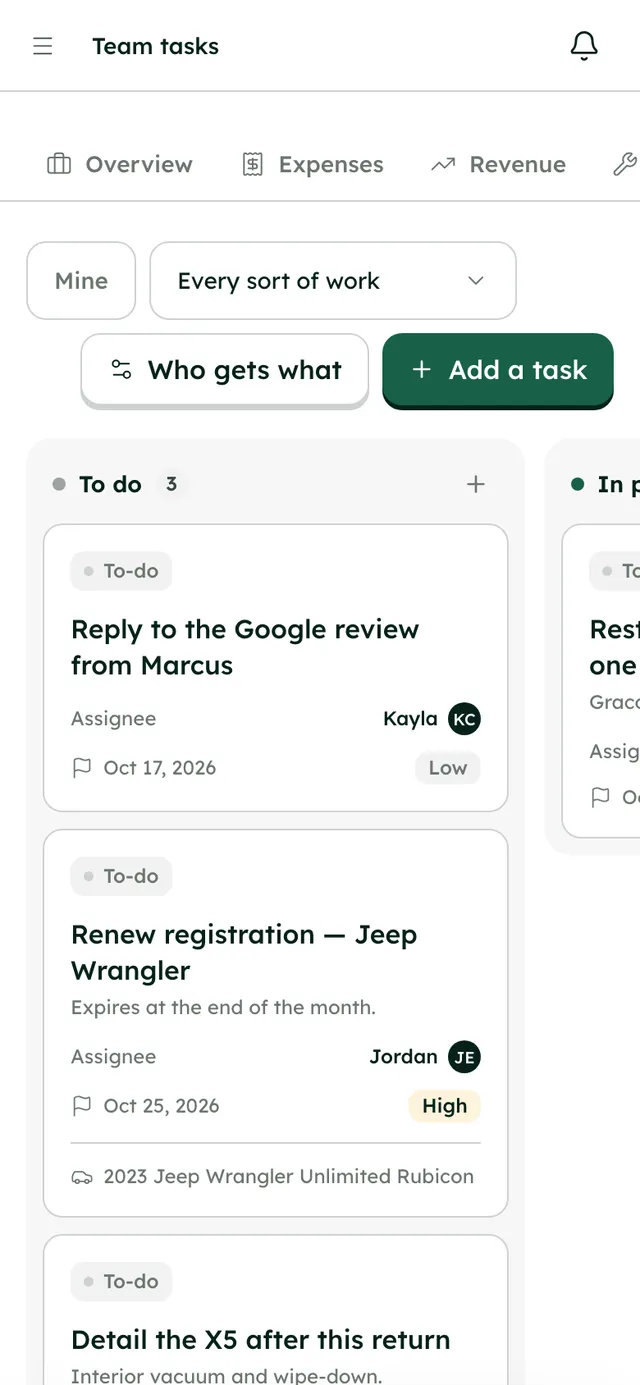
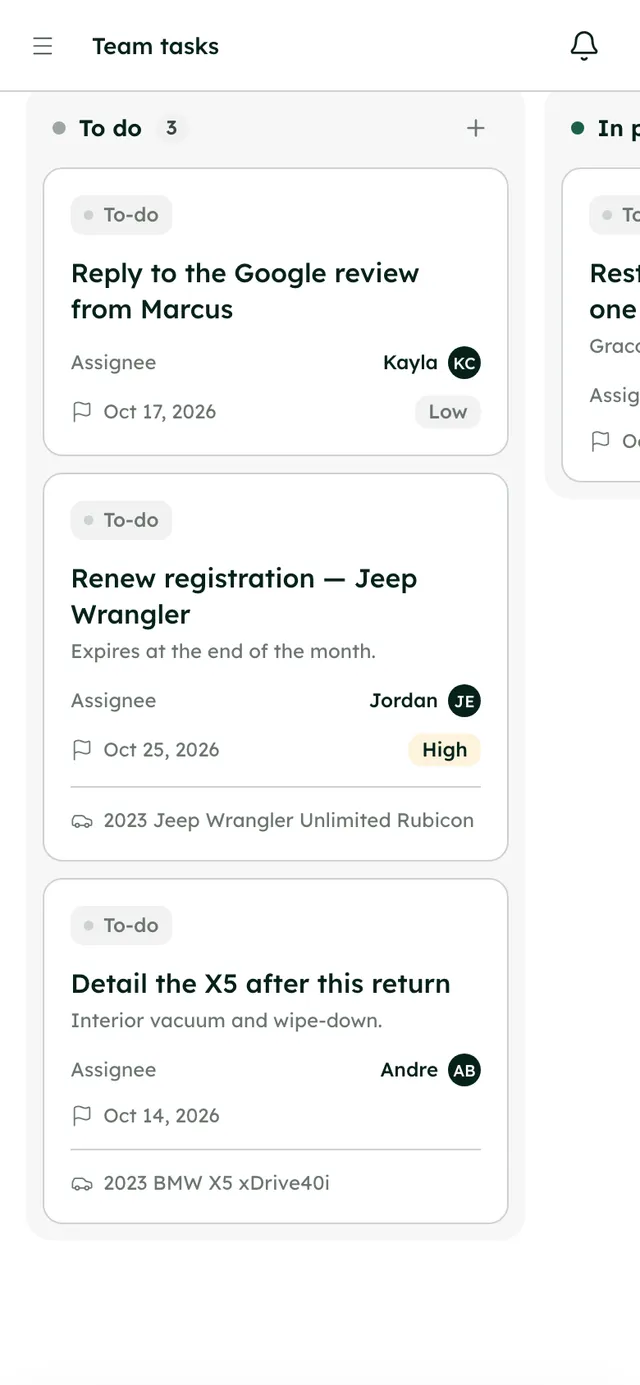
The task board: To do, In progress, Stuck and Done, with tasks that tick themselves off.
How it works
- 1
Book work in
In Management → Maintenance, press Book work in. Choose the vehicle, describe what needs doing, set the dates it's off the road, and add the garage, who's looking after it, mileage and notes. Press Book it in.
- 2
Keep your garages
Press Garages, search under Find a garage, and press Keep to save one to Your garages.
- 3
Add photos and the cost
Add photos of the damage or the work, or drop in the garage's invoice. Under What it cost, press Add a cost. It's booked as an expense.
- 4
Move the job along
Move it to In the workshop, then Back when the car returns. Call the work off if plans change.
- 5
Set task rules
In Management → Tasks, press Who gets what. For each type of task, pick who gets it (or Nobody), which channel to tell, and which vehicles it covers. Only the owner can change rules.
- 6
Work the board
Press Add a task for anything else: what needs doing, the sort of work, who's doing it, a due date and how urgent it is. Use Mine to see only your tasks.
Best practices
- Book workshop visits as jobs rather than blocking the calendar by hand. The cost, photos and history stay with the car.
- Set rules for the trip tasks you do every time, and leave the others on Nobody.
- Post tasks to a team channel so everyone sees new work as it comes in.
- Check How the team is doing on the rules screen to see how many tasks finish on time.
Things to keep in mind
- No tasks are created automatically until you set rules in Who gets what.
- Clean the car, Damage or a claim and Follow up a lead are closed by a person, not automatically.
- There are no mileage-based service reminders. Book work in when it's due.
- A block made by a maintenance job can't be removed from the calendar. Change the job instead.
What's automated
- Saving a job blocks the car on your calendar and website. Back or Called off gives the days back.
- A job's cost is booked as an expense.
- Trip tasks are created when a booking comes in or a trip ends, and the bolt ones close themselves when the work is done.
- People get reminders as their tasks come due.
Common questions
Does a maintenance job stop website bookings?
Yes. As soon as you save the job, your website stops offering the car for those dates.
Can I add my own tasks?
Yes. Press Add a task on the board. Use the built-in types or Just a to-do.
Which tasks close themselves?
The ones with a bolt, such as checking the licence and insurance, making sure they've paid, getting the agreement signed and settling the deposit.