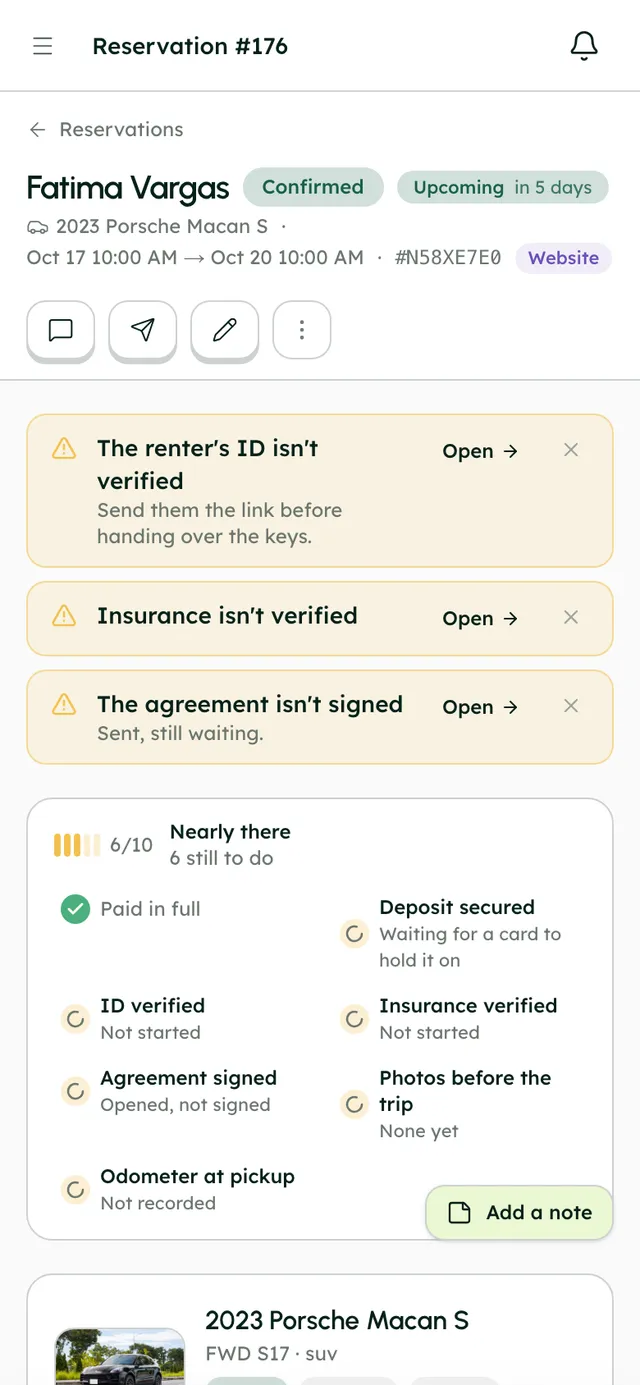
Photos before the trip
Closes itself as soon as a before-the-trip photo exists.
AssigneeNobody
K7M2QX4P
Booking website
Templates, your own domain, checkout and a widget
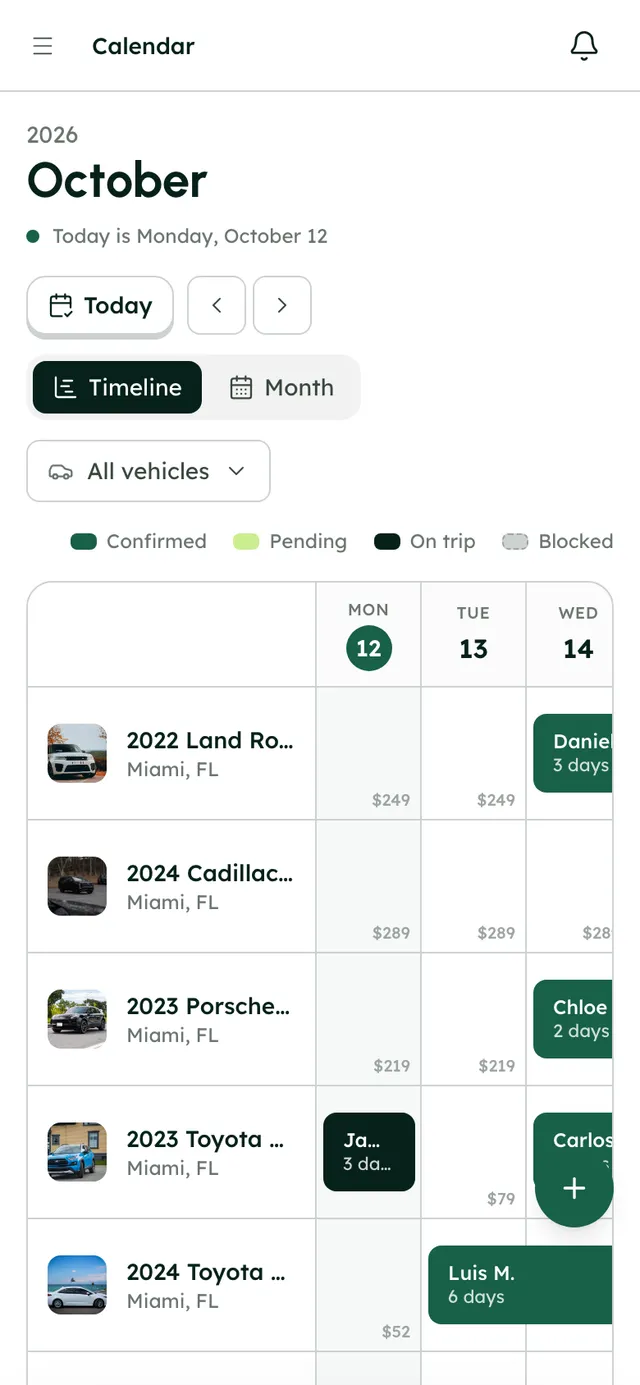
Calendar & reservations
Every car on one timeline, priced by the server
Payments & deposits
Paid into your Stripe, holds released for you
ID & insurance checks
Stripe Identity and Canopy Connect at checkout
Rental agreements
Signed on the renter's phone, with an audit trail
Inbox
Chat, email and booking cards in one thread
Fleet & live tracking
Per-car rules, Smartcar map and remote lock
Team & operations
Tasks, maintenance, expenses and reports
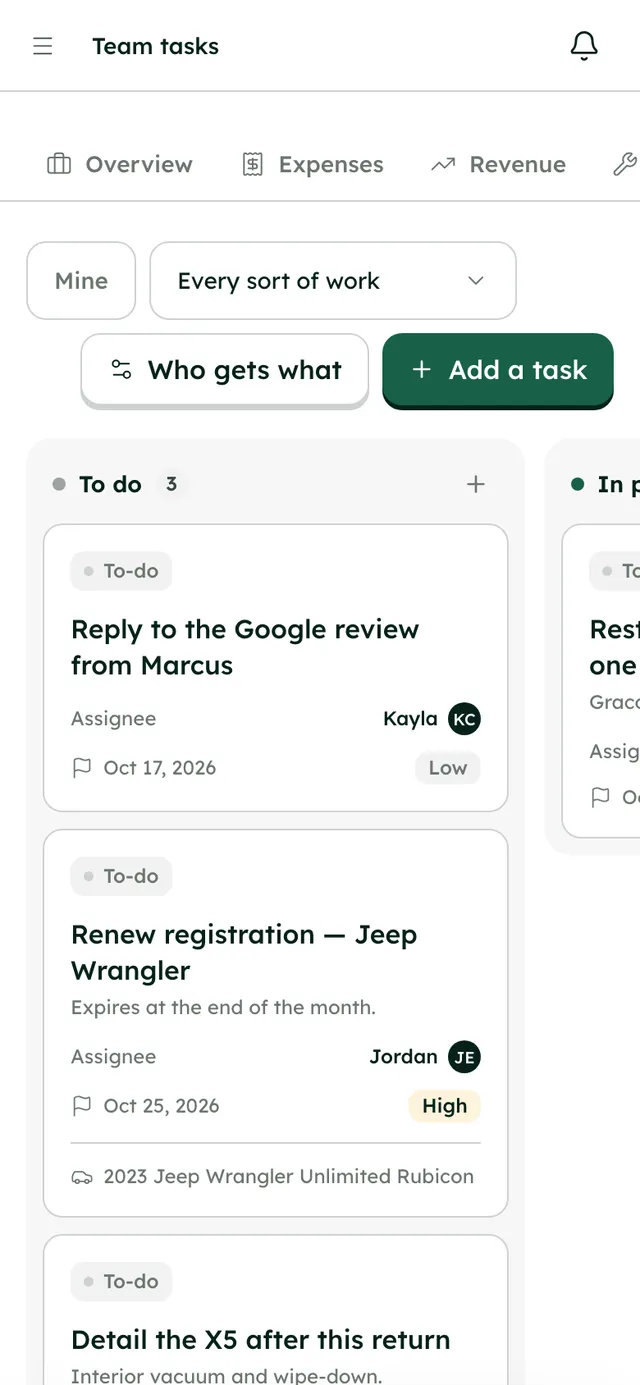
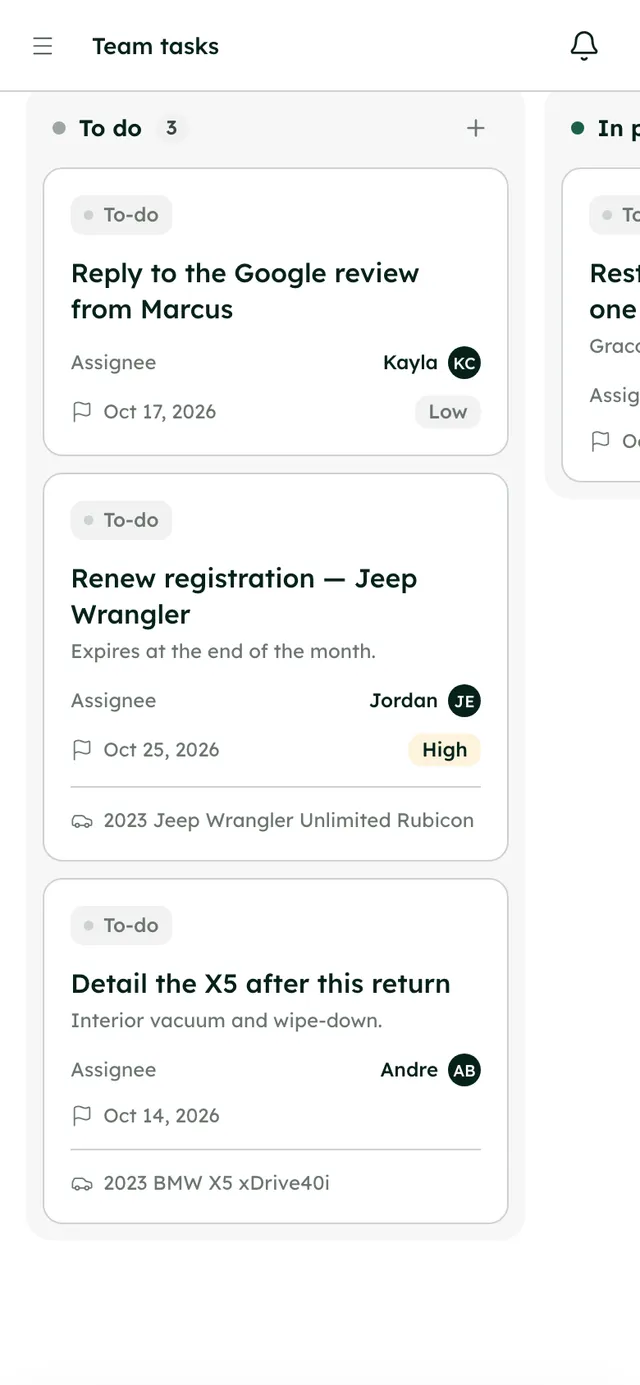
When a booking comes in, RentHive opens the tasks it needs, from checking the license to photos before the trip, and closes them when the work is done. Maintenance, expenses and revenue sit beside them, and each teammate sees only the sections you give them.
Waiting to be picked up
Somebody is on it
Finished in the last fortnight
#tasks
4 members · Work assigned to the team, and finished.
“Settle Dana Whitfield's deposit” closed itself — 2024 Tesla Model 3 Long Range · Dana Whitfield
Kayla Chen finished “Clean 2024 Tesla Model 3 Long Range” — 2024 Tesla Model 3 Long Range · Dana Whitfield
The moment
“A group chat for jobs, a whiteboard for cleaning, a shoebox of receipts, and month-end in a spreadsheet.”
The usual way
A whiteboard for cleaning
A shoebox of receipts
Month-end in a spreadsheet
One shared password
With RentHive
RentHive
Team & operations
A task board that runs itself
Tasks open from bookings and close when the work is done
Team channels
Each task posts to #tasks; DMs and @mentions in the inbox
Cleaning after every trip
The cleaning task opens itself when the trip ends
Receipts by camera
Snapped in the app with the time, location and a checksum
Money overview
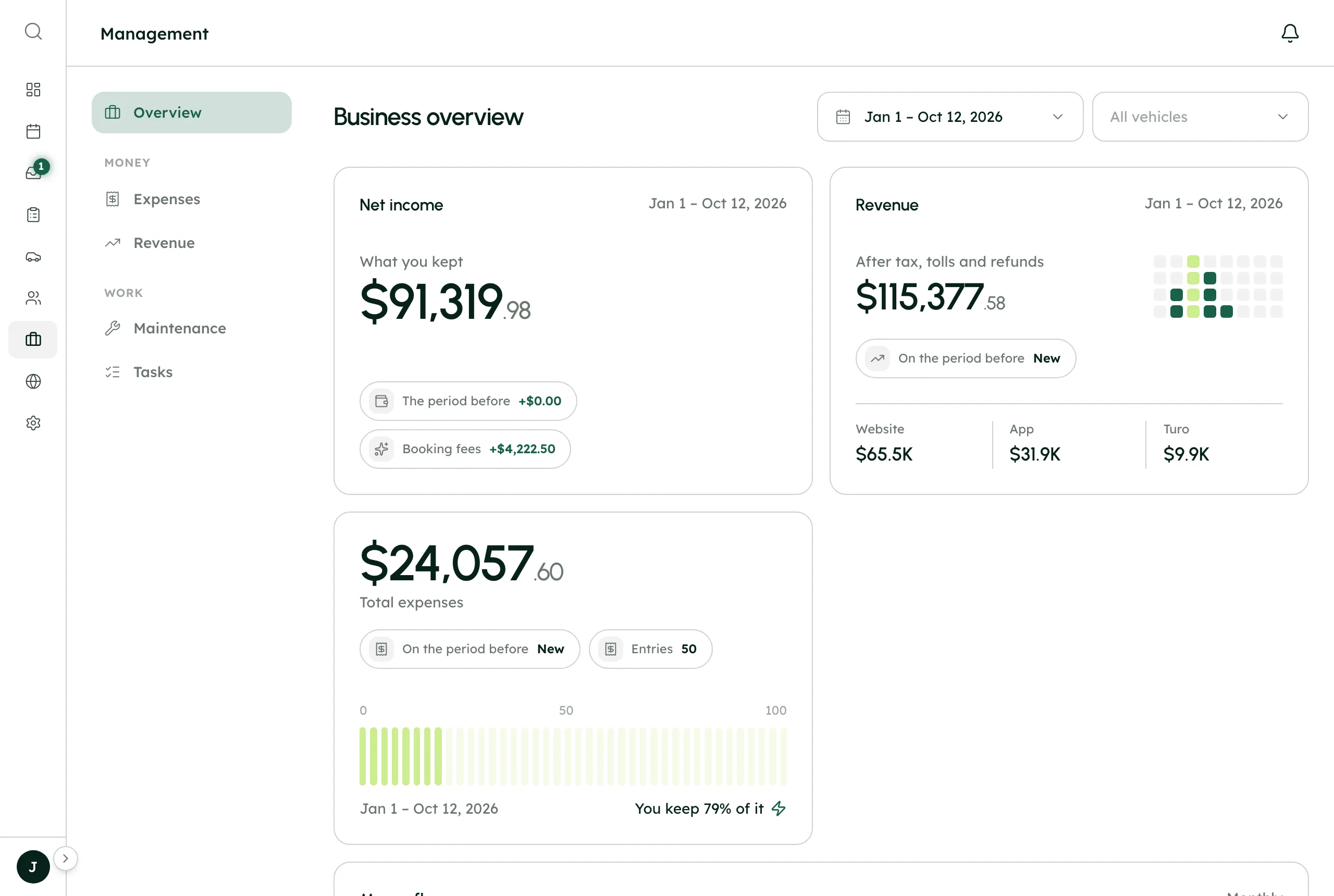
Income by source, costs by car, a statement on the 1st
Staff logins
Each person gets only the sections you give them
A booking turns into jobs for your team, the system notices when they're done, and the numbers update on their own.
Automatic5 of 8 steps happen without anyone doing them
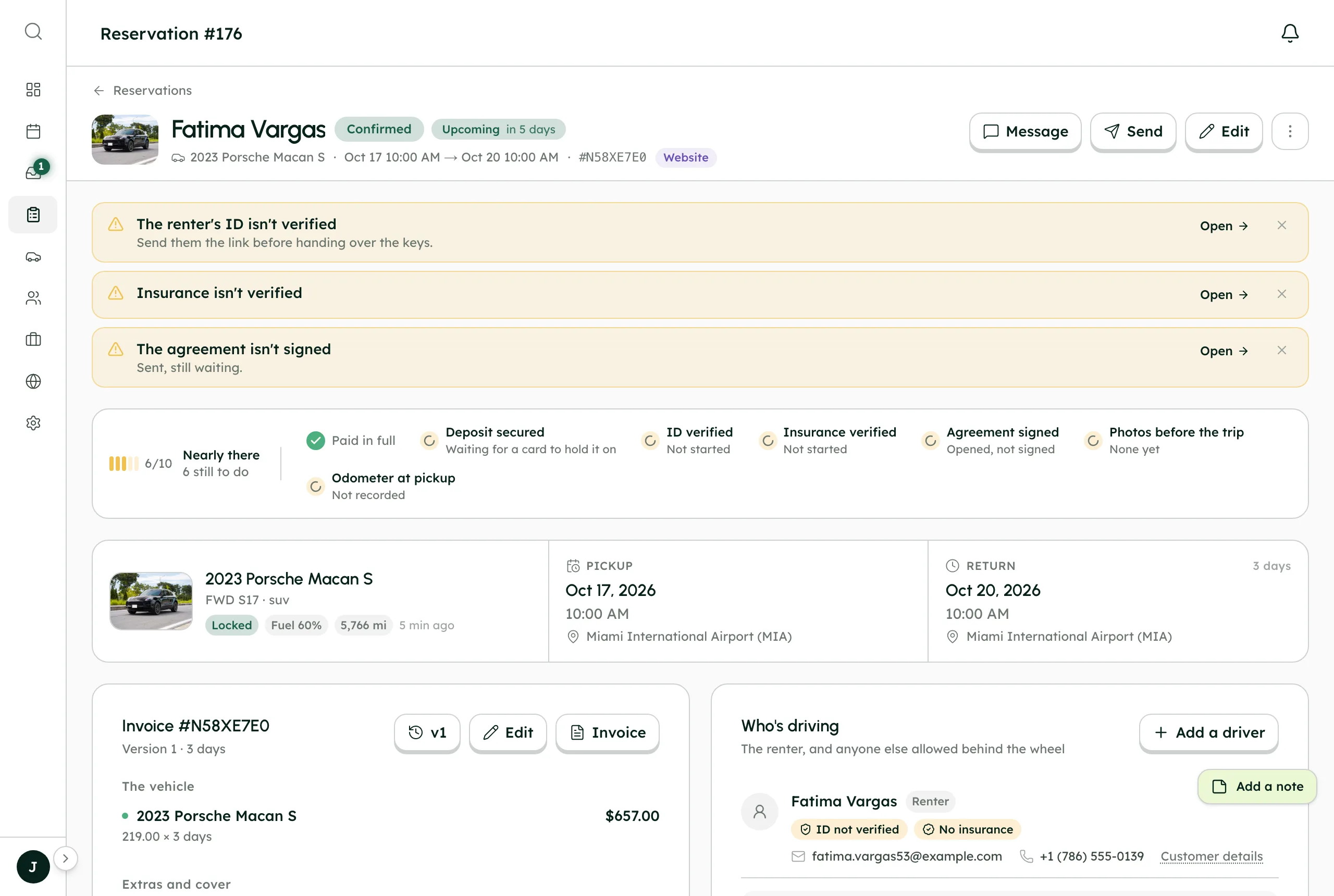
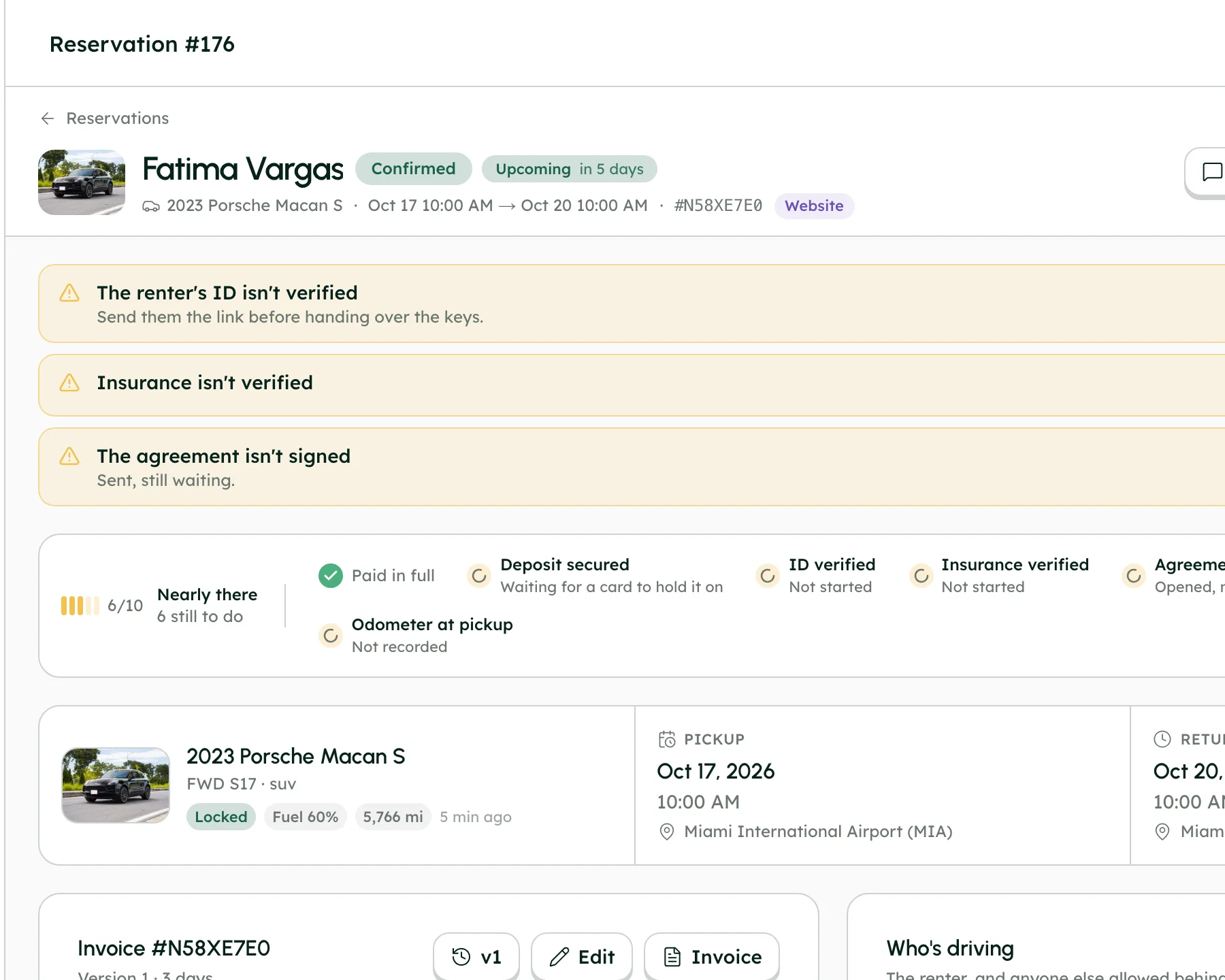
Check the license, get the agreement signed, photograph the car before the trip.
Assignment rules decide who gets which kind of job, and which channel hears about it.
A bell in the app and an email, with a link straight to the job.
From his phone, in the trip camera. That's all he does.
The task moves to Done by itself, because the photos are there.
The task's channel gets a line, so the team knows without asking.
The camera turns it into an expense on the car, and #expenses gets a line.
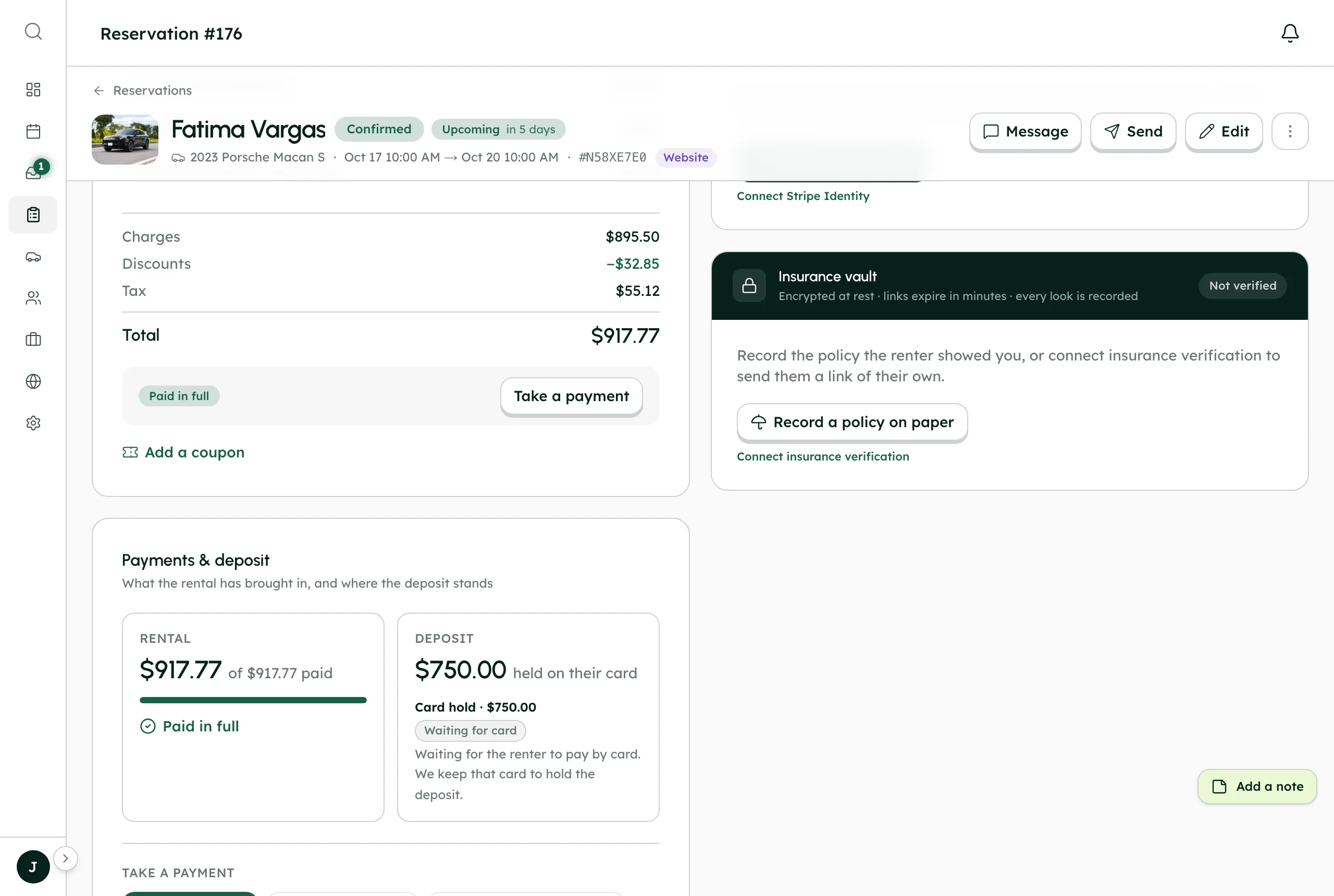
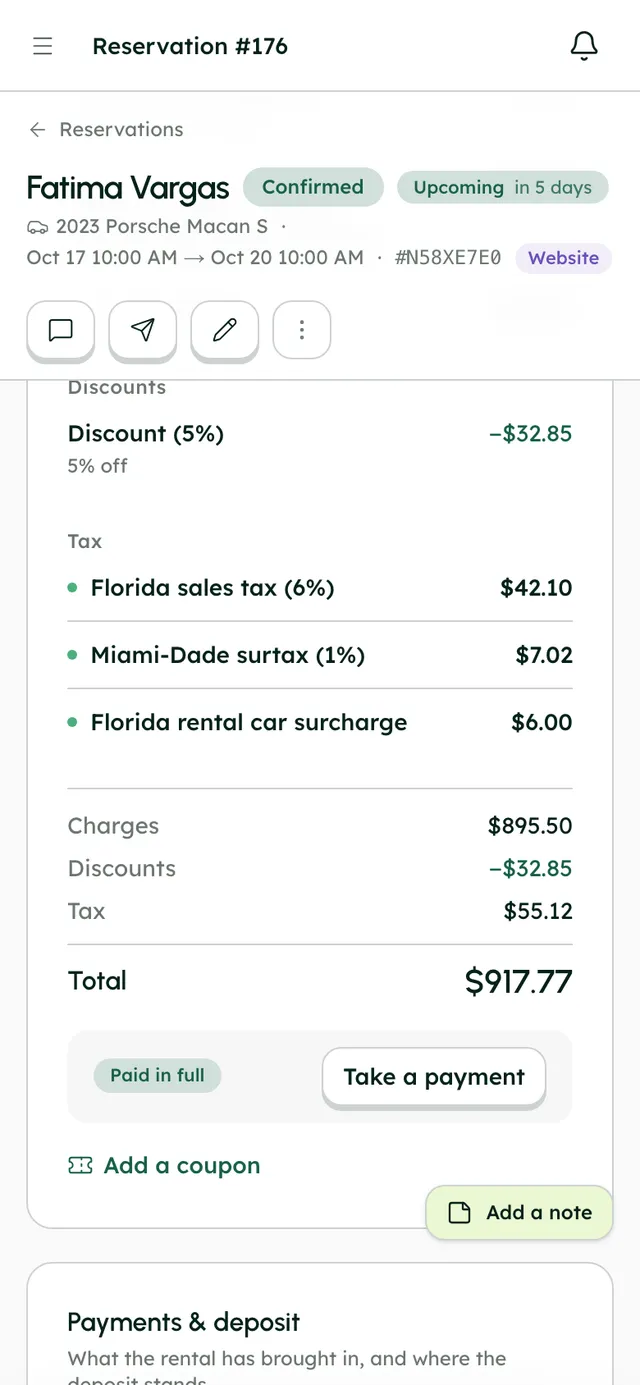
The trip's $917.77 and the fuel land in Management, by car and by source. A digest arrives on Monday.
 Tesla Model 3Miami Beach
 BMW X5Brickell
 Mustang GT ConvertibleMiami Beach
 Tesla Model YMIA Airport
 Jeep WranglerBrickell
 Mercedes C 300Miami Beach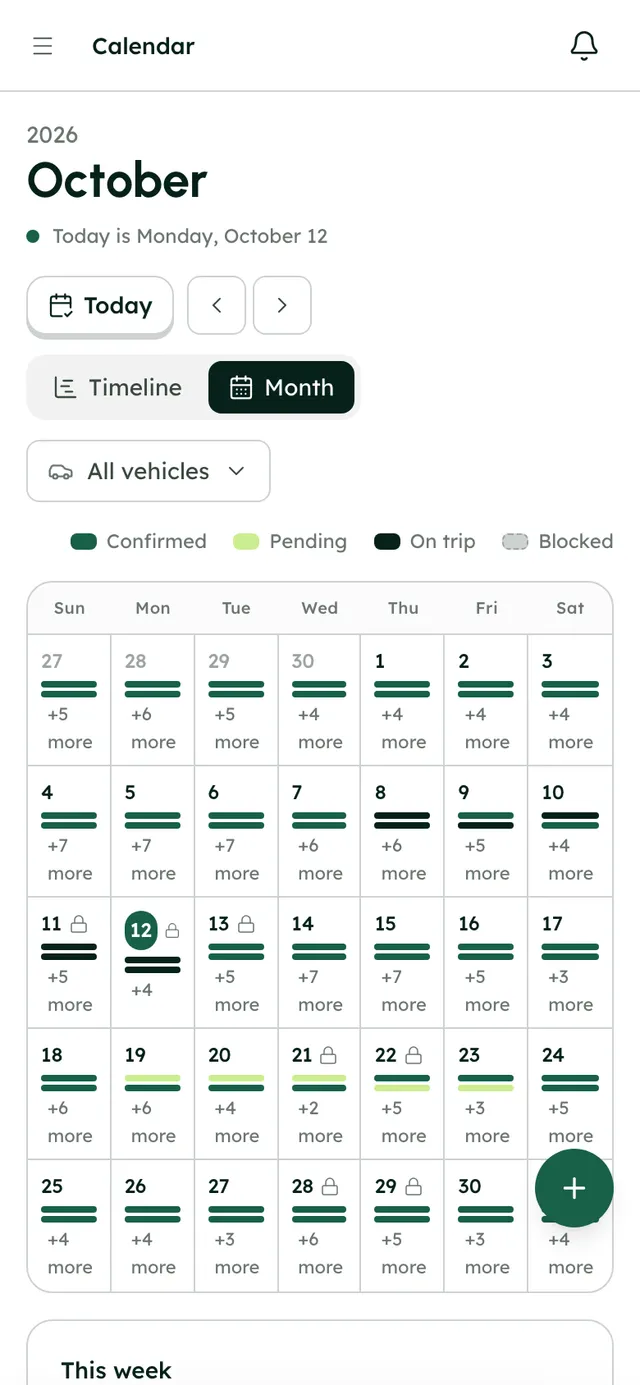
On every plan, from the first day of your trial.
How often each person finishes on time; only work they finished themselves counts.
The owner decides who gets each kind of task, and for which cars.
Each task posts a line to a team channel, #tasks unless you pick another.
Give each person only the sections they need, from calendar to settings, enforced by the server.
Add staff with a starting password; they get a welcome email, and you can deactivate them any time.
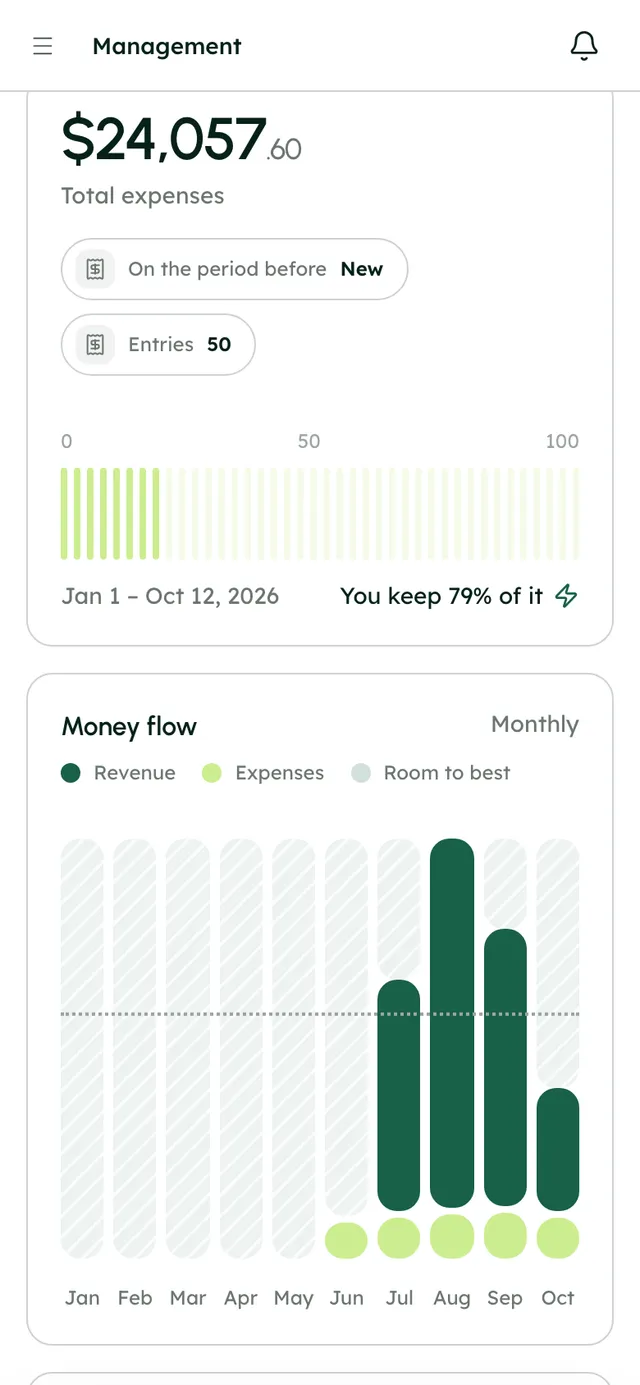
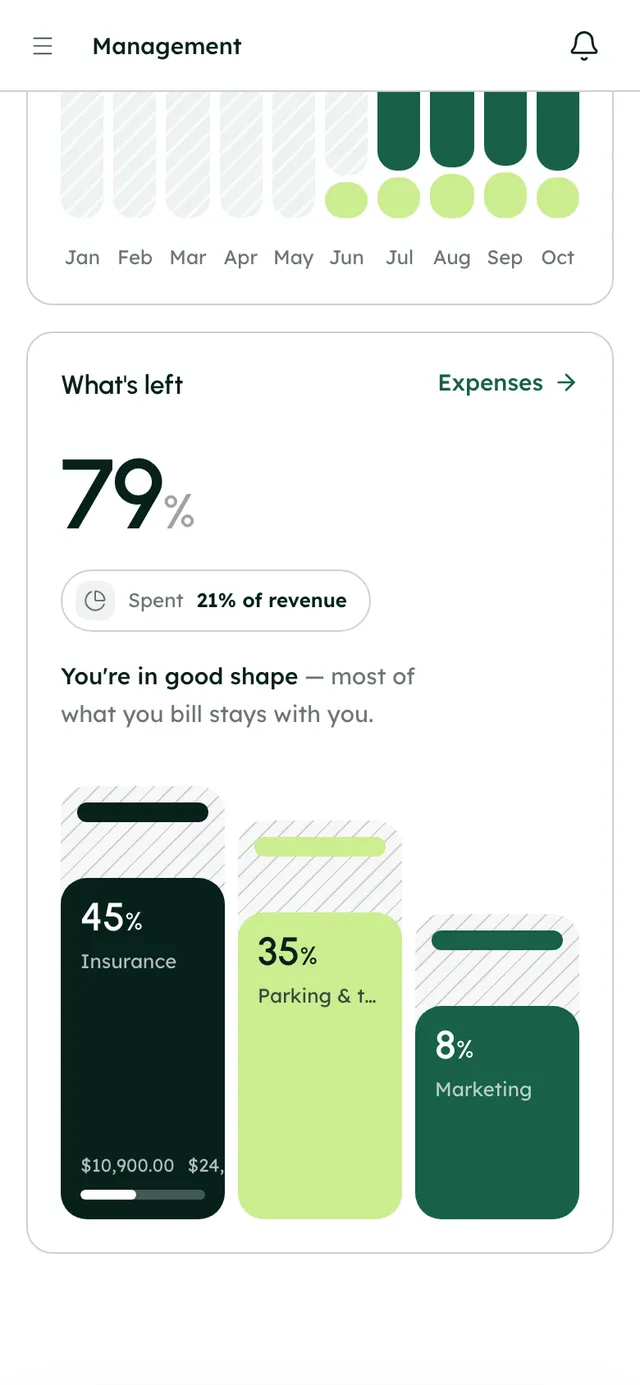
Costs by category and by car, with your top categories on the overview.
Bring expenses in from a spreadsheet with column mapping, and export them again.
Add manual and recurring income beside your bookings, with CSV export.
A digest every Monday and a monthly statement on the 1st.
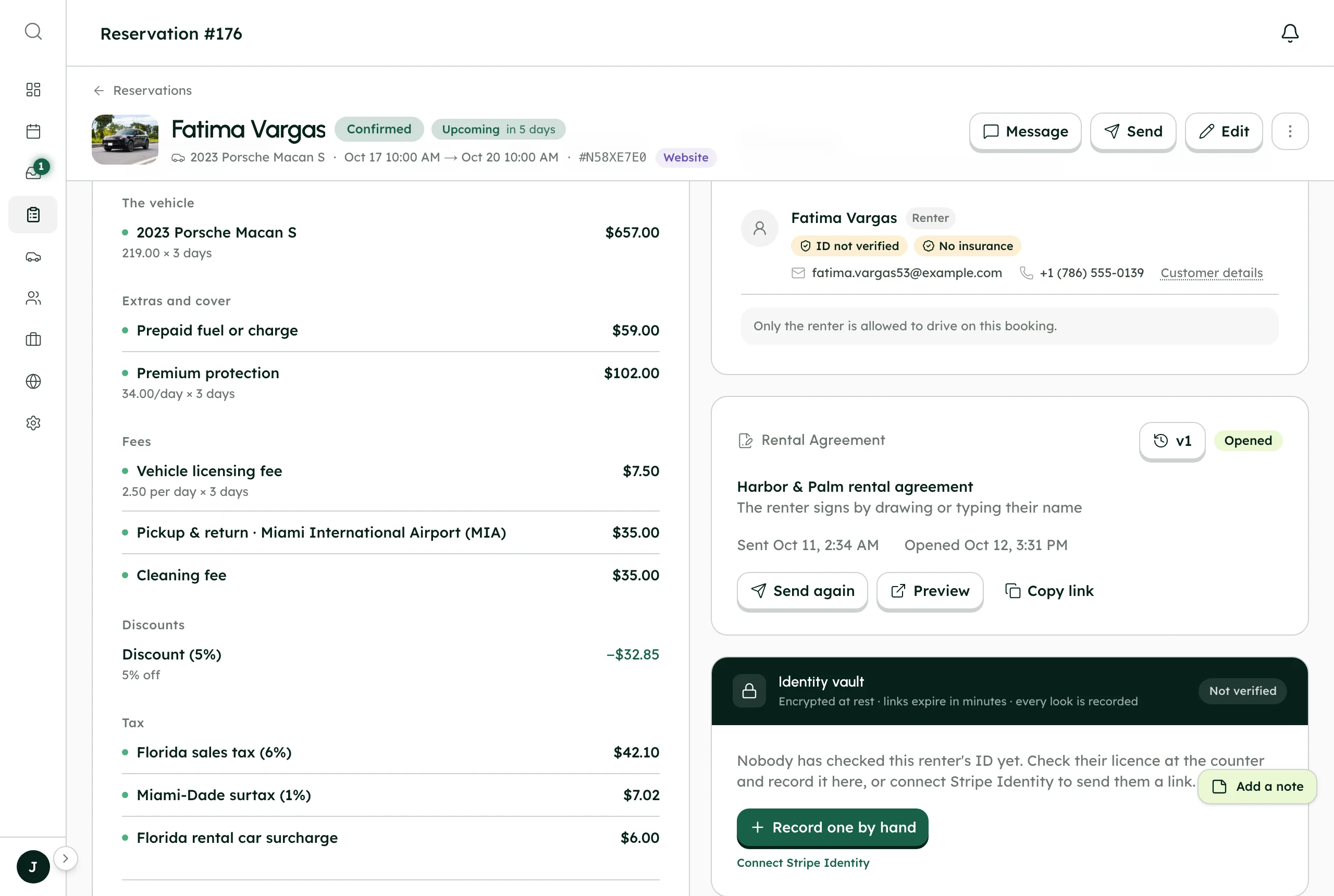
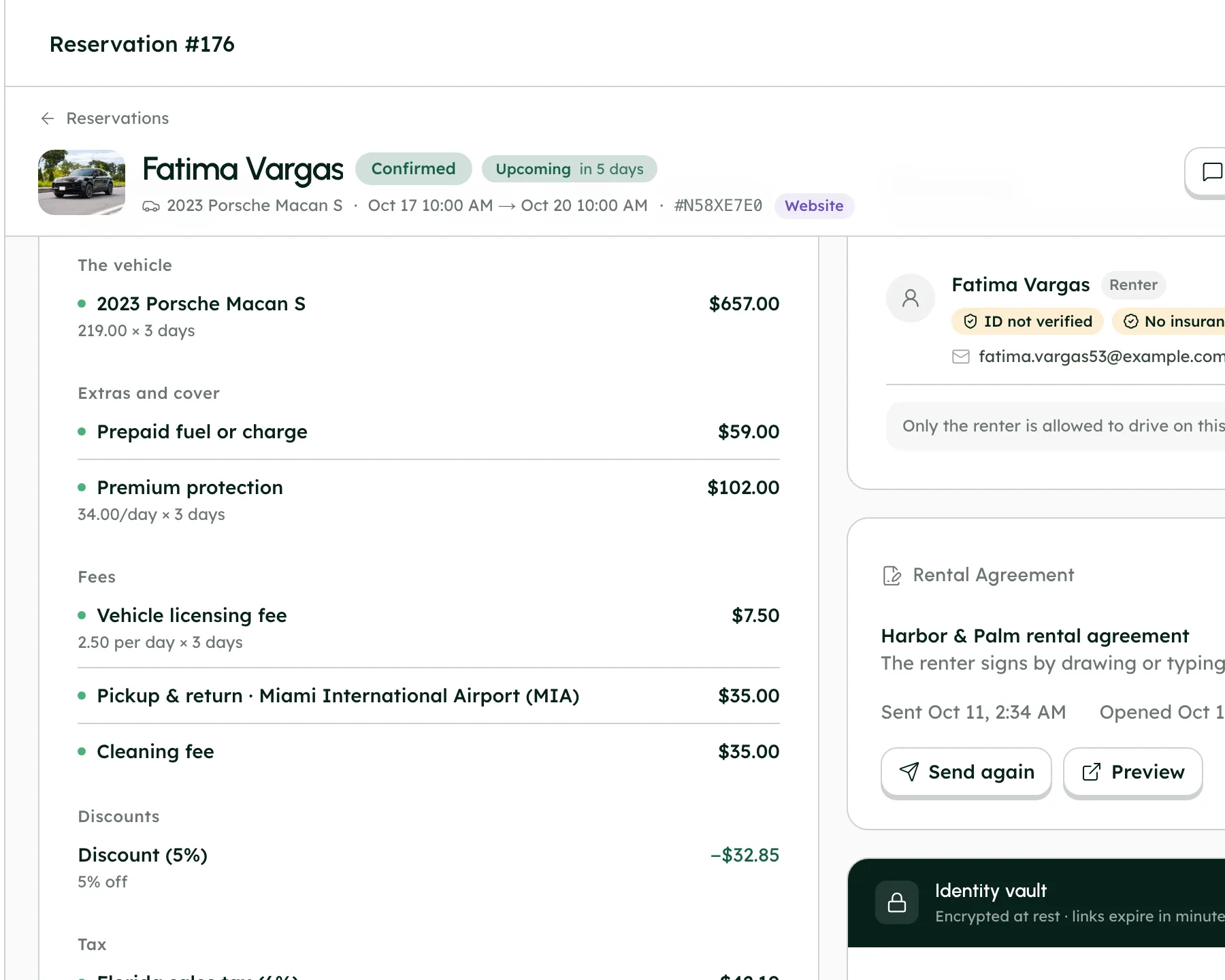
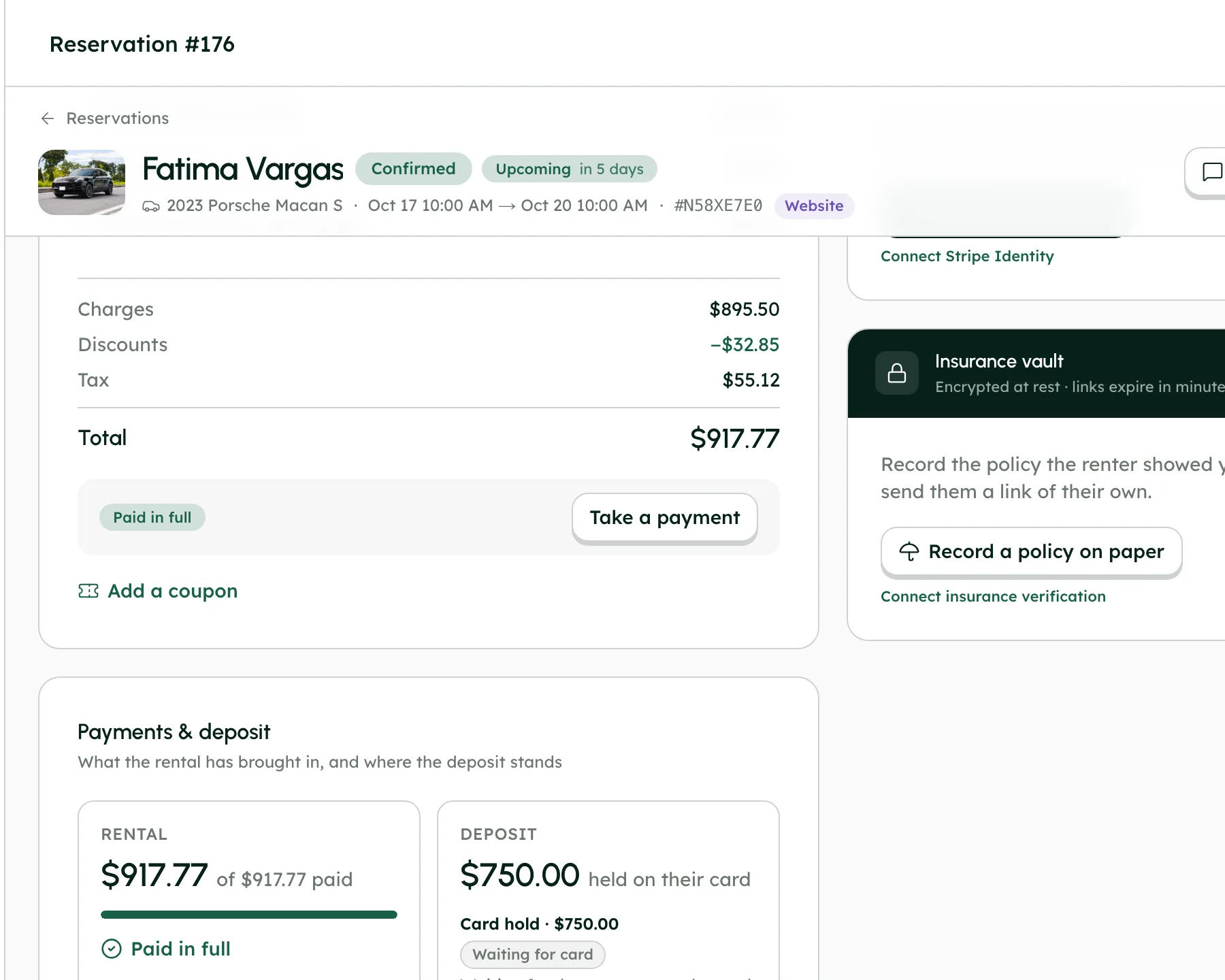
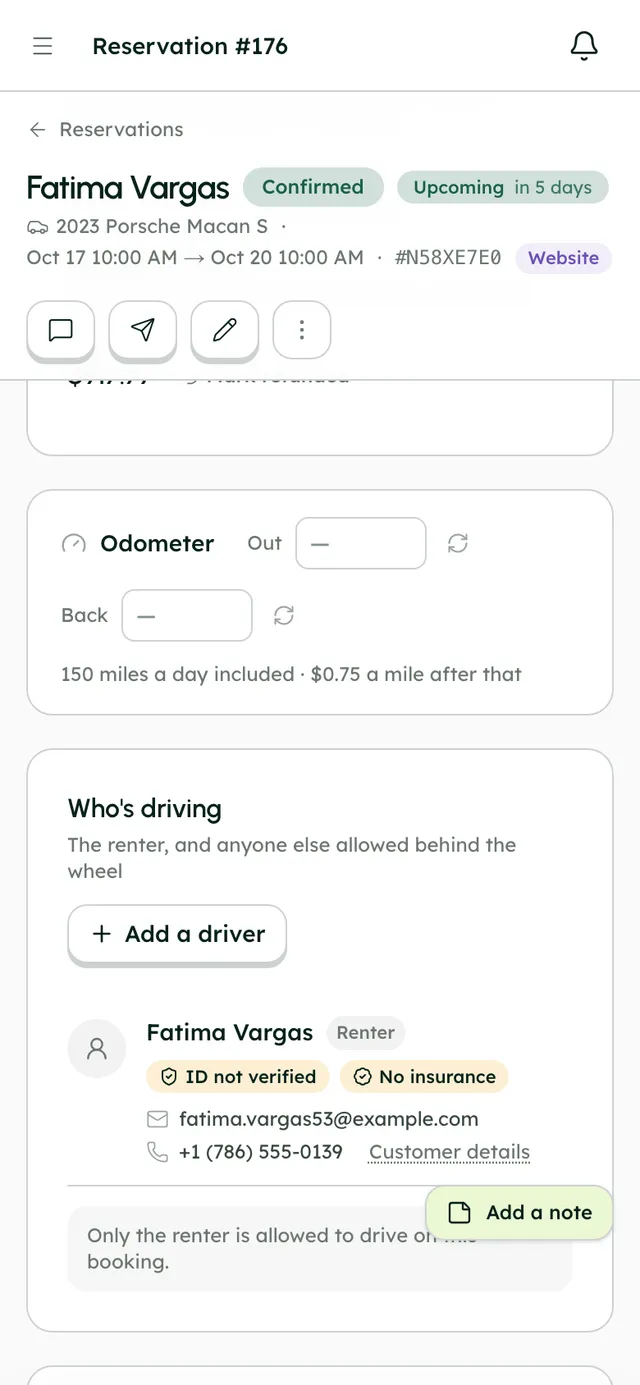
Follow Fatima's Porsche Macan S from chapter to chapter. Each one hands the booking on, so nothing is copied across by hand.
More in the Help Center, or email us any time.
Tasks sit on a board: To do, In progress, Stuck and Done. Built-in types such as checking a license, collecting payment, photos before and after the trip and settling a deposit create themselves from booking events and close themselves when the work is done, and rules can assign them automatically.
In Management → Maintenance, jobs move from Booked in to In the workshop to Back. Saving one blocks the car on the calendar and website, and you can attach the garage, photos and invoices; the cost is booked as an expense.
In Management → Expenses, add costs by category and vehicle, snap receipts with the in-app camera or upload them, set up recurring expenses, and import or export CSV.
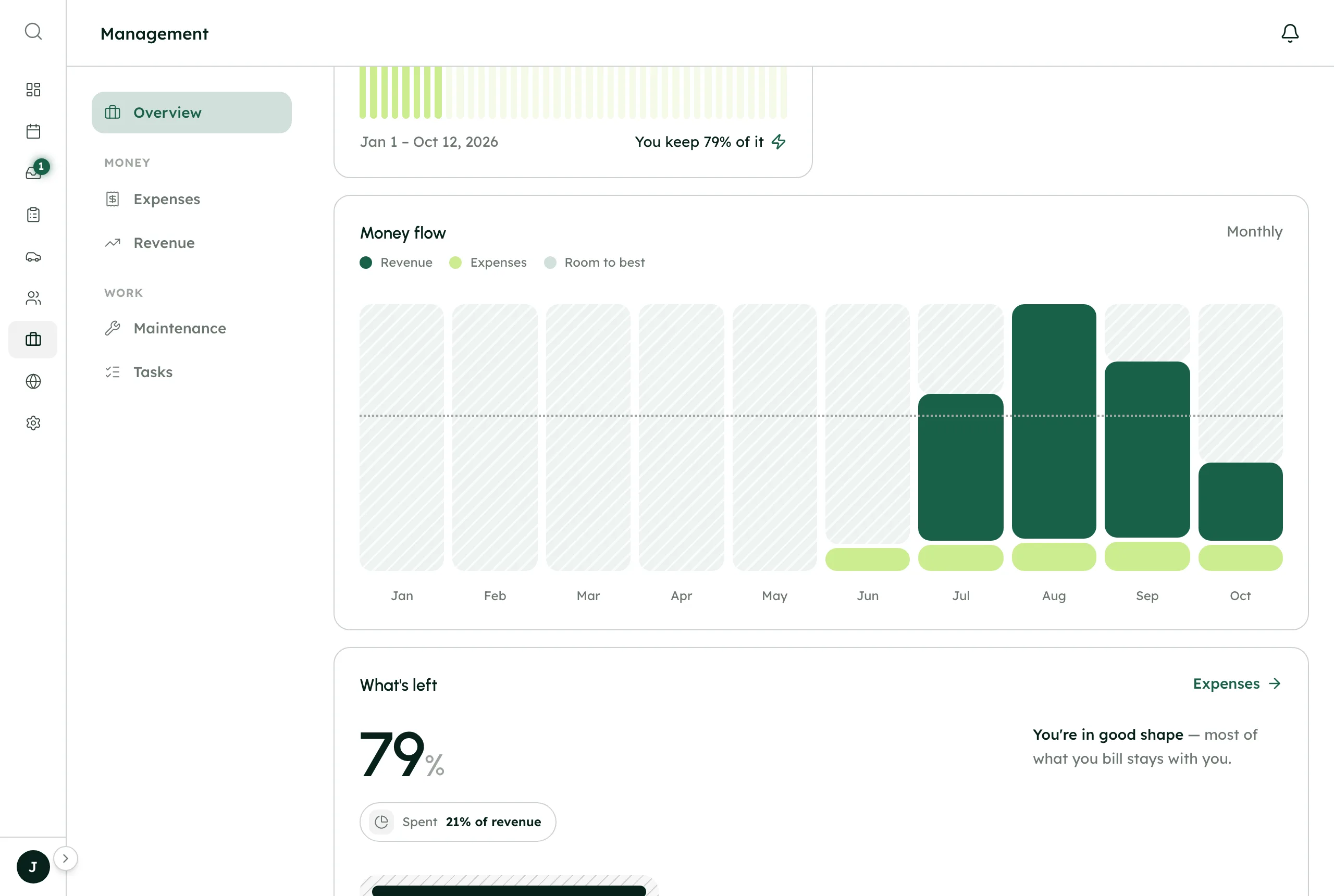
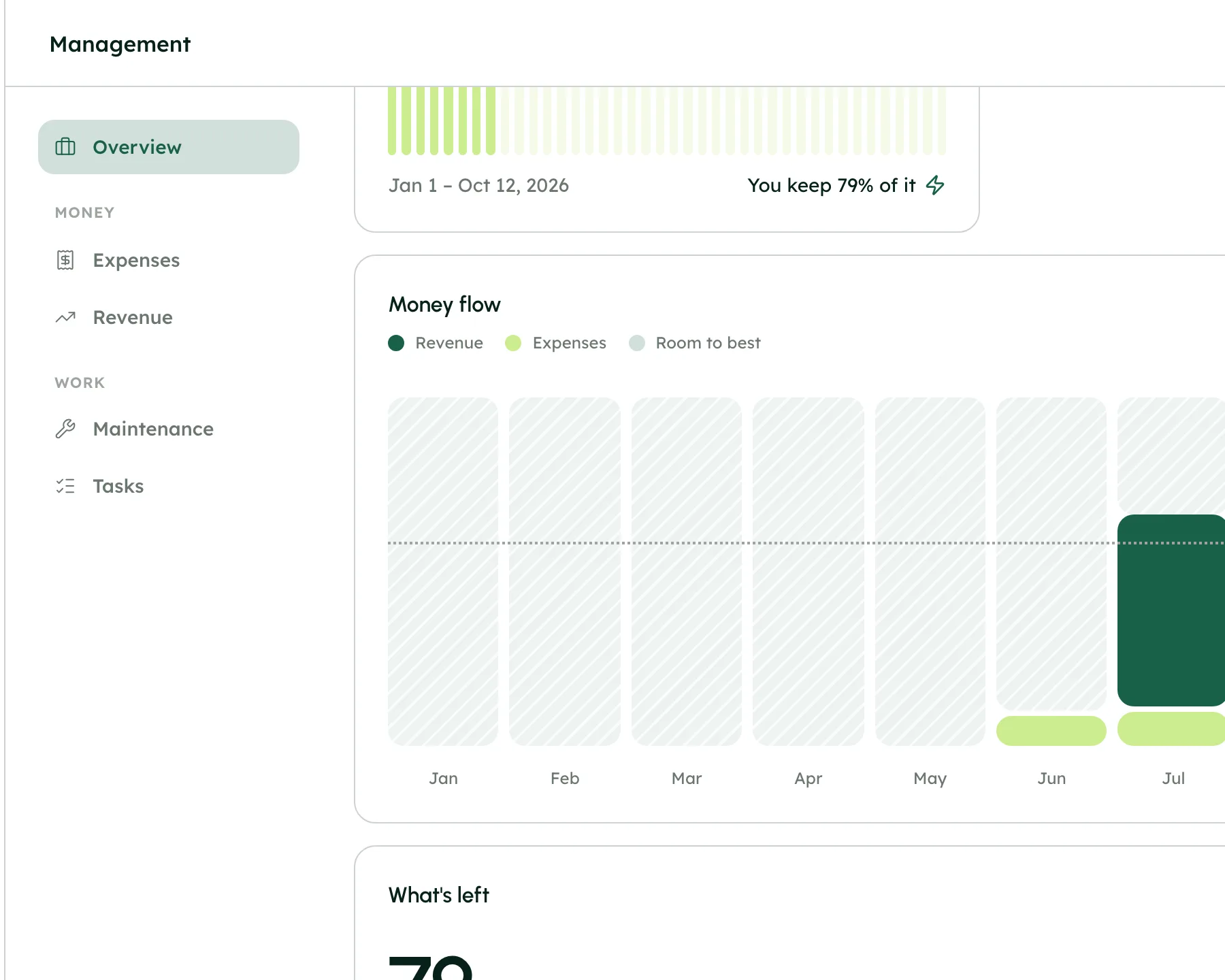
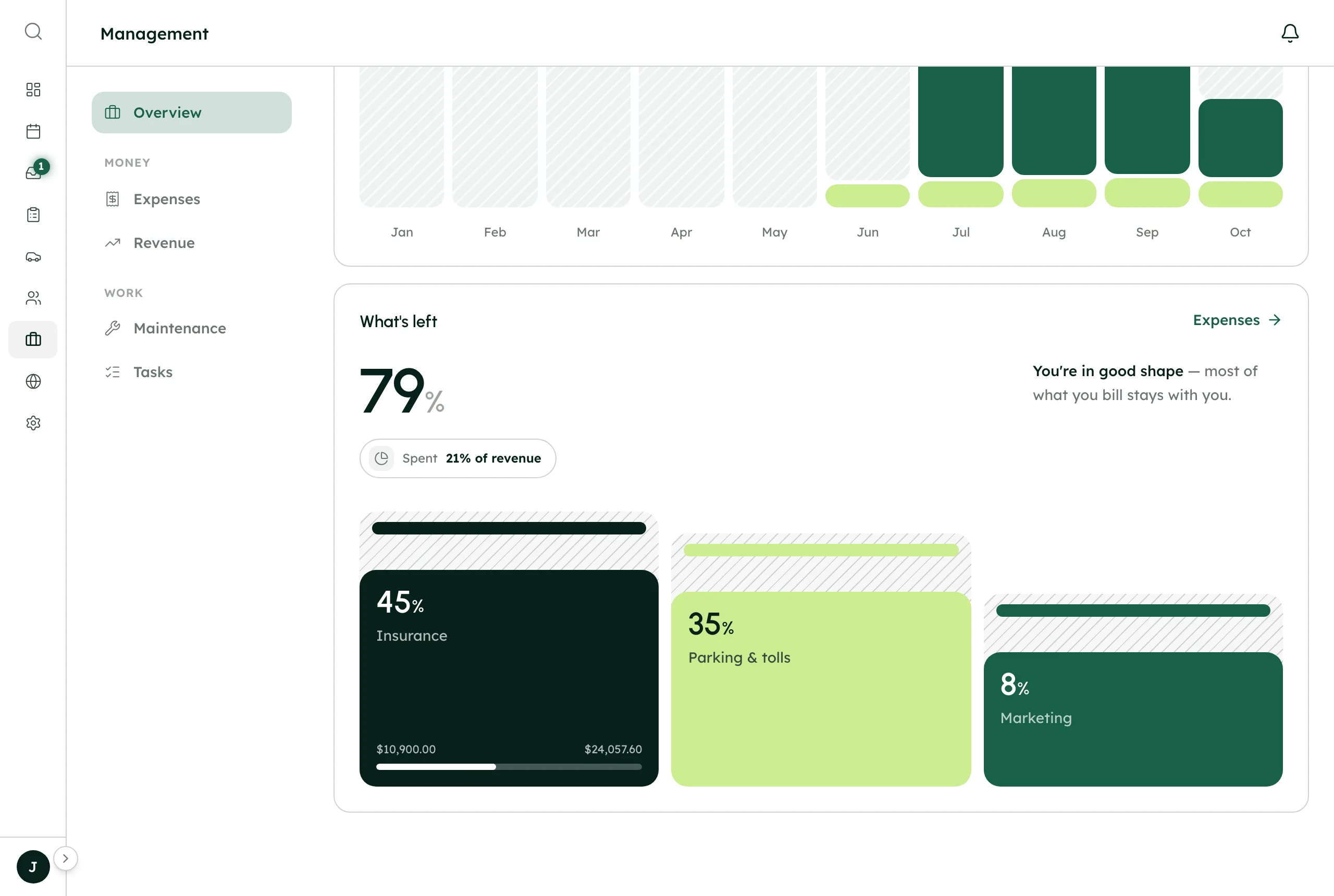
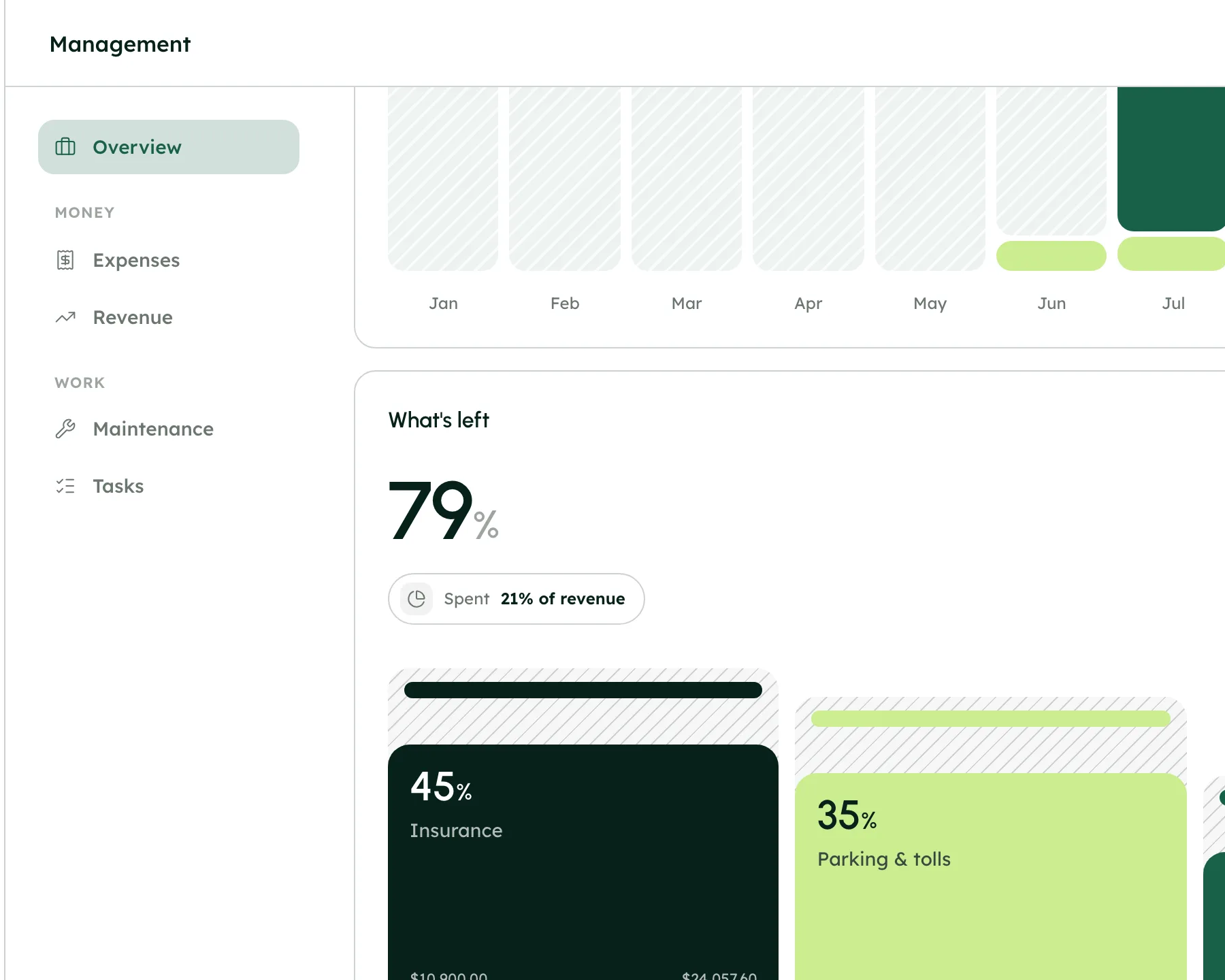
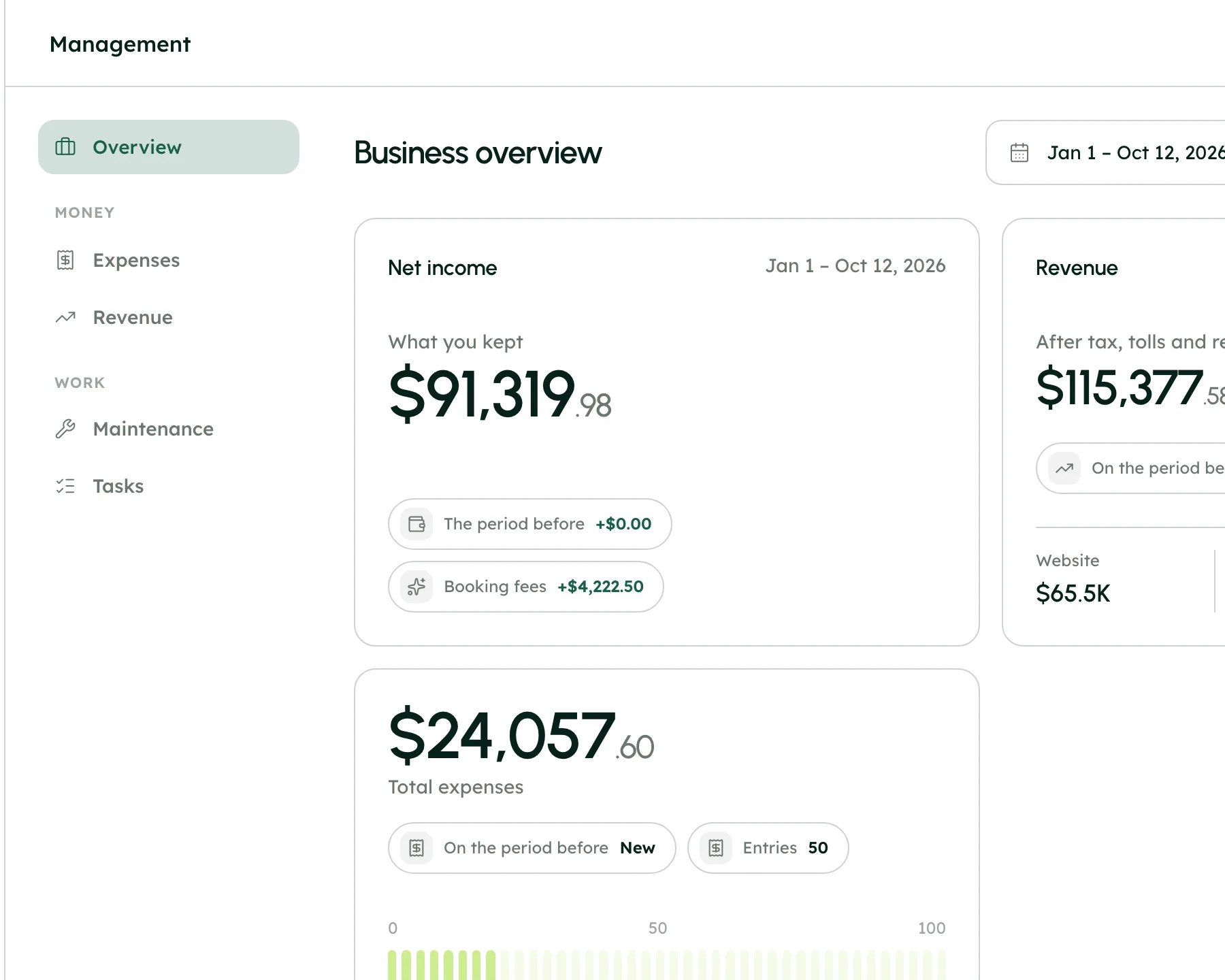
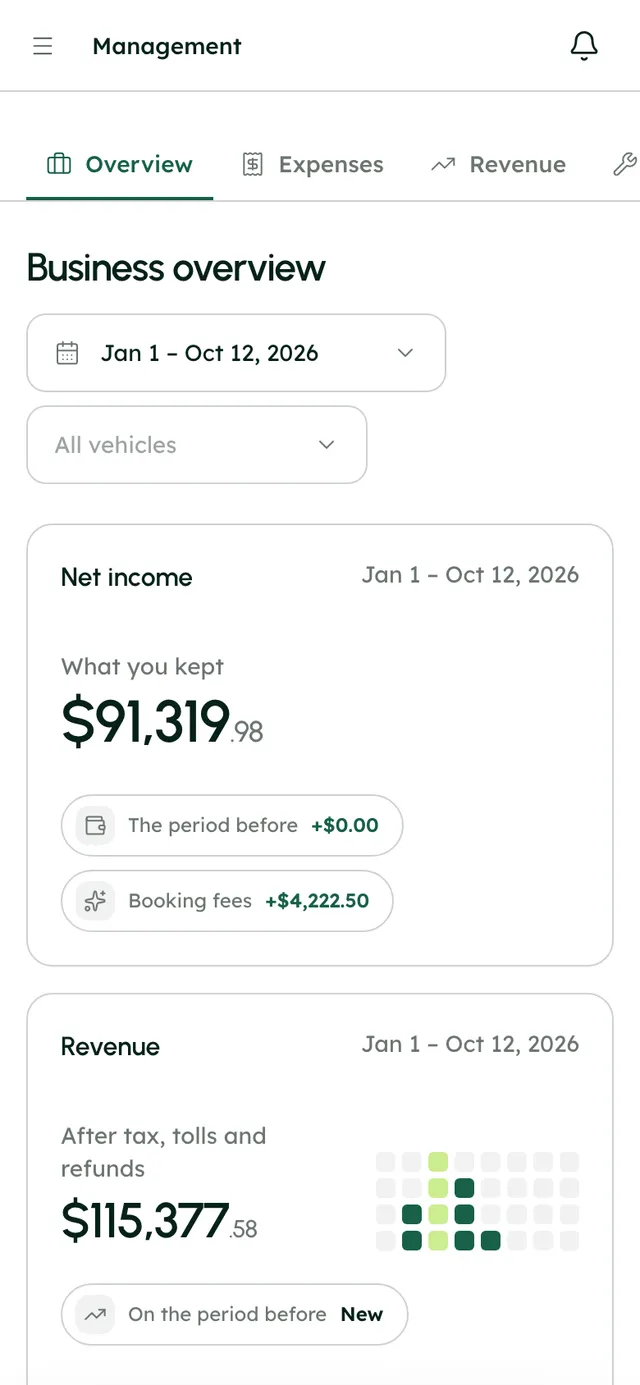
The Management overview shows your balance, income by source, expenses as a share of revenue, month-by-month money flow and top cost categories, filtered by date range and vehicle. You also get a weekly digest email on Mondays and a monthly statement on the 1st.
Yes. For each team member you pick the sections they can use, from the dashboard and calendar to the website and settings. The server enforces it, so a section that isn't granted can't be reached another way.
The account owner adds staff in Team Settings: their name, email, a starting password and the sections they can use. They get a welcome email, and you can remove their access at any time.
Start a 7-day free trial with no card, or book a call and we'll set it up with you.
0% commission · Cancel any time · 24/7 support by email