Set each car up once. Then see where it is, live.
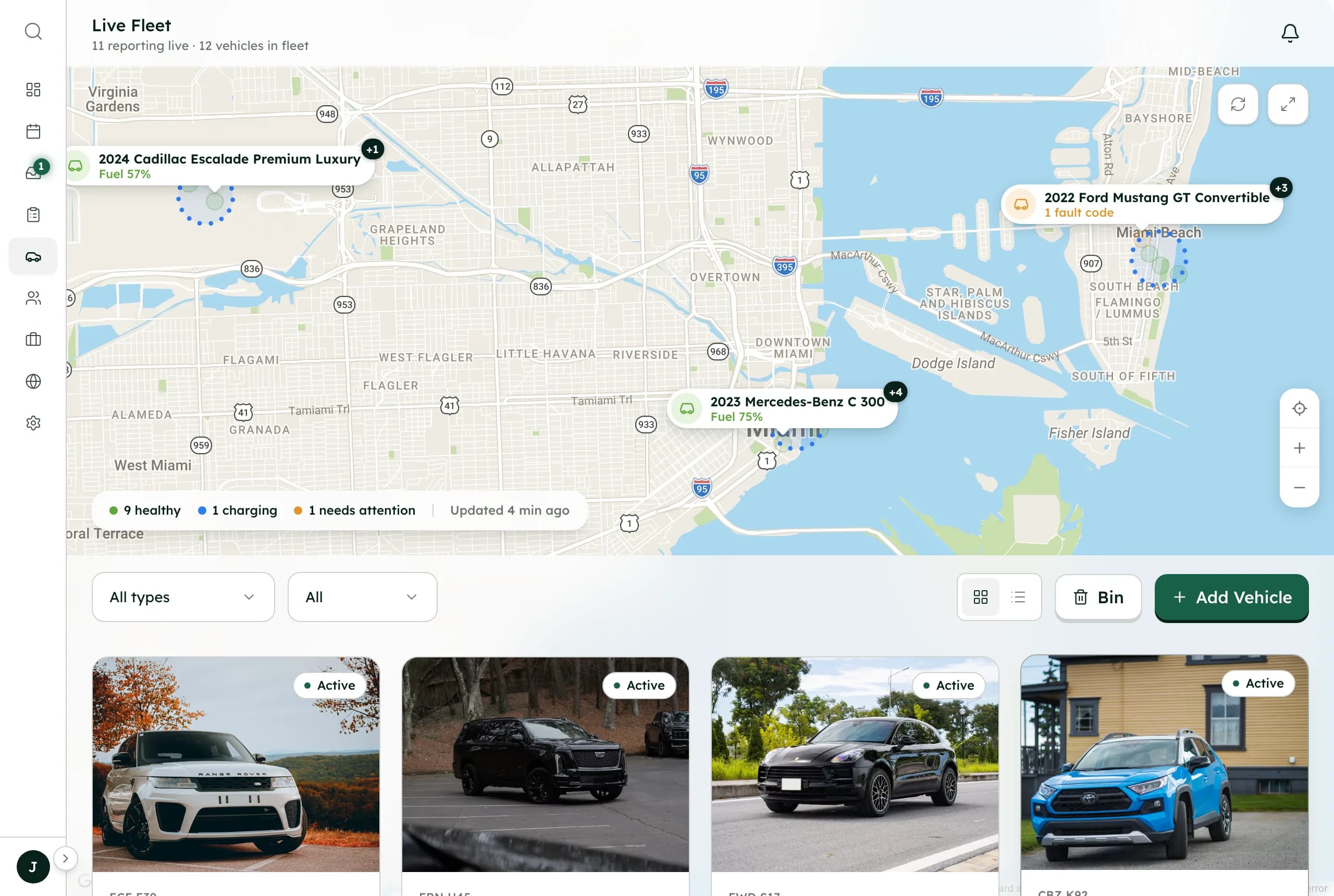
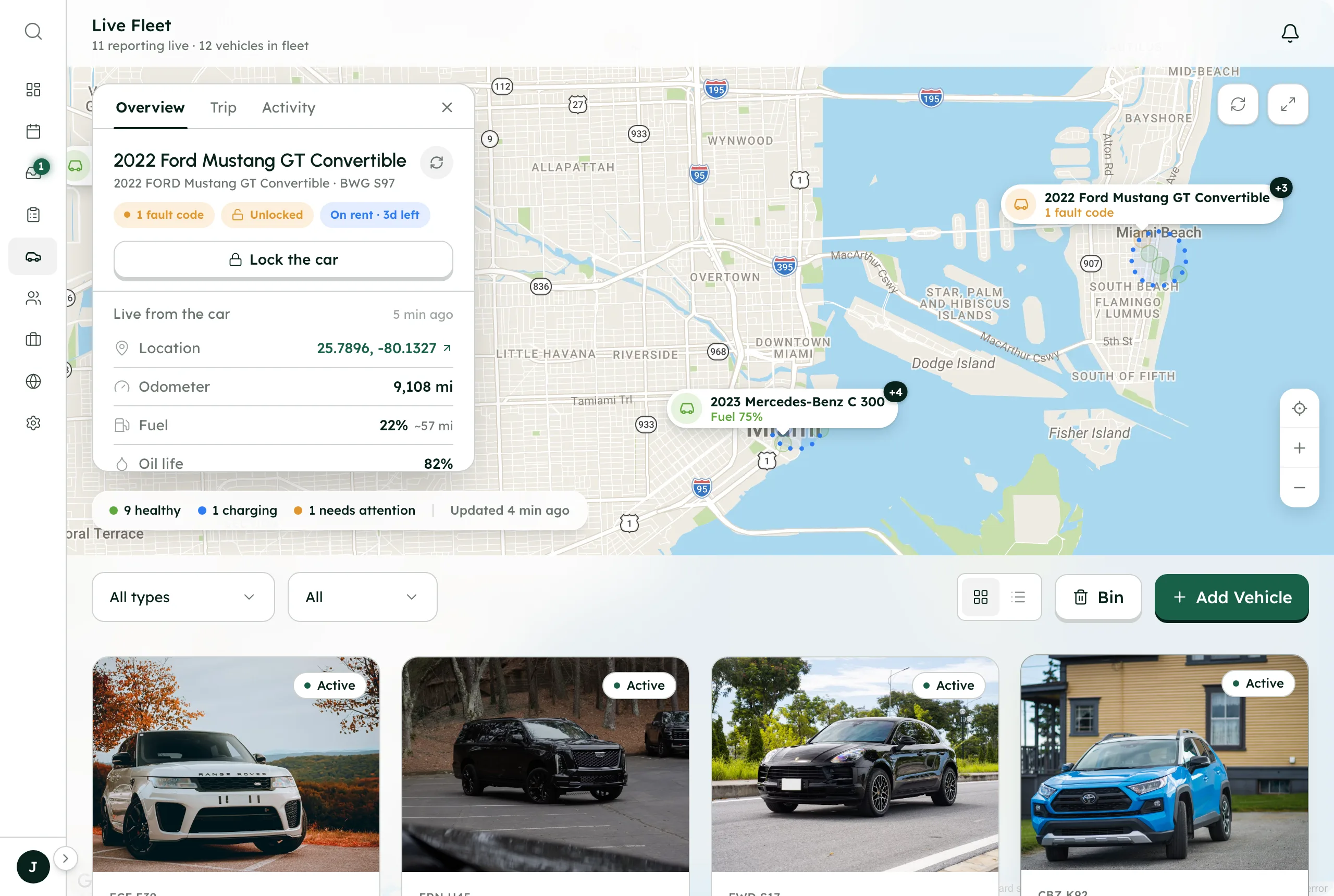
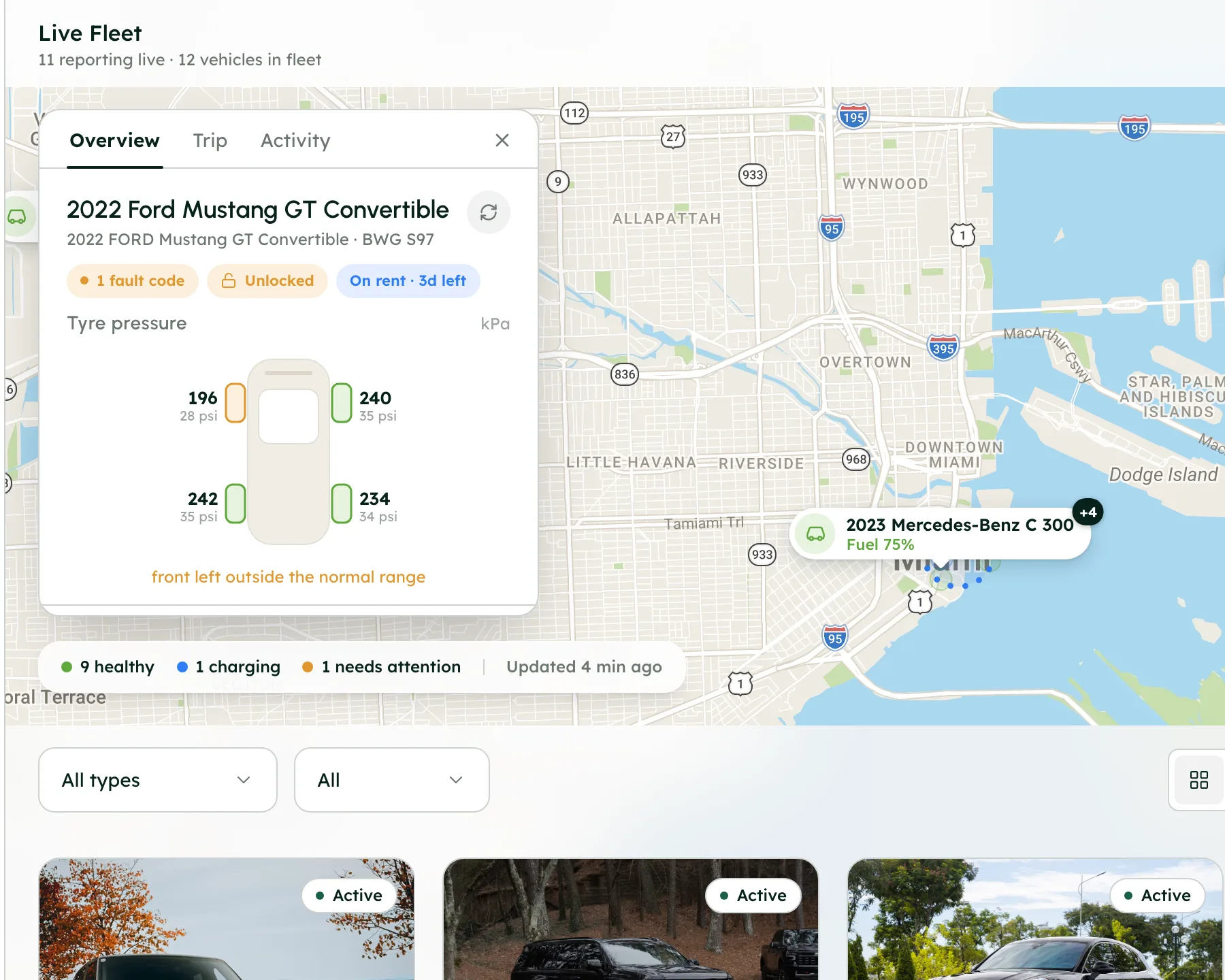
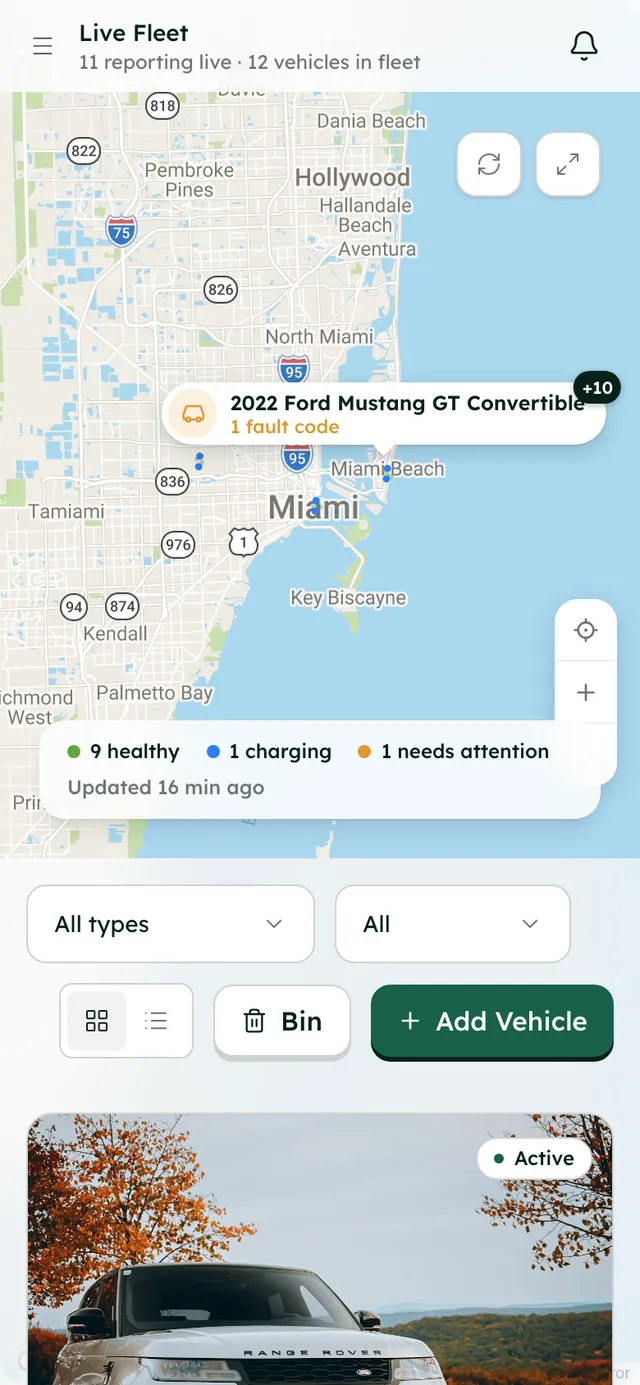
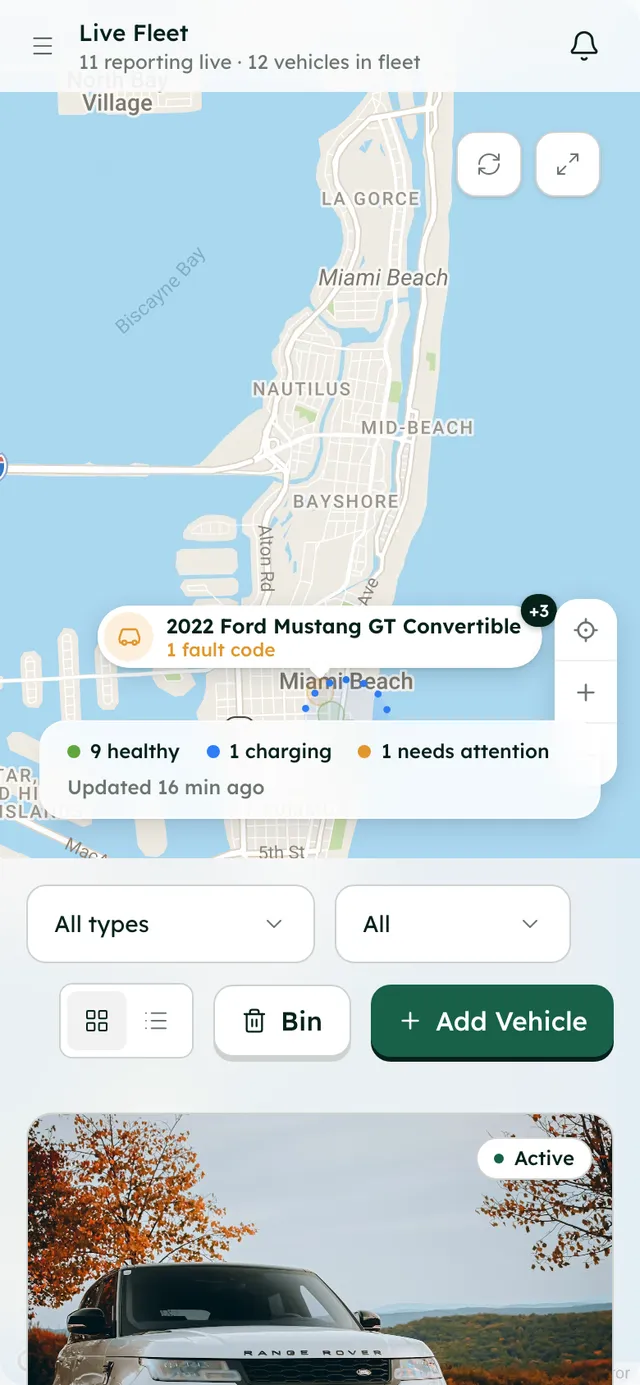
Add a car in a guided wizard, then let it follow your company defaults or give it its own rules. Connect it through Smartcar and see it on a live map with fuel, battery, range and tire pressure, and lock or unlock it from the app.
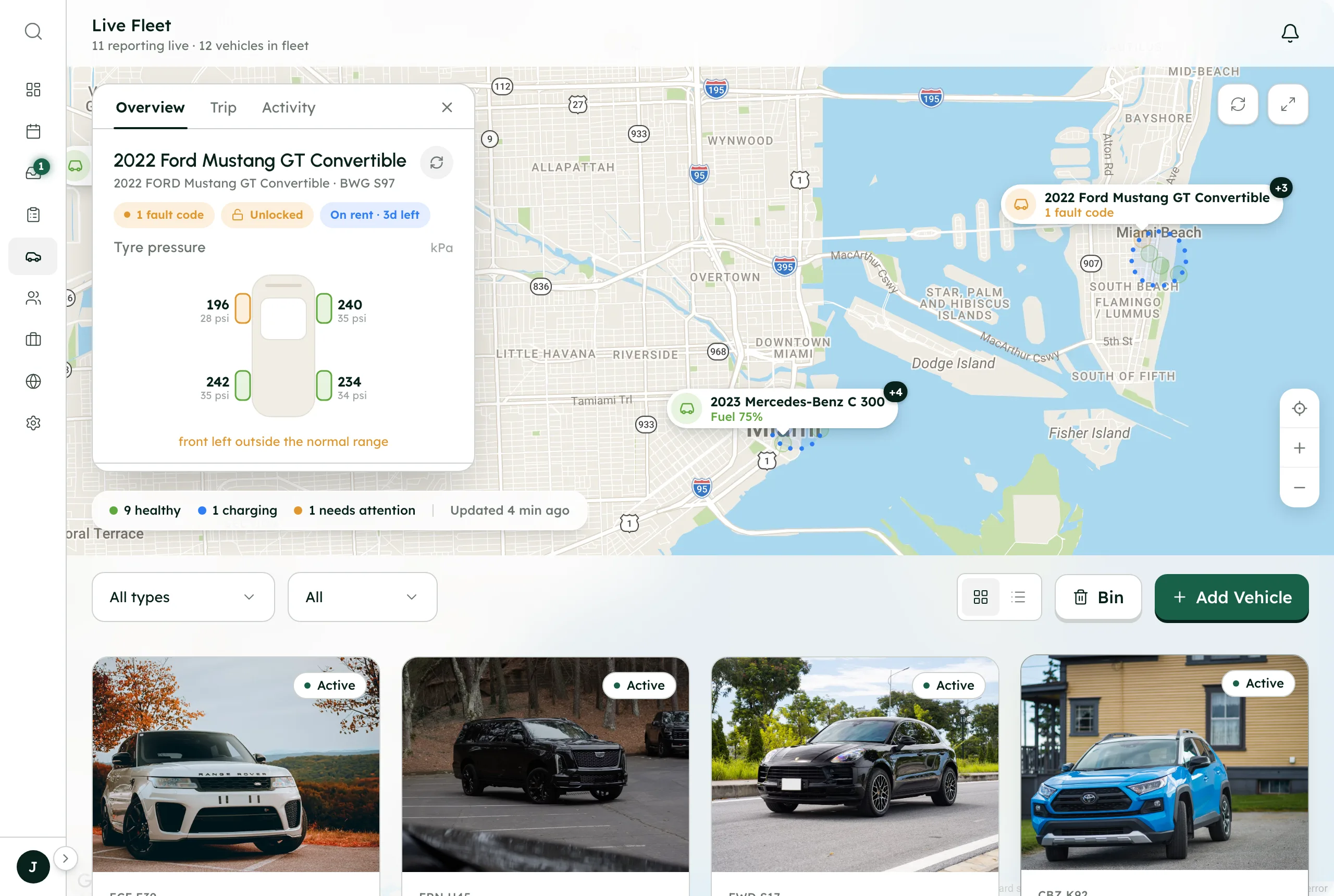
No trackers to fit, no mileage spreadsheet, no walk round the lot.
The moment
“Where is the car, how much fuel did it come back with, and how many miles over is that?”
The usual way
A mileage spreadsheet
odometer photos by textWalking the lot to check fuel
one car at a timePaper walkaround sheets
no time or place on themDriving over to unlock a car
a trip across townEach car's rules in your head
different for every car
With RentHive
RentHive
Fleet & live tracking
Smartcar, no hardware
A live map through the car itself; Smartcar bills per car
Odometer at handover
From the car or typed; overage suggested as a charge
Fuel, battery and tires
Levels and tire pressure for every connected car
In-app trip photos
Time, location, device and a checksum on each
Lock and unlock
From the app, on a connected car
Per-car settings
Company defaults, with exceptions per car
The car reports in. You don't have to go and look.
Connect your cars through Smartcar and the car itself tells RentHive where it is and what it needs.
Automatic4 of 5 steps happen without anyone doing them
- RentHive · automatic
Every car on one map
Location, fuel or charge and range, live from the car. No tracker to fit.
- RentHive · automatic
The odometer is read at pickup and return
Straight from the car when it's connected, or typed at the handover, and marked with where it came from.
- RentHive · automatic
Extra miles are priced for you
Over the trip's allowance? The overage is worked out at your rate and suggested, with the sums shown. You add it to the invoice.
- RentHive · automatic
A soft tyre is flagged before the next renter
Tyre pressure and fault codes show on the map and the car's panel. Lock or unlock from there.
- Andre · teammate
Trip photos keep the record straight
Photos from the trip camera are stamped with time and place, on the booking.

 live from the car
Company defaults, with per-car exceptions.
- Photos converted to WebP, location data stripped
- Min and max days, advance notice, pickup and return times
- Its own change and cancellation policy if you want

2022 Land Rover Range Rover Sport HSE

2024 Cadillac Escalade Premium Luxury

2023 Porsche Macan S
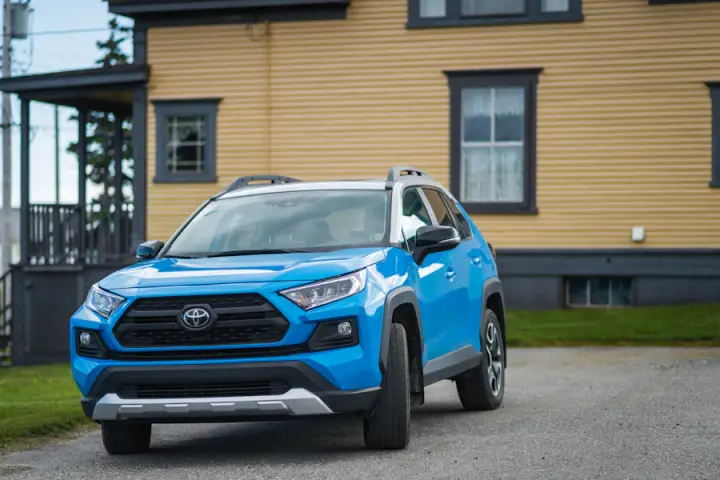
2023 Toyota RAV4 Hybrid XLE
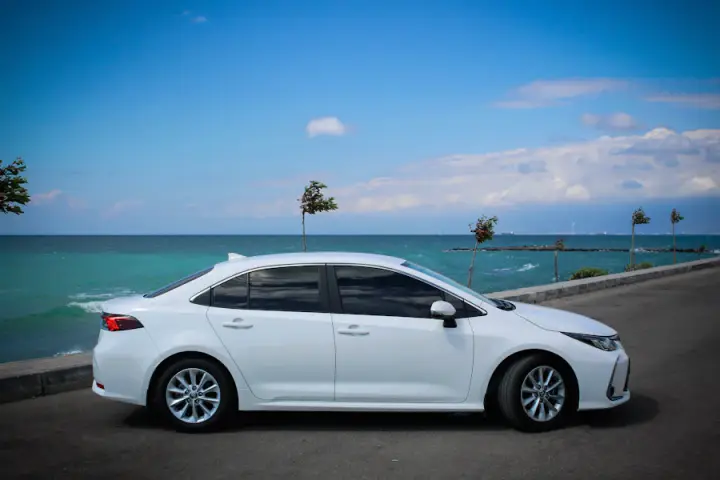
2024 Toyota Corolla LE
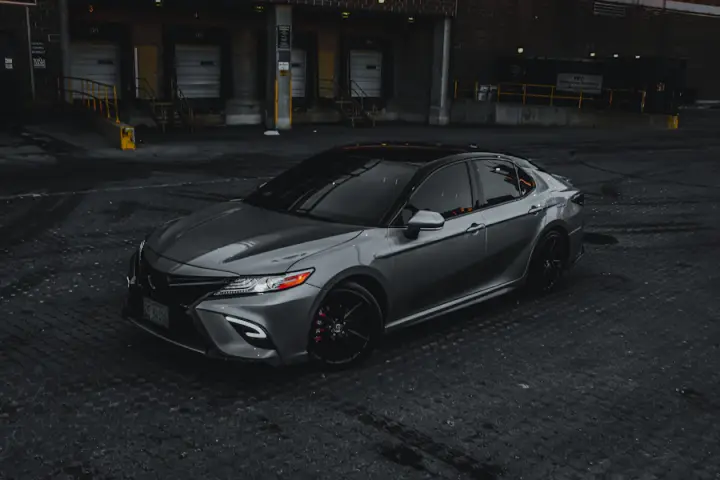
2024 Toyota Camry SE
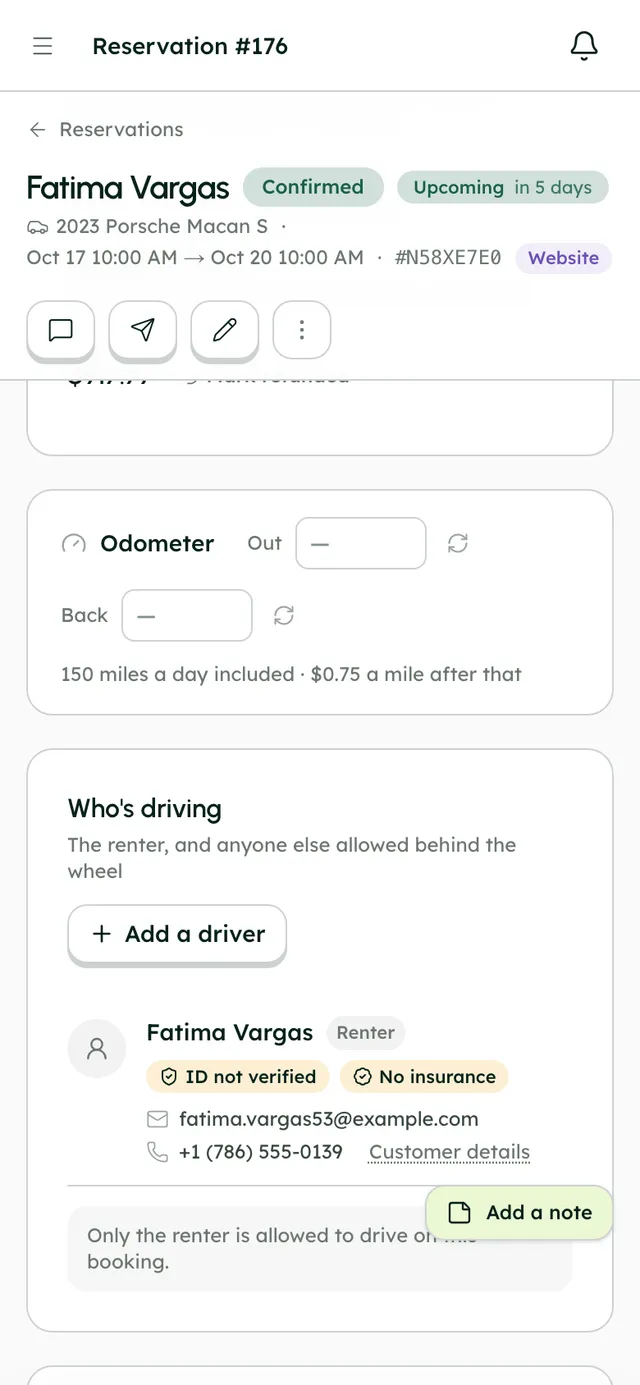
Odometer, photos and mileage at every handover.
- Renters can shoot their own handover photos by link
- Trip photos are never truly deleted
- A trip map with the route and fuel at pickup vs return
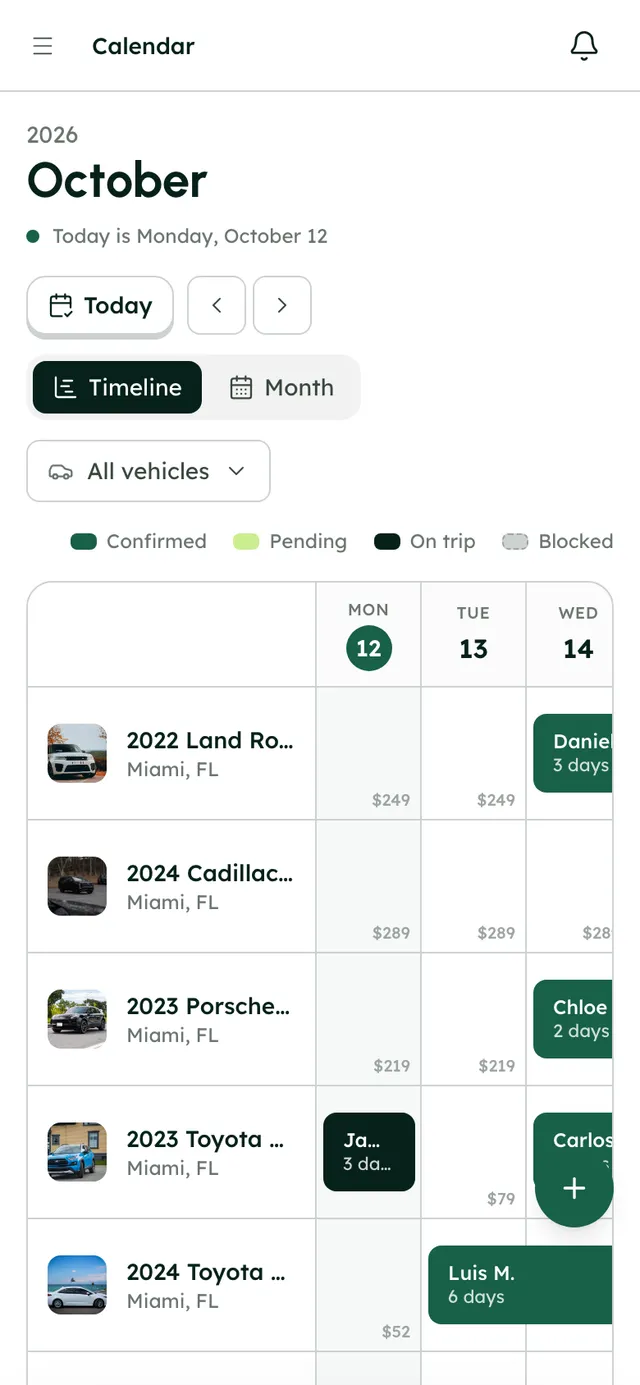
Off sale when it should be, back when it's ready.
- Maintenance jobs block the calendar and website
- Blocks from any empty calendar cell
- A 30-day bin for deleted cars
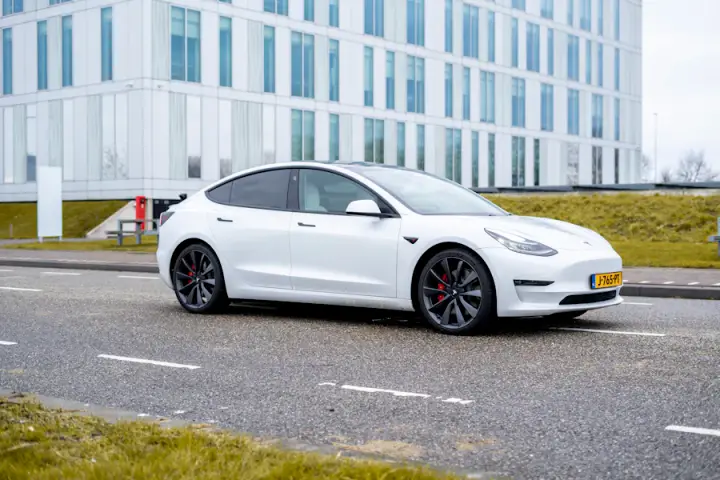 Tesla Model 3Miami Beach
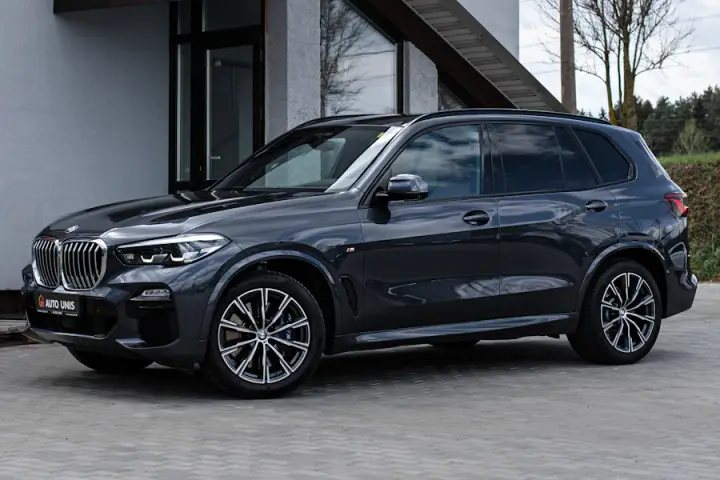 BMW X5Brickell
 Mustang GT ConvertibleMiami Beach
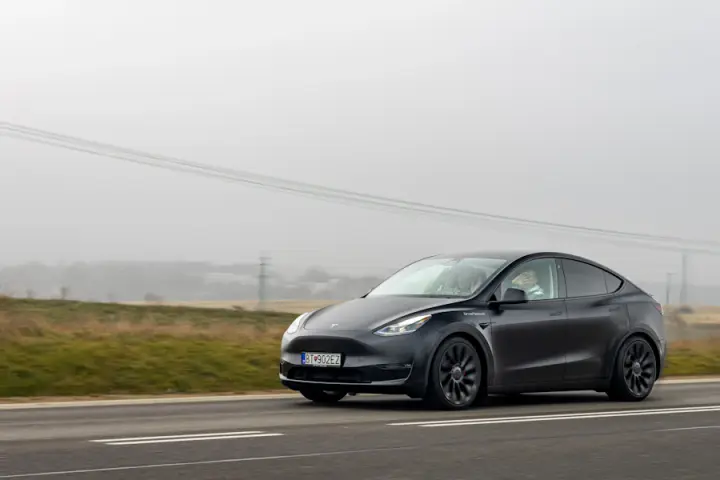 Tesla Model YMIA Airport
 Jeep WranglerBrickell
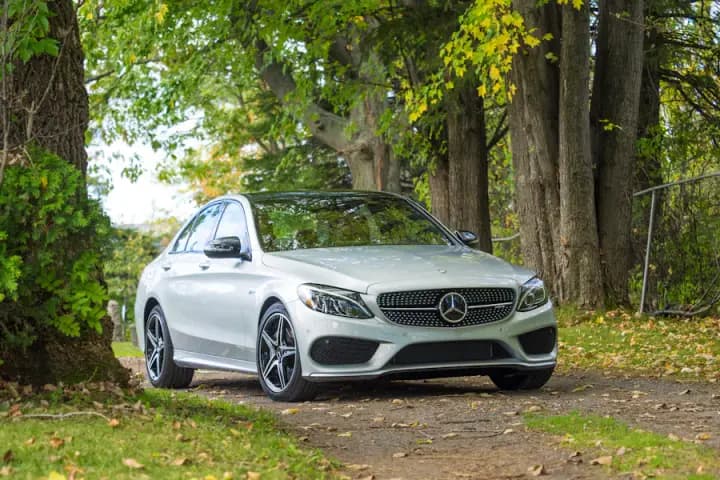 Mercedes C 300Miami Beach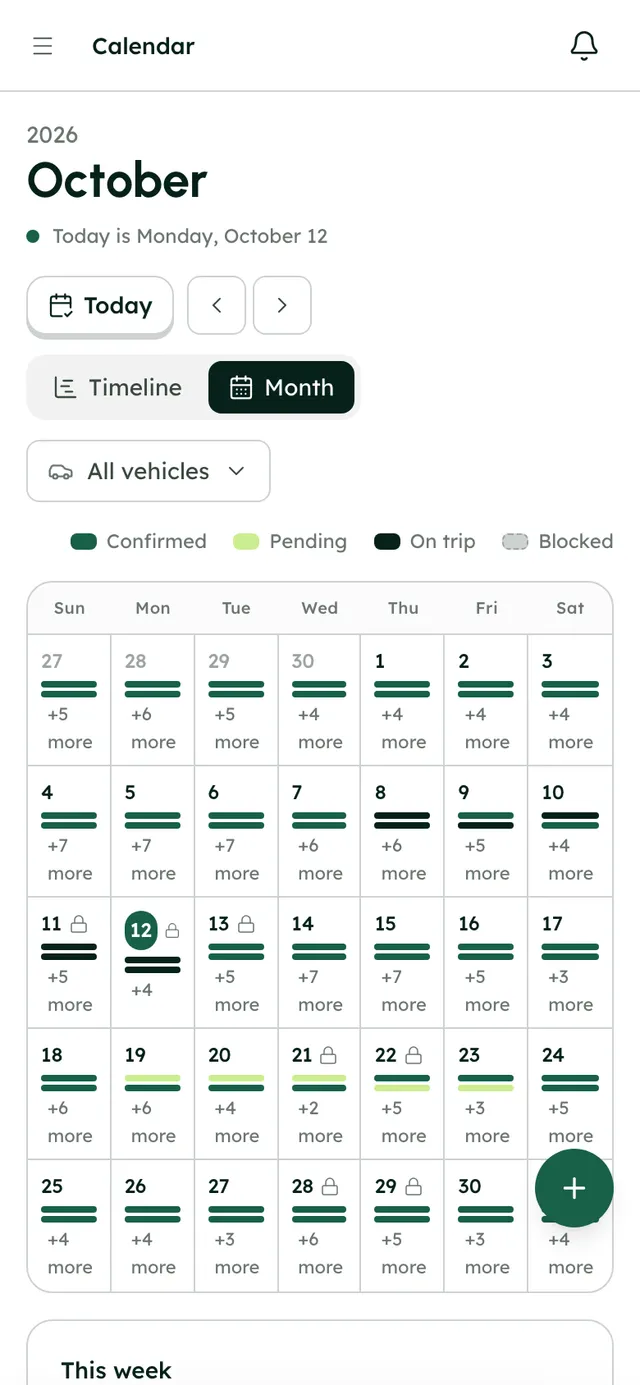
More in Fleet & live tracking
On every plan, from the first day of your trial.
Live fleet map
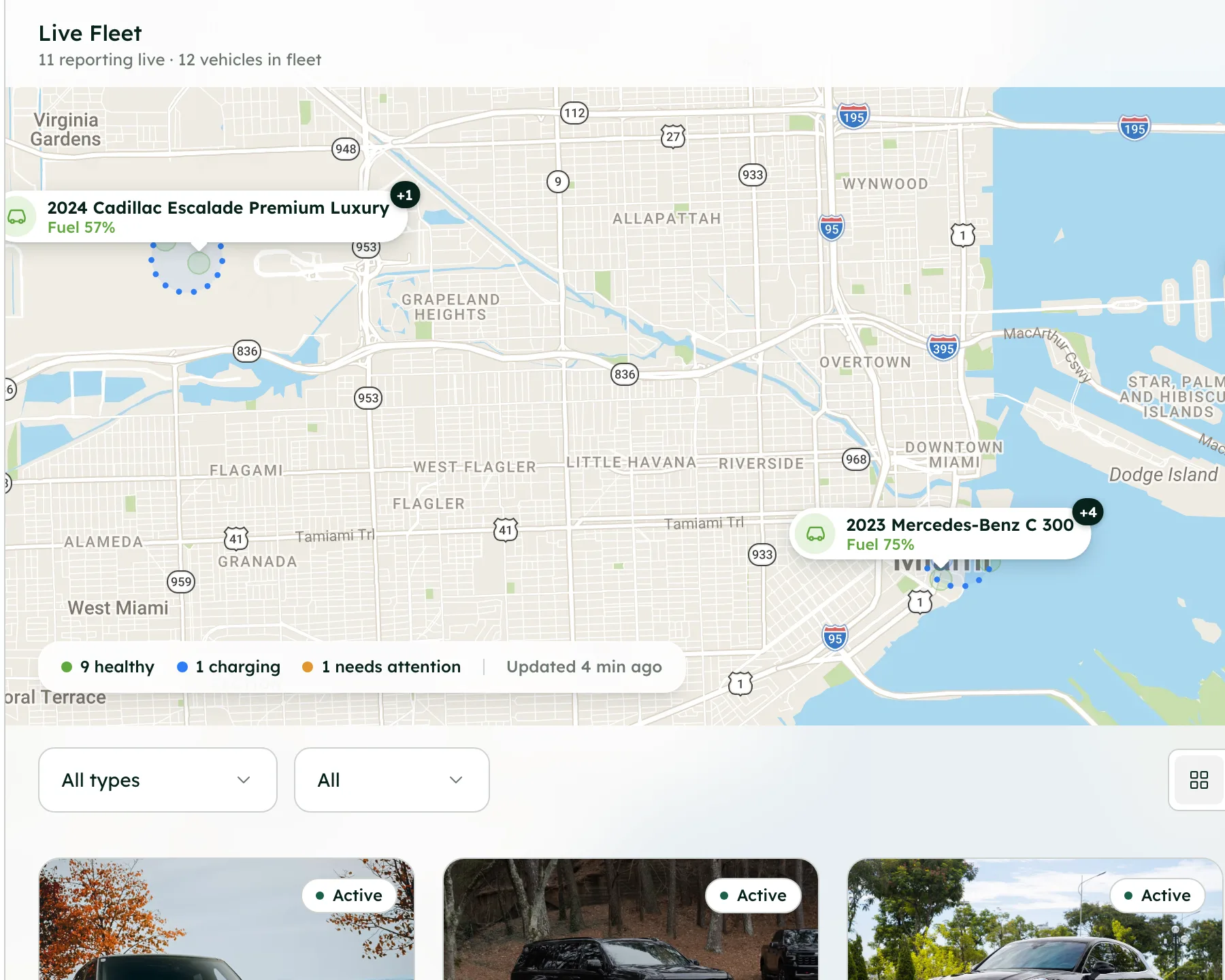
Every connected car on one map, marked healthy, charging or needing attention.
Fuel, battery and range
Current levels and charging state for each connected car.
Tire pressure and oil life
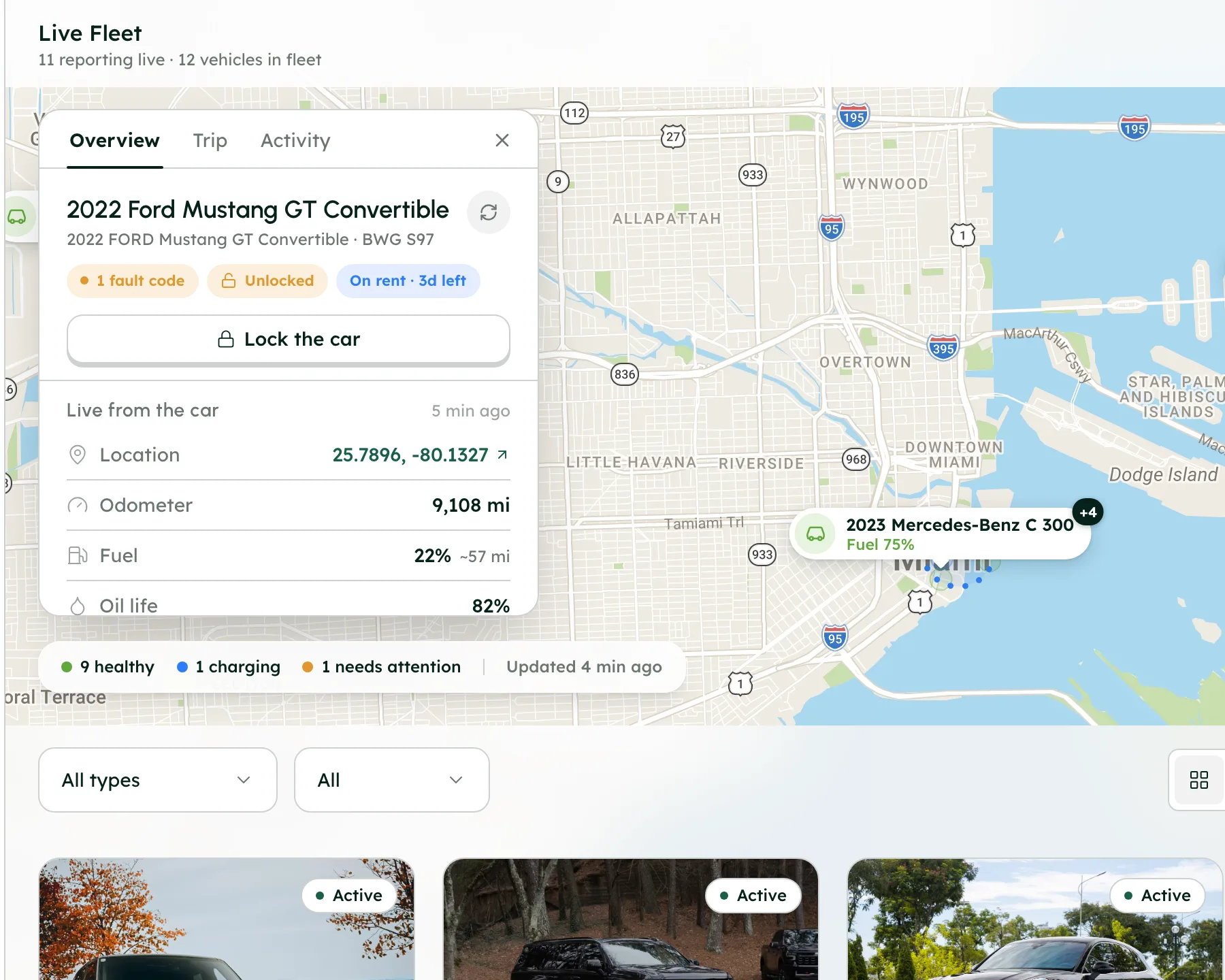
Pressure for each tire, oil life, the odometer and any fault codes.
Lock and unlock
Lock or unlock a connected car from the app.
Start or stop charging
Control charging on a connected electric car.
A day's route
See where a car went on the day you pick.
Command log
Every lock, unlock and charging command, recorded.
No hardware
Smartcar connects through the car itself, so there's nothing to fit.
Mileage allowance
Set included miles and an extra-mile fee for the company or per car.
One booking, handed on.
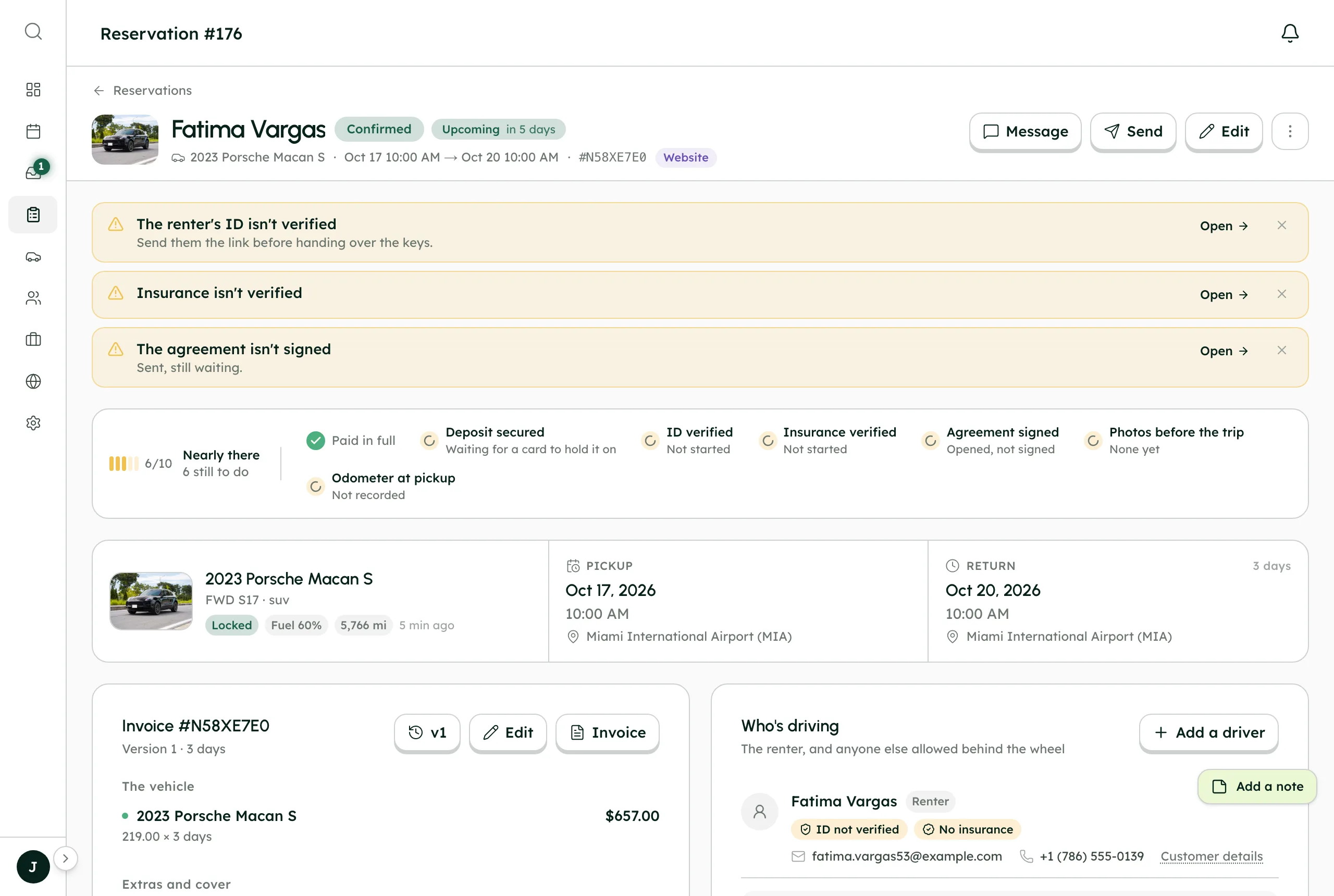
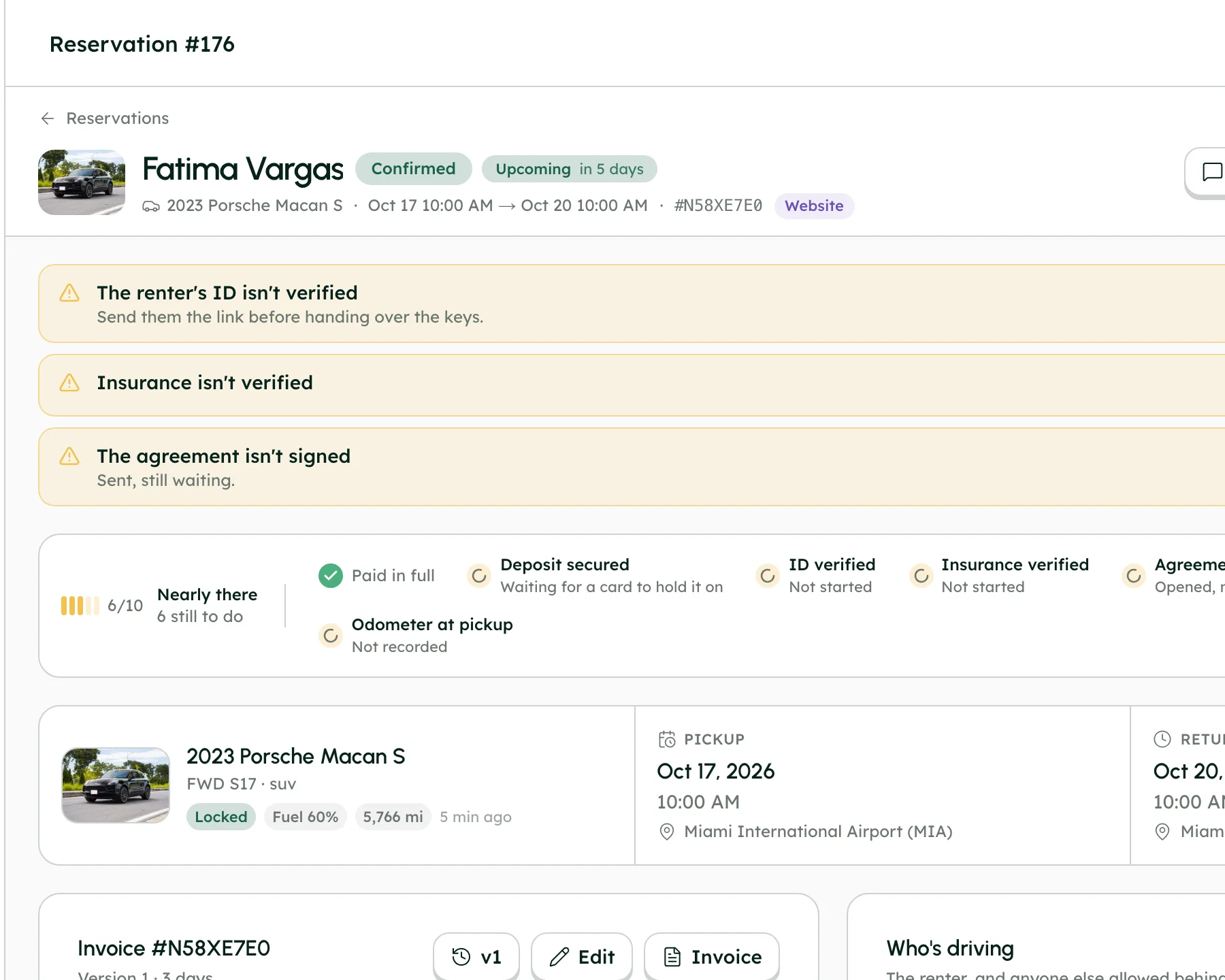
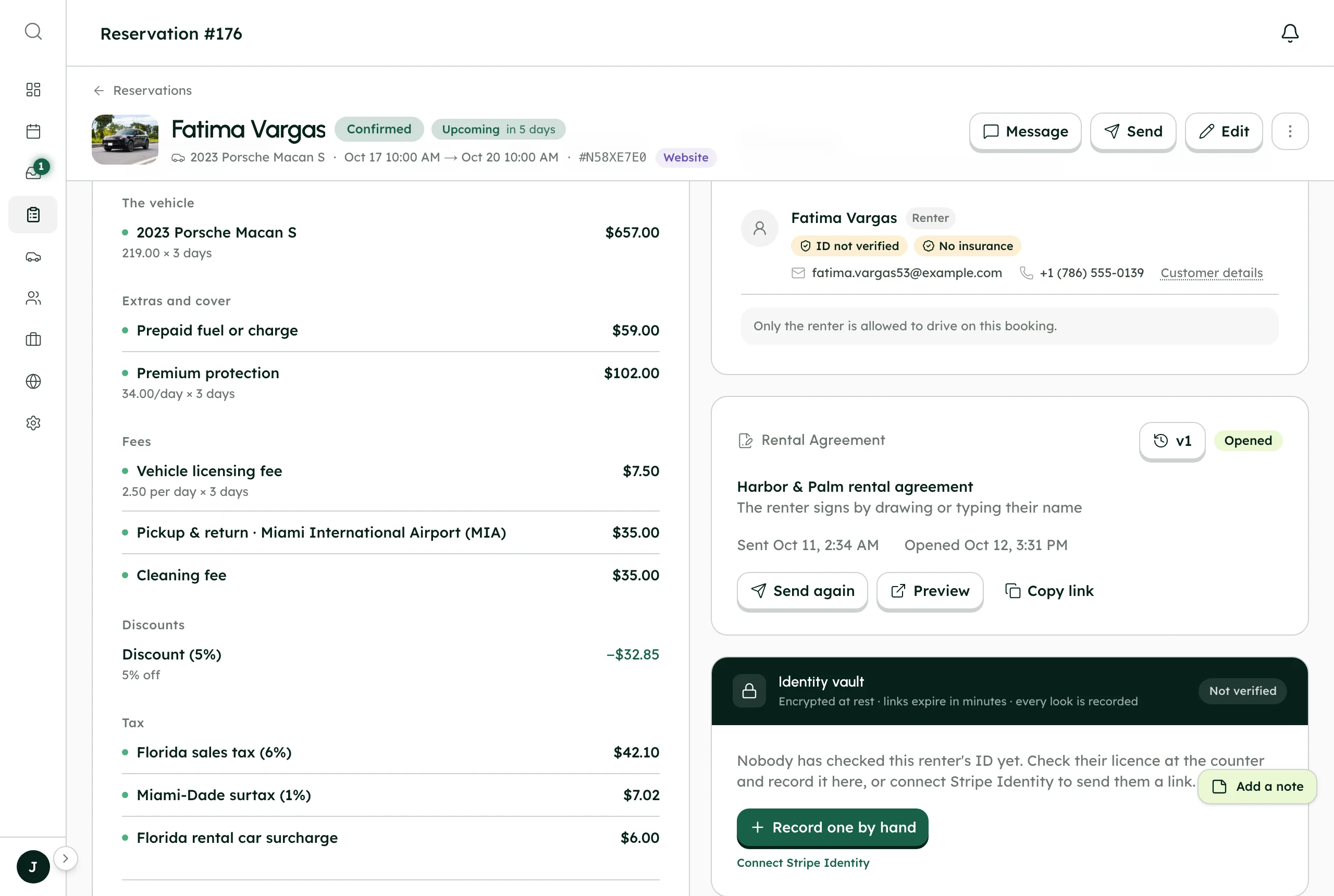
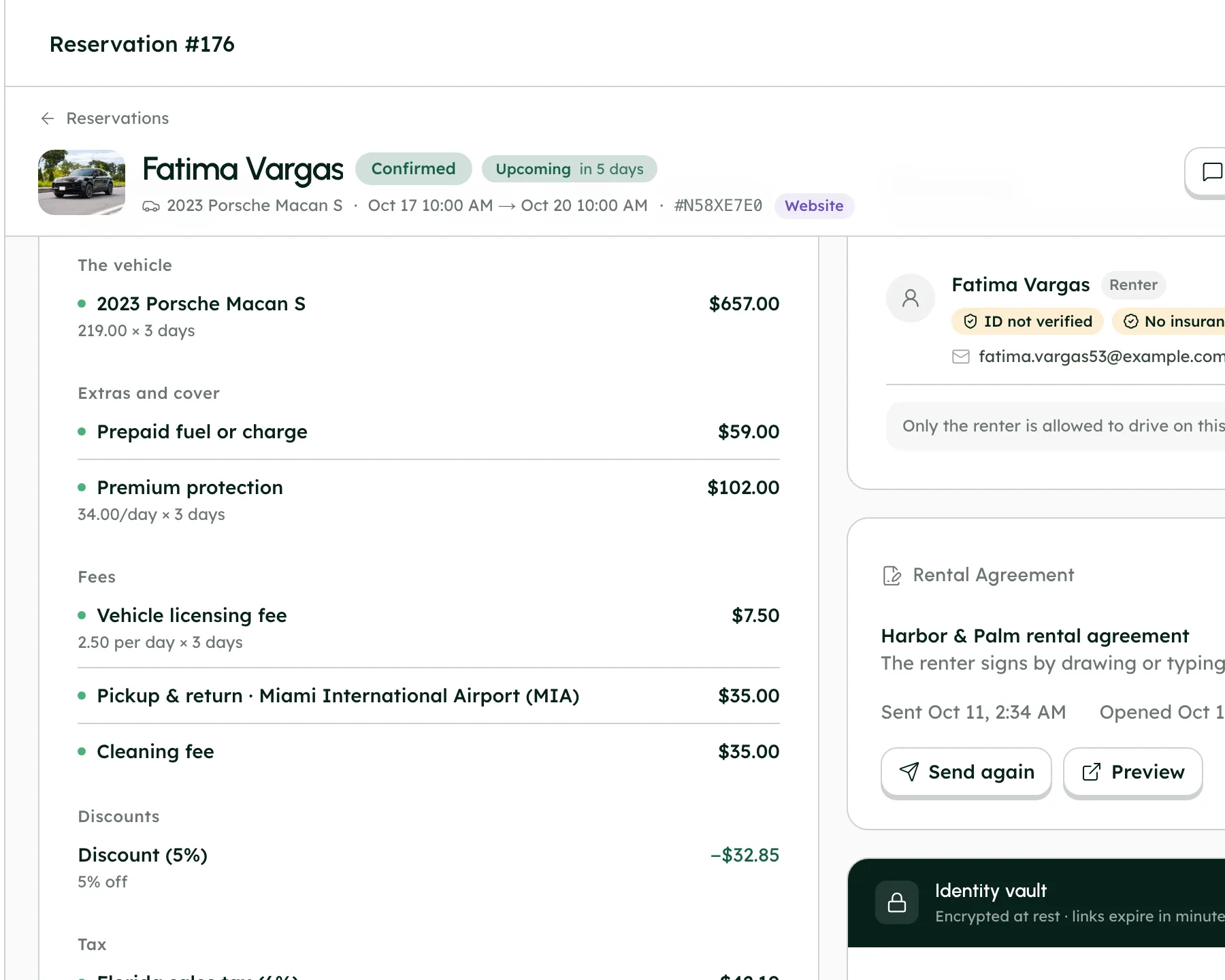
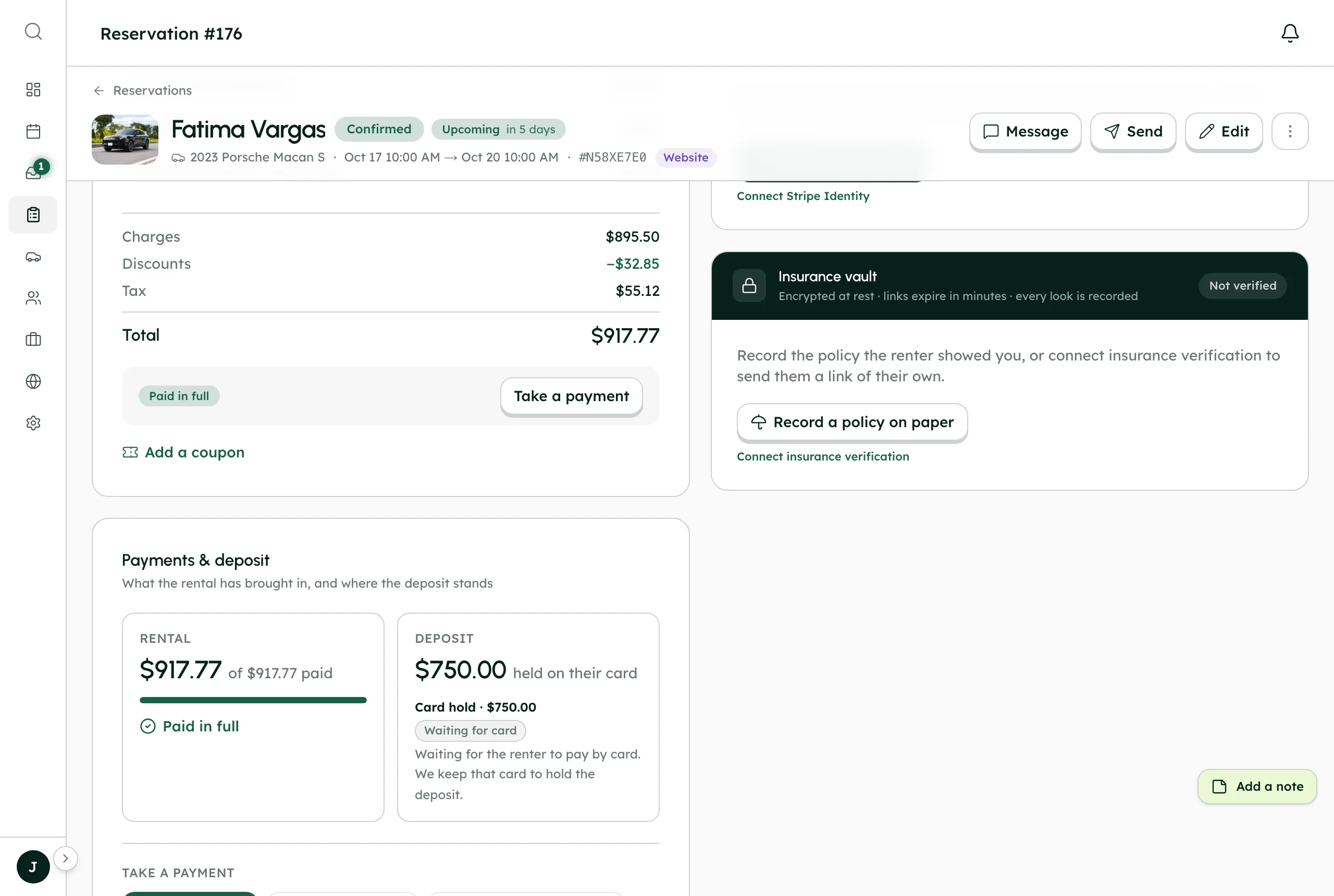
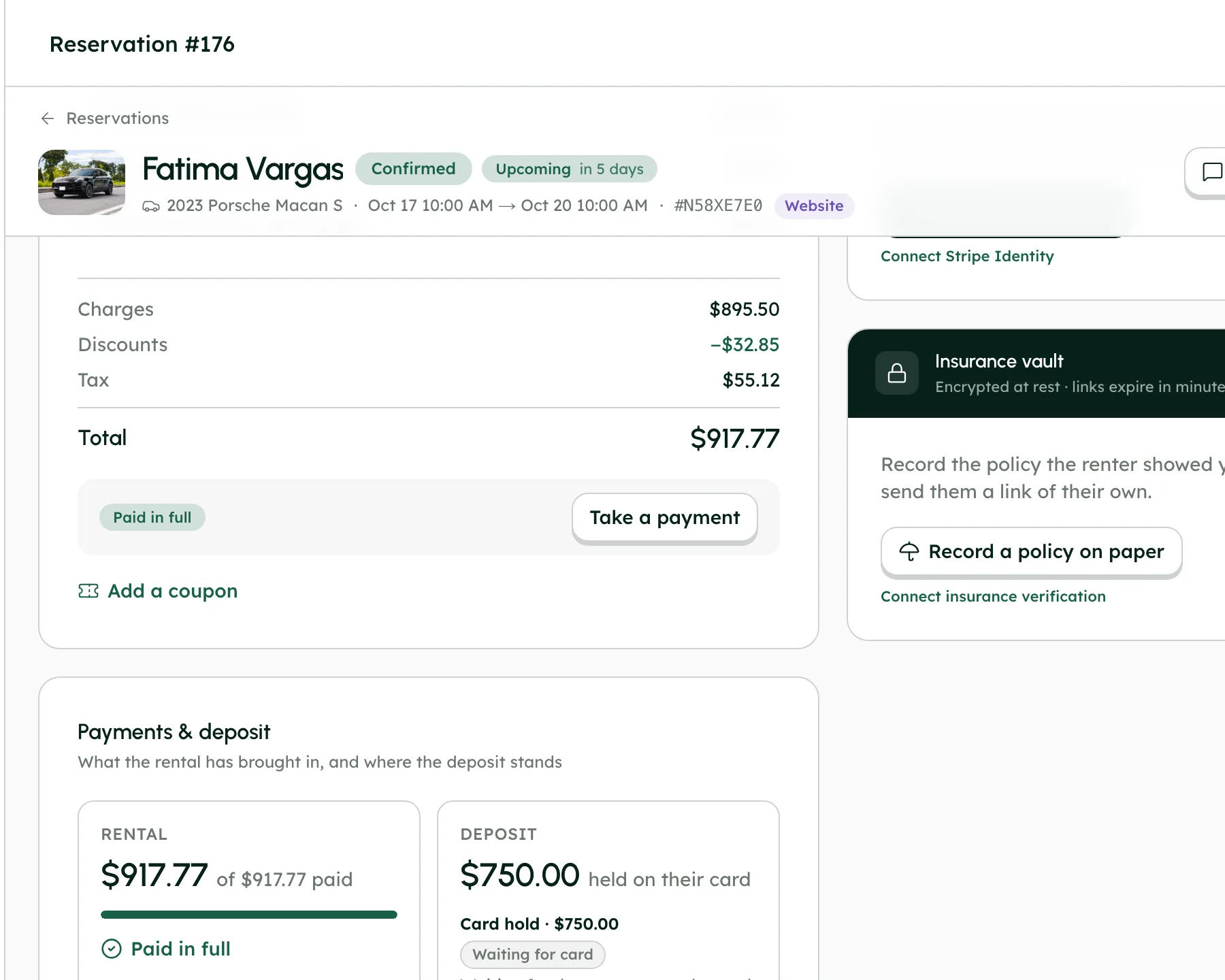
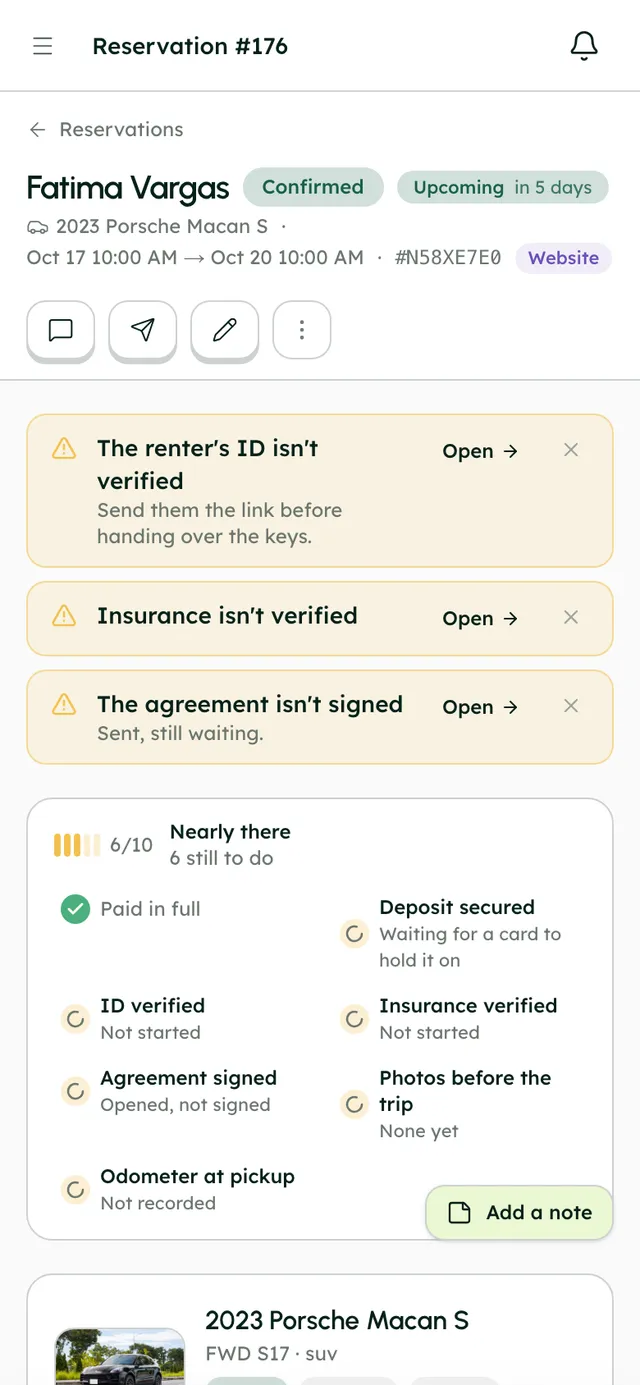
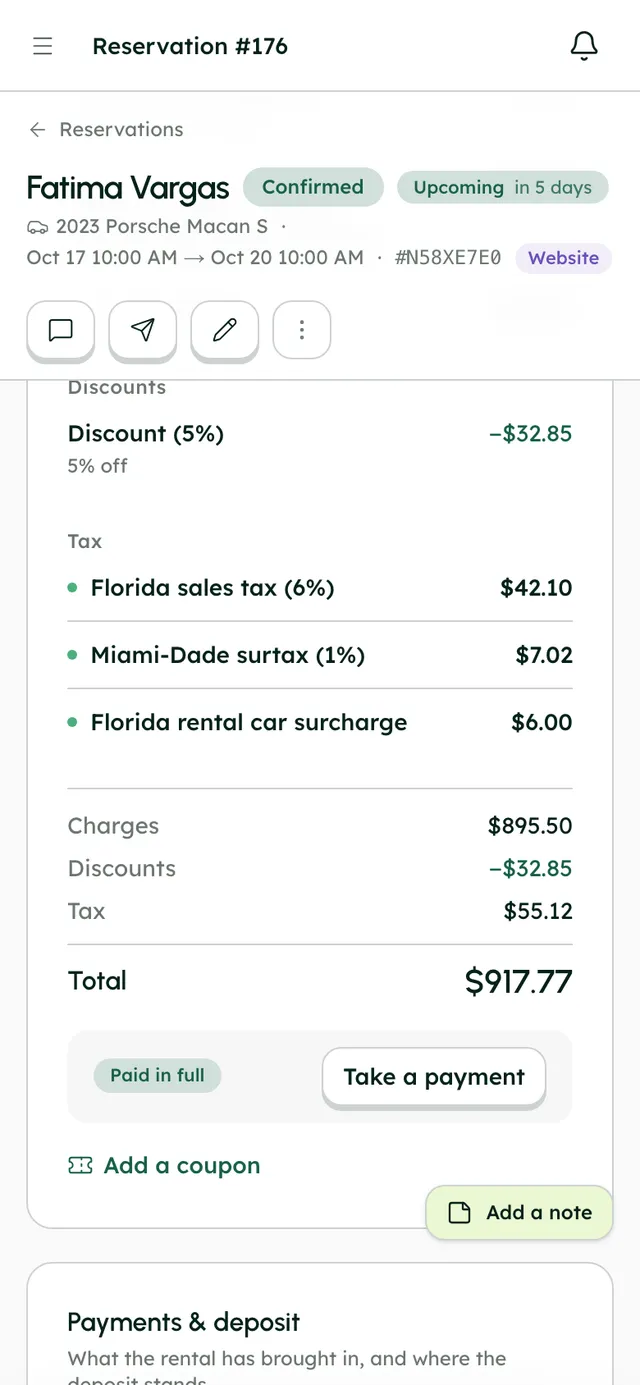
Follow Fatima's Porsche Macan S from chapter to chapter. Each one hands the booking on, so nothing is copied across by hand.
Good to know
- Smartcar runs on your own Smartcar account, which bills you per connected car.
- Not every make and model works with Smartcar; the app tells you if a car isn't supported.
- Live data comes only through Smartcar; plug-in GPS trackers aren't supported.
Questions, answered
More in the Help Center, or email us any time.
How do I add a vehicle?+
Use the add-vehicle wizard in Fleet: basics, capacity, location, amenities, photos and pricing. Drafts are saved, so you can come back and finish later.
Can each car have its own settings?+
Yes. Tax, policies, mileage, booking fees, deposits, discounts, extras and rules like minimum days, driver age, advance notice and trip buffer can each follow your company default or be set per car.
What does the Smartcar connection do?+
With no hardware to install, it shows your cars on a live map with fuel, battery, range, charging, odometer, tire pressure, oil life and fault codes, and lets you lock, unlock and start or stop charging. Setup takes about 5 minutes in Settings → Integrations → Smartcar.
How does mileage tracking work?+
Set an included mileage allowance and an extra-mile fee, for the company or per car. The odometer at handover comes from Smartcar or is typed in, and any overage is suggested as a charge for you to confirm.
How do trip photos work?+
Photos are taken with the in-app camera, which records the time, location, device and a checksum, and they're never truly deleted. Renters can take their own handover photos through a link you send them.
What if I delete a vehicle by mistake?+
Deleted vehicles go to a bin and can be restored for 30 days. To take a car off sale without deleting it, pause it instead.
Your fleet, your customers, your money.
Start a 7-day free trial with no card, or book a call and we'll set it up with you.
0% commission · Cancel any time · 24/7 support by email