Adding your team and setting permissions
Give staff their own logins, choose which parts of RentHive each person can use, and remove access without losing their work.
Overview
The account owner adds staff in Team Settings. Each person gets their own login, and you choose the sections they can use: Overview, Calendar, Inbox, Reservations, Fleet, Customers, Management, Expenses, Revenue, Maintenance, Team tasks, Website and Settings.
Access is enforced by the server, not just hidden in the menu. If someone tries to reach a section they don't have, the request is refused.
The Inbox is open to everyone, so the whole team can talk to renters and to each other.
To do0
Waiting to be picked up
In progress0
Somebody is on it
Done0
Finished in the last fortnight
#tasks
4 members · Work assigned to the team, and finished.
“Settle Dana Whitfield's deposit” closed itself — 2024 Tesla Model 3 Long Range · Dana Whitfield
Kayla Chen finished “Clean 2024 Tesla Model 3 Long Range” — 2024 Tesla Model 3 Long Range · Dana Whitfield
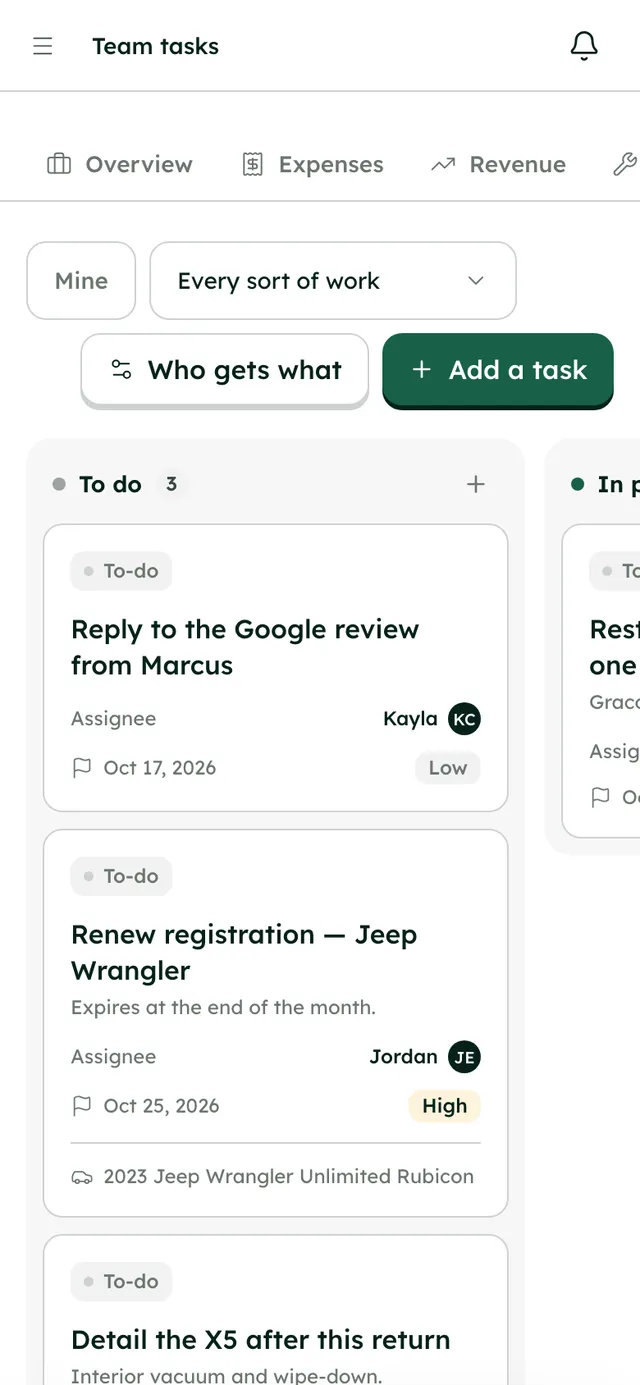
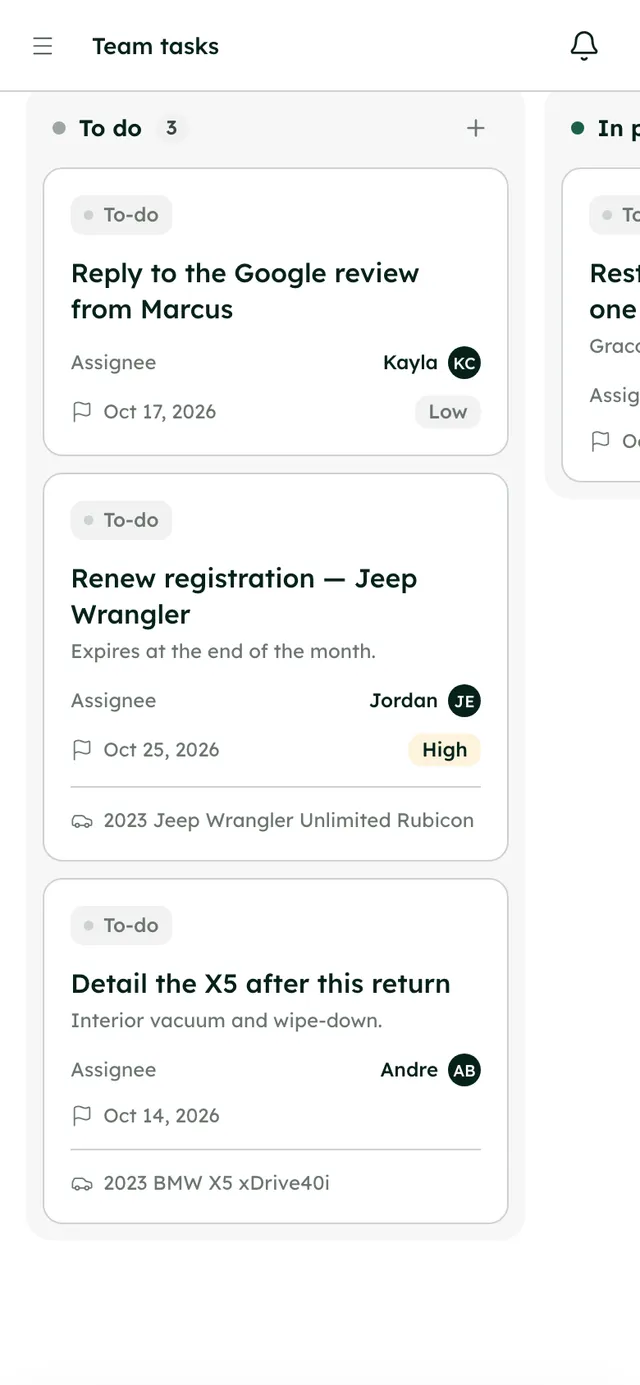
Your team's tasks and each person's score.
How it works
- 1
Open Team Settings
Click your name at the bottom of the sidebar and choose Team Settings. Only the owner sees it.
- 2
Add a member
Press Add member. Enter their first name, last name, email and an initial password of at least 8 characters.
- 3
Choose their sections
Under Sections they can use, tick what they need, or use Select all. Press Add member.
- 4
Share the password
Give them the password privately. They're emailed that they've been added, without the password, and can change it in Account Settings → Password.
- 5
Change access later
Edit a member to change their name or sections. Their email can't be changed. If you add sections, they get a notification and an email.
- 6
Remove access
Press the remove icon and confirm Remove access. They're signed out and can't sign back in. You can restore access later.
Best practices
- Give each person only the sections they need. Someone who cleans cars might only need Calendar and Team tasks.
- Ask new members to change their starting password when they first sign in.
- Give everyone their own login rather than sharing one, so the history shows who did what.
Things to keep in mind
- There are no preset roles. You choose the sections for each person.
- There's no invite link to accept. You create the login and share the starting password yourself. If they don't know it, they can use Forgot password.
- Only the owner can manage the team and billing.
What's automated
- Permissions are checked by the server on every request.
- Removing someone signs them out straight away. Their bookings, expenses and messages stay on record.
- Inbox rules and task rules can hand work to team members automatically.
Common questions
Do team members count toward my plan?
No. Plans are sized by how many vehicles you have, not how many people use RentHive.
Can staff see my revenue?
Only if you give them sections that show it, such as Overview, Management or Revenue.
What happens to someone's work when I remove them?
Everything they did stays on record. They just can't sign in, and you can restore their access later.