Overview
Renters don't need an account. Every email they get carries a Manage your trip link to their trip page, and your website has a Find my booking form that opens it from the booking reference and email.
On the trip page they see the car, pickup and return, what's been paid and what's left, the invoice, and a chat with you. They can take before and after photos of the car with their phone's camera. And they can change or extend the trip, or cancel it, as far as your change and cancellation rules allow.
Renters who booked on your website also have a trip page on your own domain, reached from the end of checkout. It lists anything left to do (payment, ID check, insurance or signing) with a Finish up button, plus the place with directions, your house rules and what's included.
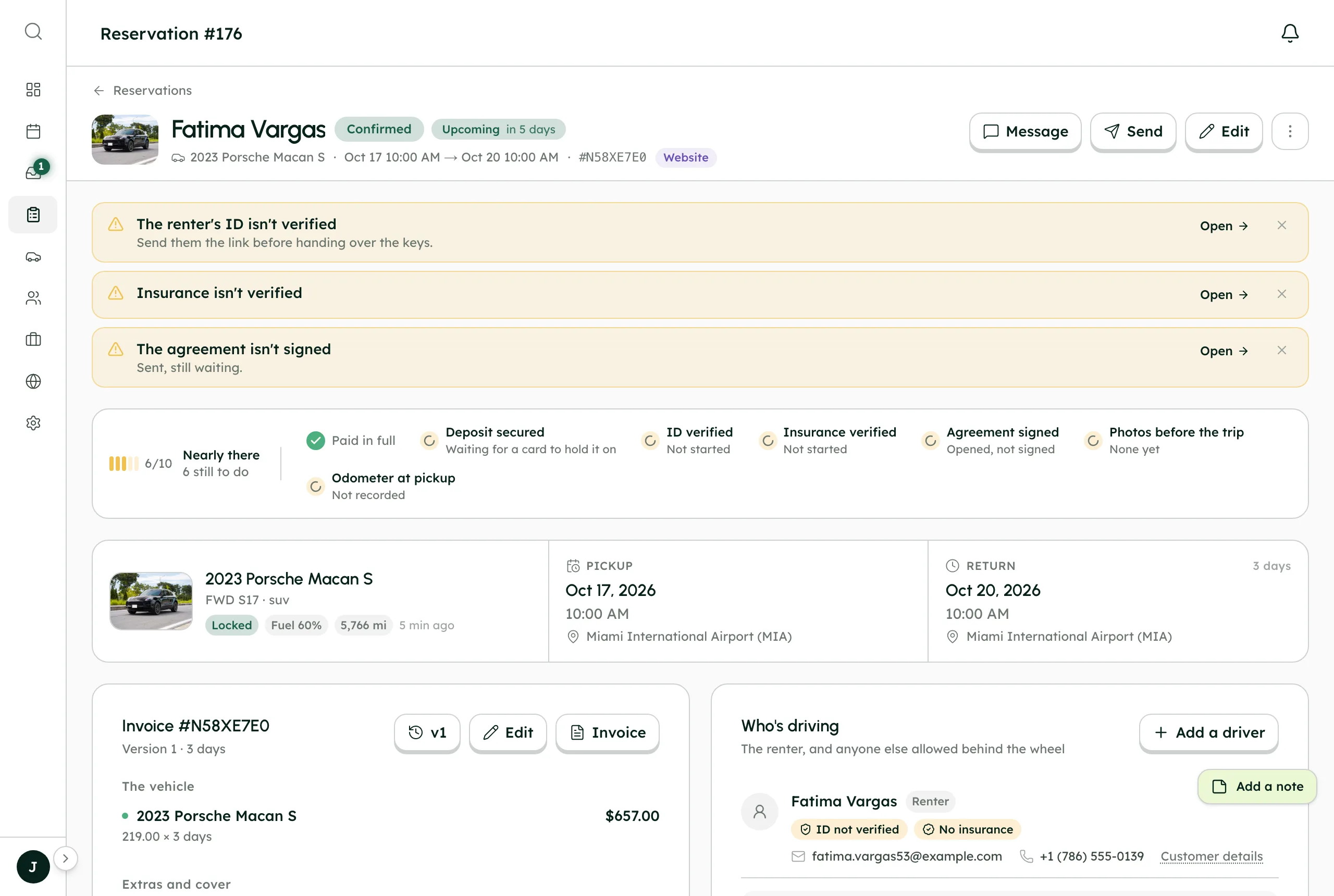
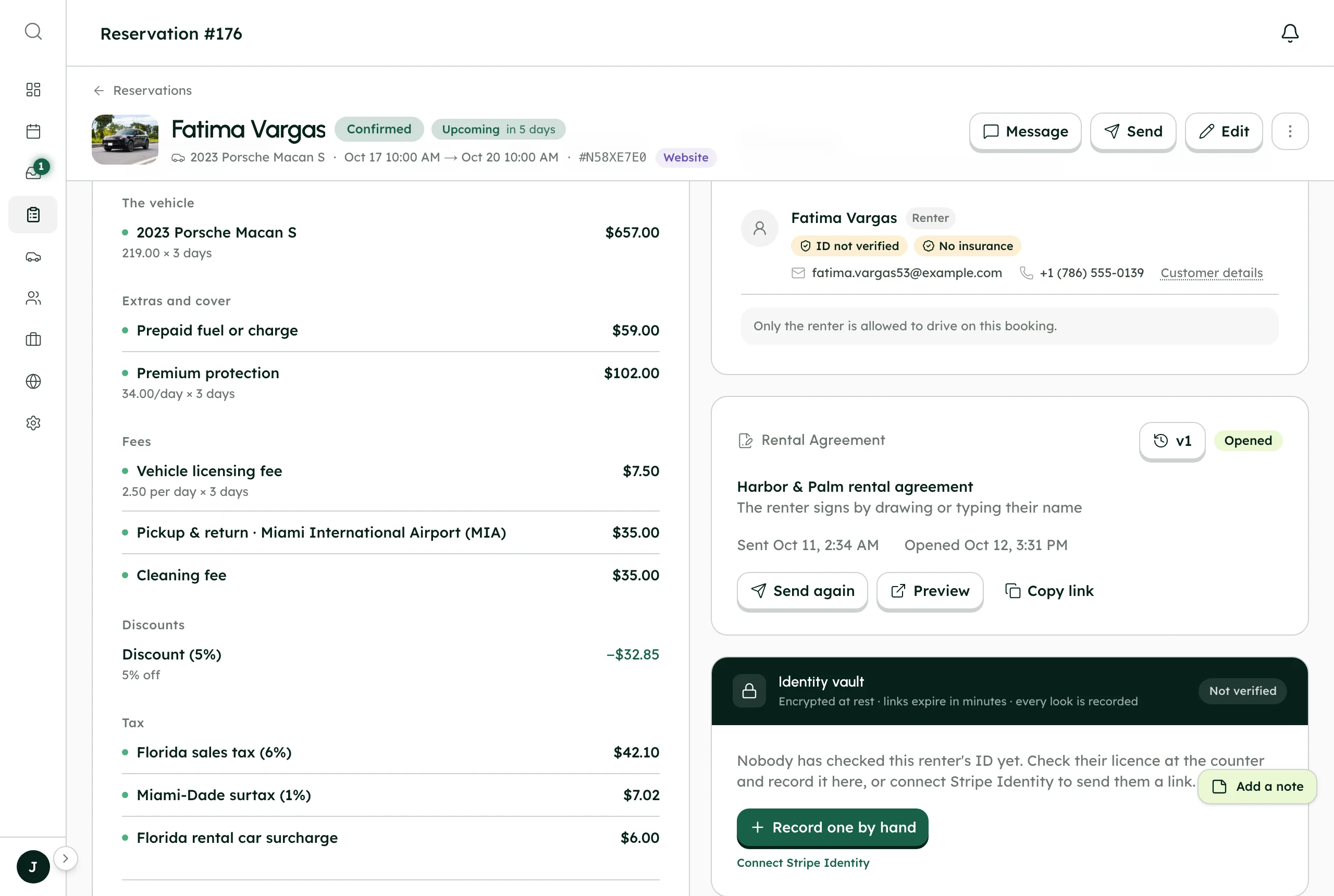
Step by step7
- 1
Set your rules first
In SettingsGeneralChanges and cancellations, choose whether trip changes are Off, Ask me or Instant, whether cancellations are Ask me or Instant, and the refund preset. The trip page follows them.
- 2
Share the trip page
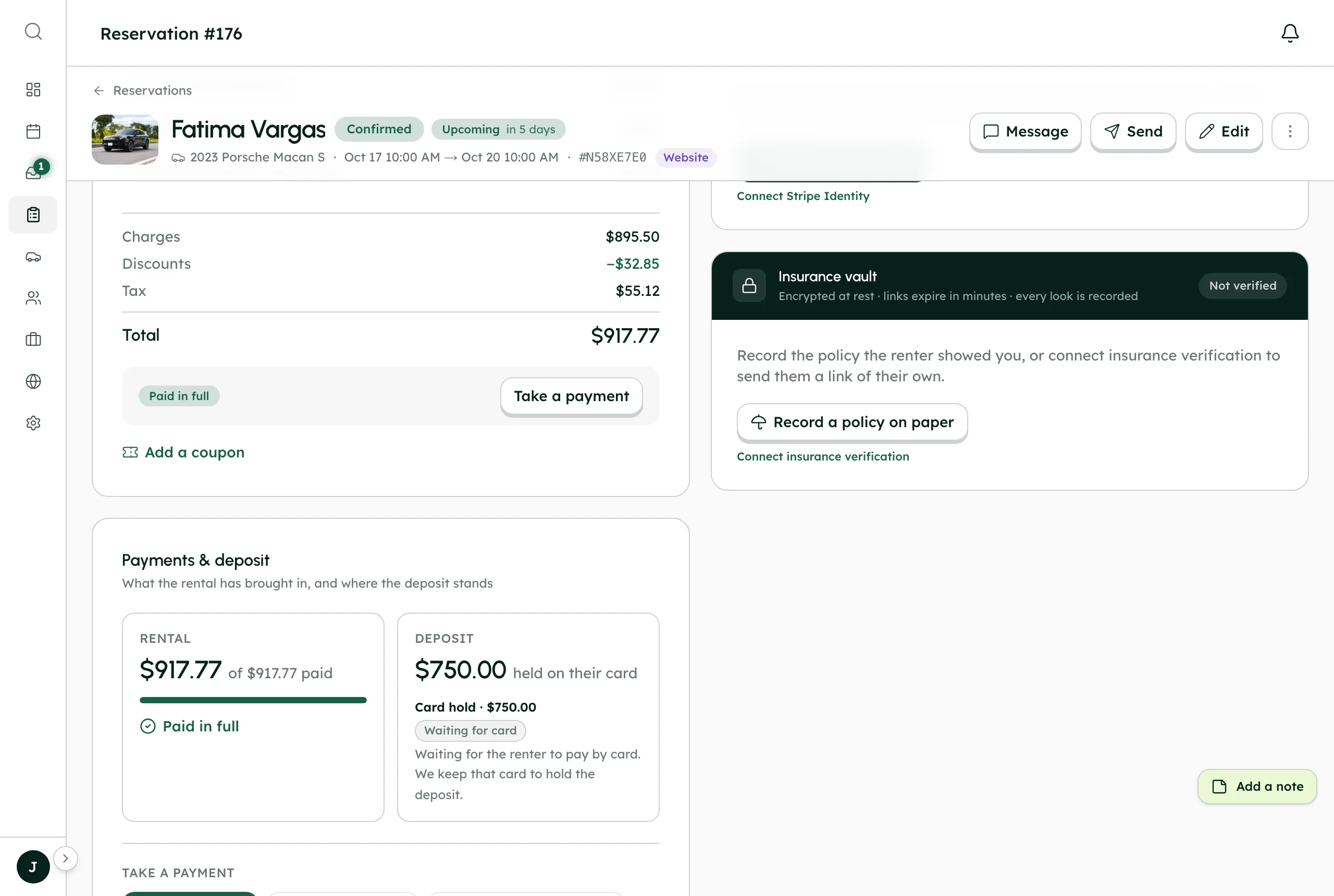
It's in every email the renter gets. To send it yourself, use the Send menu on the booking, or Send their trip page in the Inbox.
- 3
Renters change or extend
They pick new dates and times and see the price difference before they confirm. Once the trip has started, only the return can move. With Ask me they send a request; with Instant the change goes through straight away; with Off they're asked to message you.
- 4
Renters cancel
Before pickup they can cancel from the trip page, and they see the cancellation fee and what comes back, deposit included, before they confirm.
- 5
Answer a request
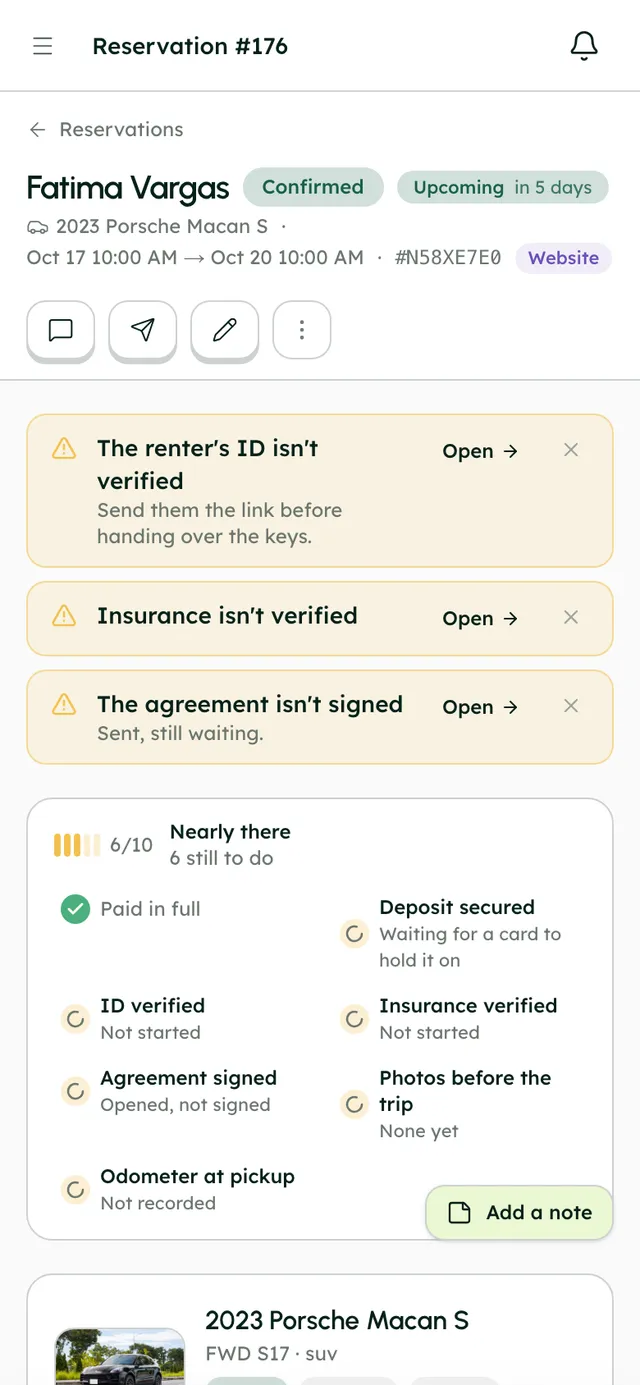
A request appears at the top of the booking, marked Waiting on you, with what they have now and what they're asking for. You're also emailed. Press Approve or Decline, with a reason if you decline.
- 6
Handover photos
From the trip page, renters choose Before the trip or After the trip and take photos of the car with their camera. They land on the booking next to yours.
- 7
Talk on the trip page
Messages from the trip page chat land in the renter's Inbox thread, and your replies show there. The trip page chat is always on.
Best practices
- Answer requests quickly. The renter sees Waiting on you until you do, and they're emailed your answer.
- Ask renters to take their own photos at pickup and return. Together with yours, they settle most damage questions.
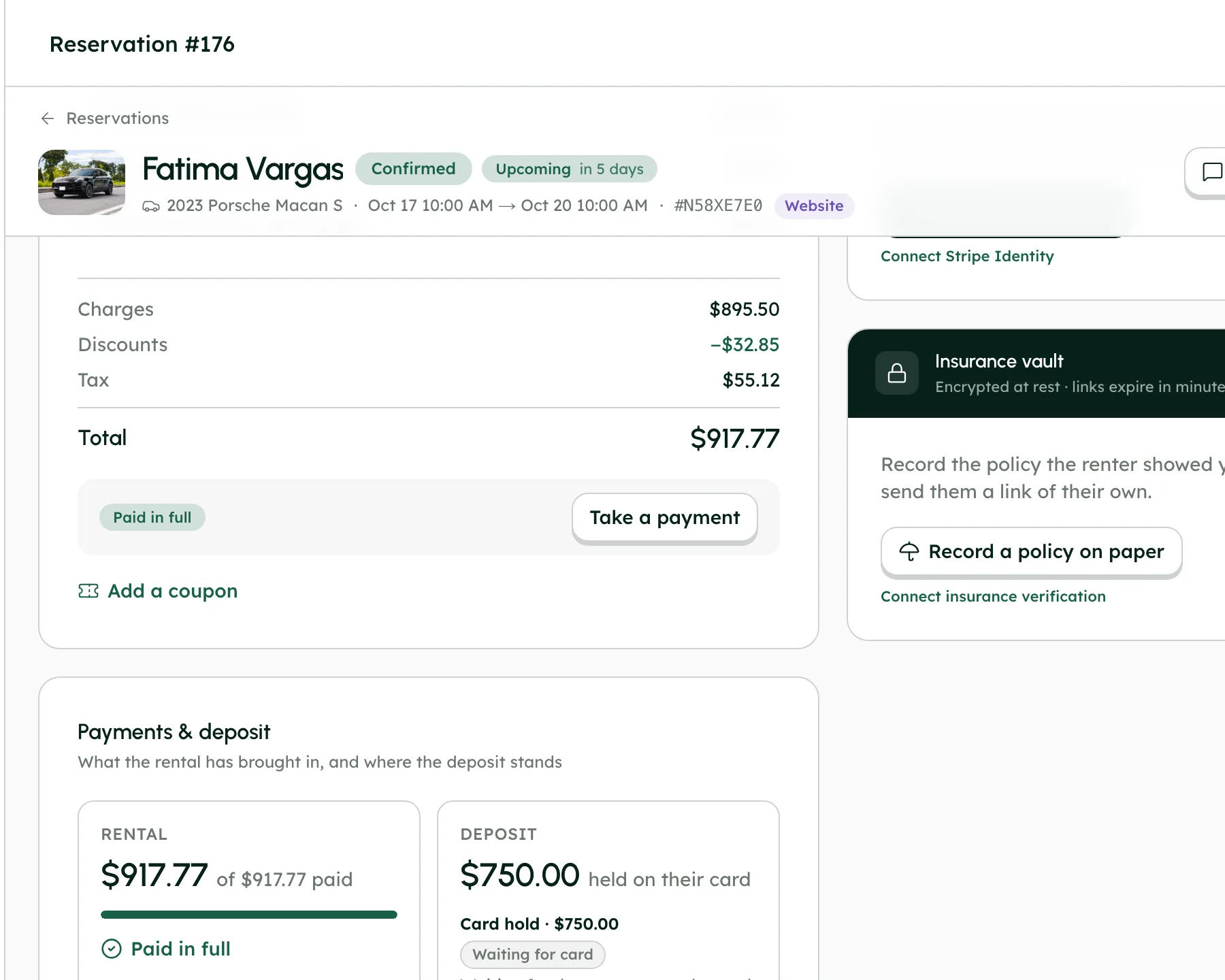
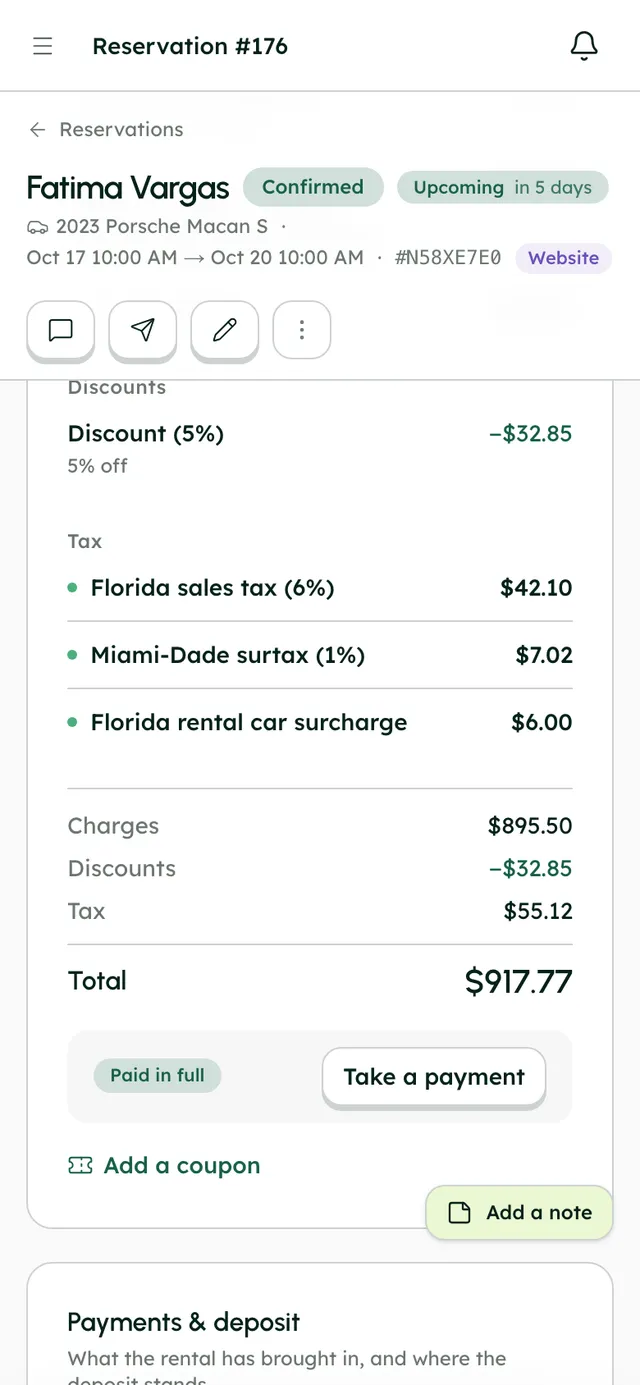
- Send a payment link from the booking when a balance is due. The renter pays from the link, and the booking updates itself.
Good to know
- Money moves by itself only on card bookings with Stripe connected. On cash bookings, settle any difference yourself.
- Cancellations can't be switched off. They're Ask me or Instant, and renters can't cancel online once the trip has started.
- Renters' handover photos come from the camera only, not their photo library, and can't be added to a cancelled booking.
- The trip page on RentHive's address doesn't take payments. Send a payment link for any balance.
What runs on its own
- With Instant changes and a card on file, the price difference is charged or refunded the moment the renter confirms.
- Approving a request settles the money the way your rules say, and emails the renter the outcome.
- Approving a cancellation releases any deposit hold, and refunds what's due when your rules say to refund automatically.
- Every change makes a new invoice version, and a signed agreement is re-issued with the new details for the renter to sign again.
Questions
Do renters need an account to manage their trip?
No. The trip page opens from the link in their emails, or from Find my booking on your website.
Can renters extend a trip that's already started?
Yes, if your rules allow changes. Once the trip has started, only the return date and time can move.
Can I stop renters changing dates online?
Yes. Set Trip changes to Off, and they'll be asked to message you instead.
Where do renter requests show up?
At the top of the booking with Waiting on you, as an alert on the booking, and in an email to you.