Creating and managing reservations
Create a booking in seven checked steps, edit it with the price difference shown, and run it from one page: readiness checklist, invoice versions, payments, drivers, documents, photos and history.
Overview
New reservation is one page with seven steps: When, Where, Vehicle, Customer, Extras, Insurance and Notes. Everything is checked as you choose: availability, blocked customers, driver age, opening hours, advance notice and the trip buffer. The invoice builds itself on the right, priced by the server.
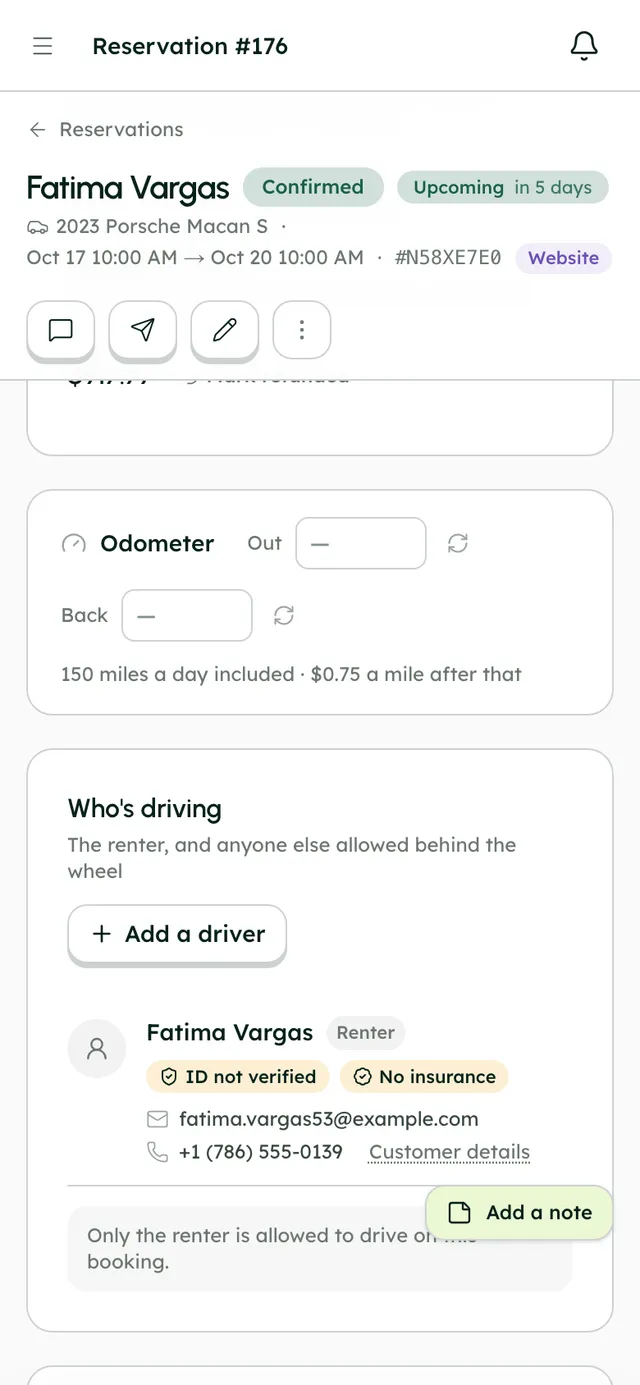
Each booking has its own page. The readiness checklist shows what's left before handover: Paid in full, Deposit secured, ID verified, Insurance verified, Agreement signed, Other drivers checked, Photos before the trip and Odometer at pickup.
Invoices have numbered versions. When a booking changes, a new version is made and the earlier ones stay available.
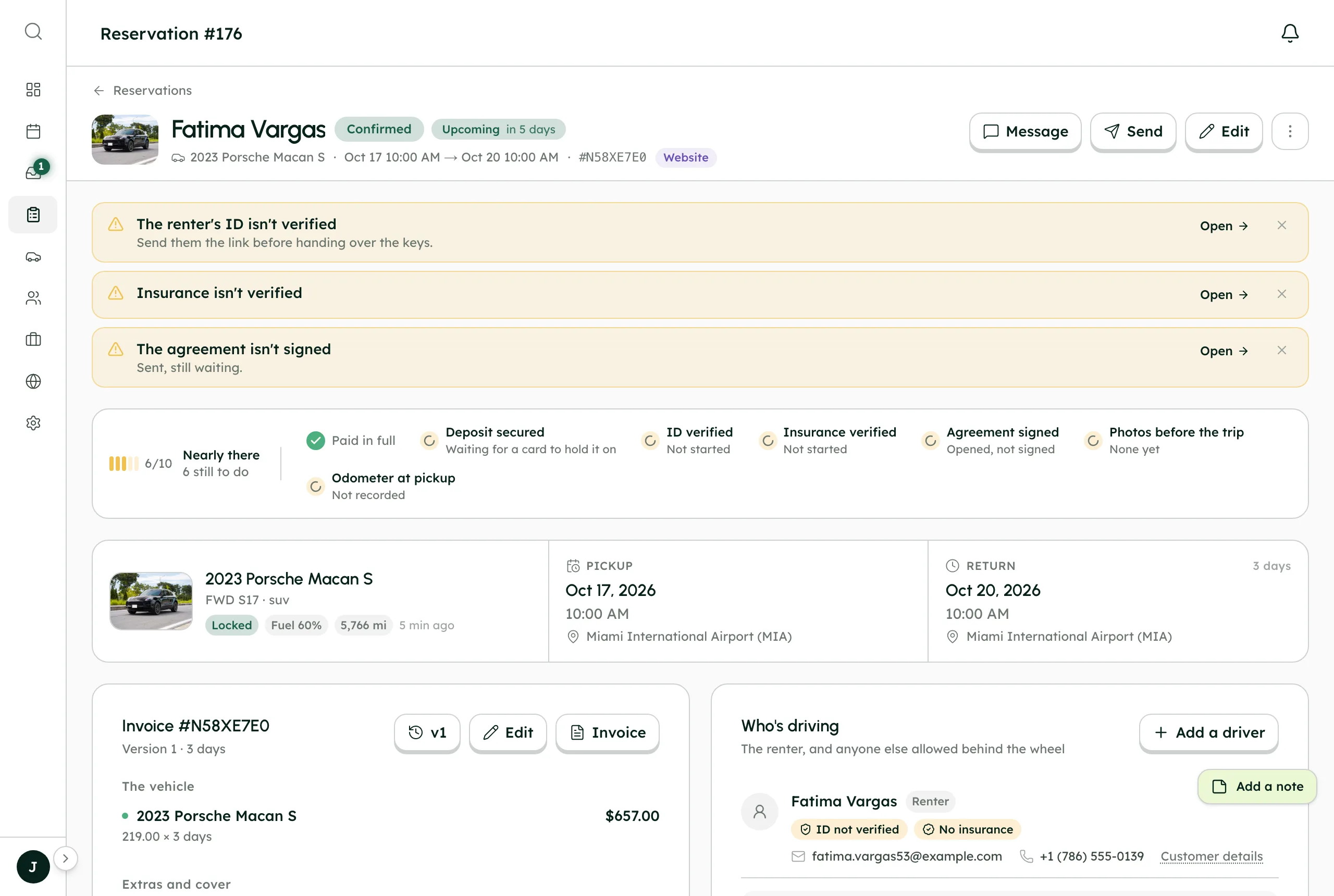
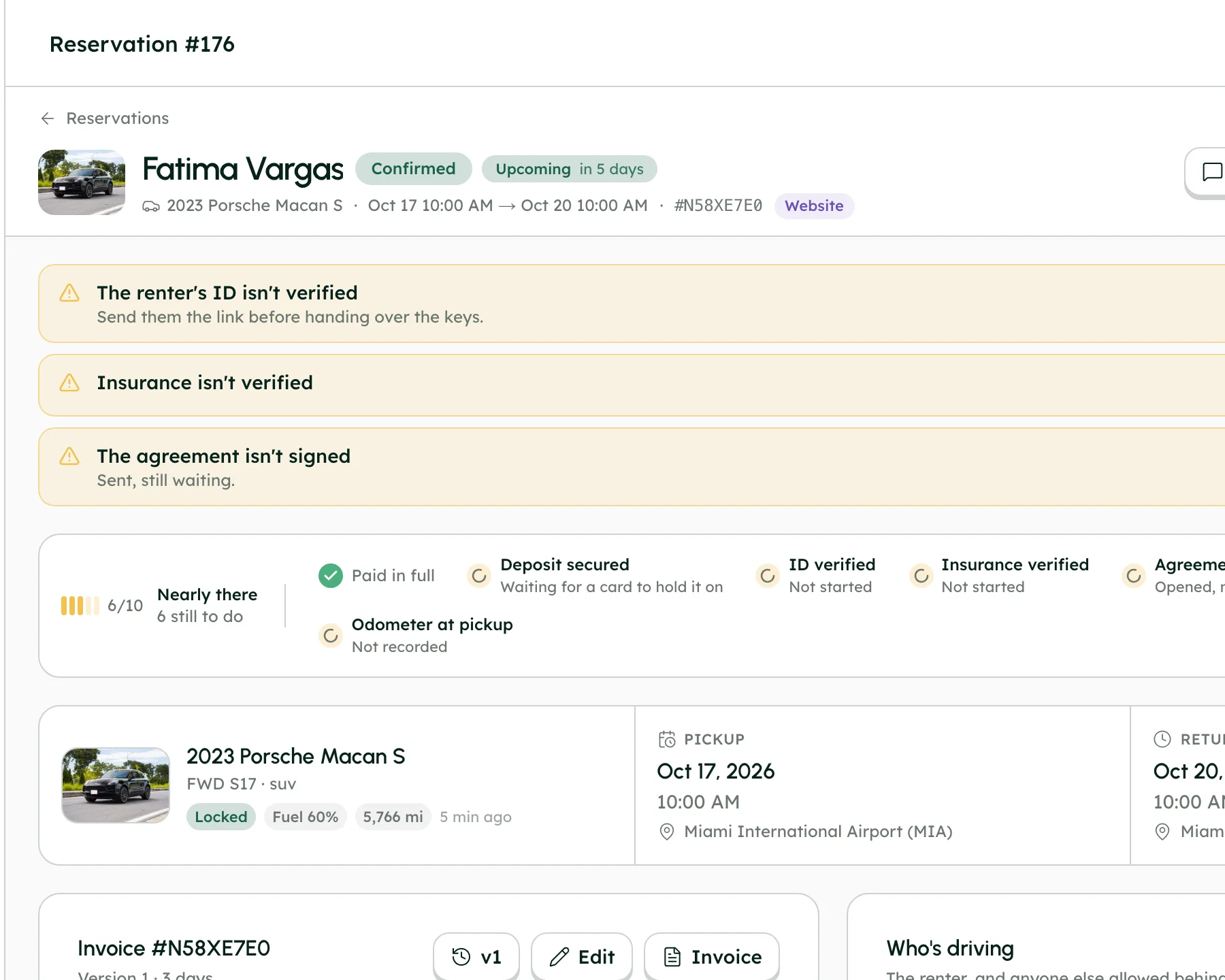
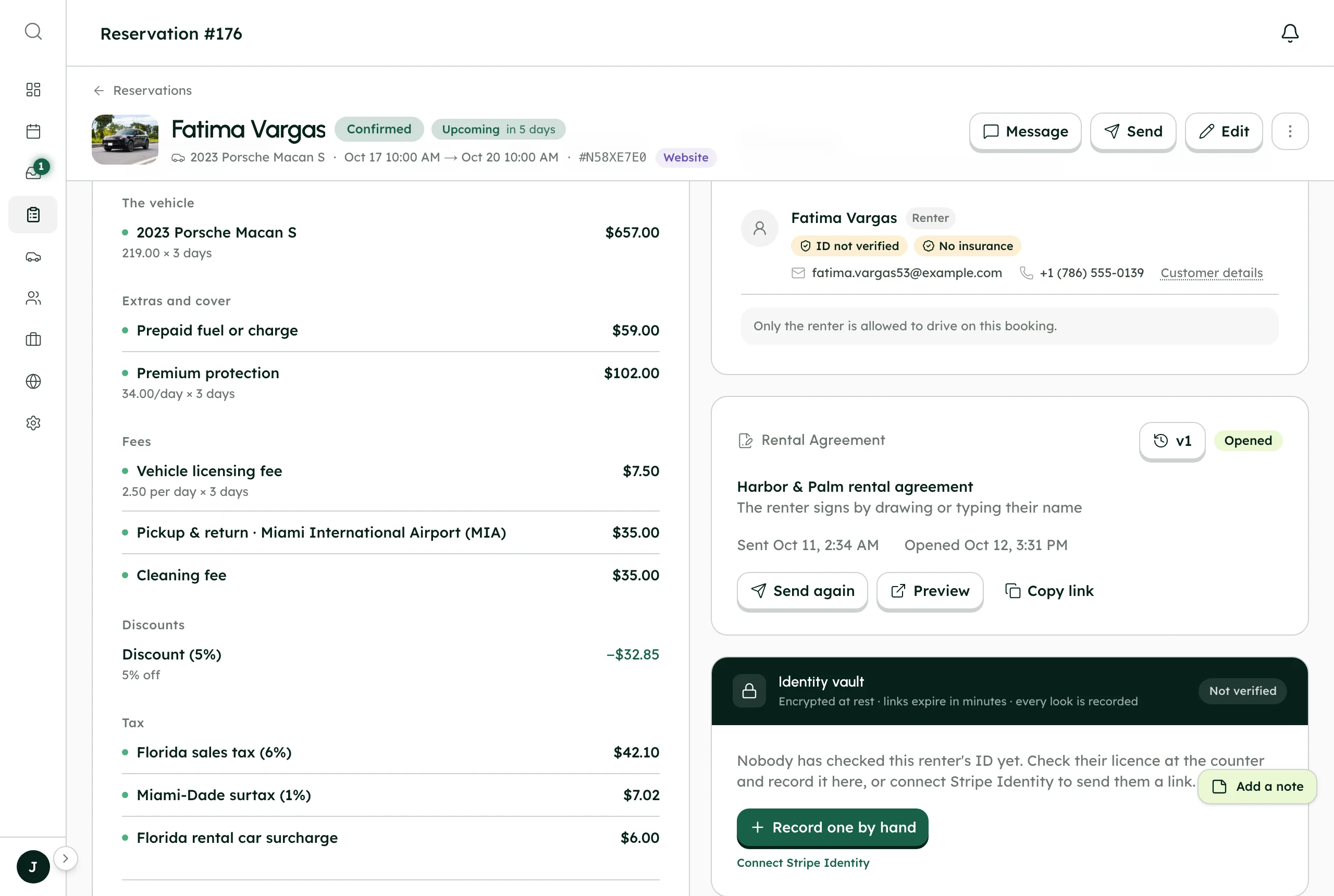
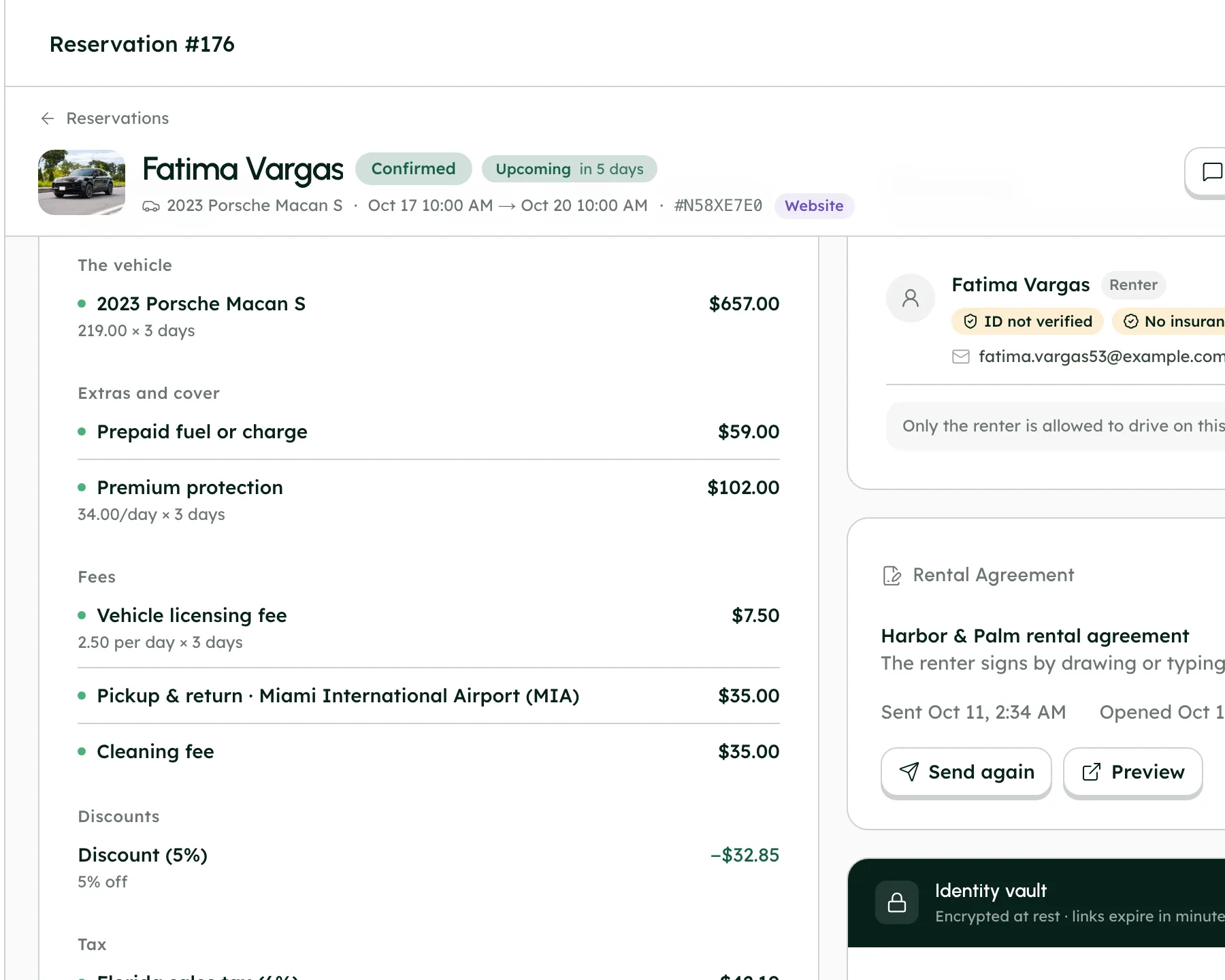
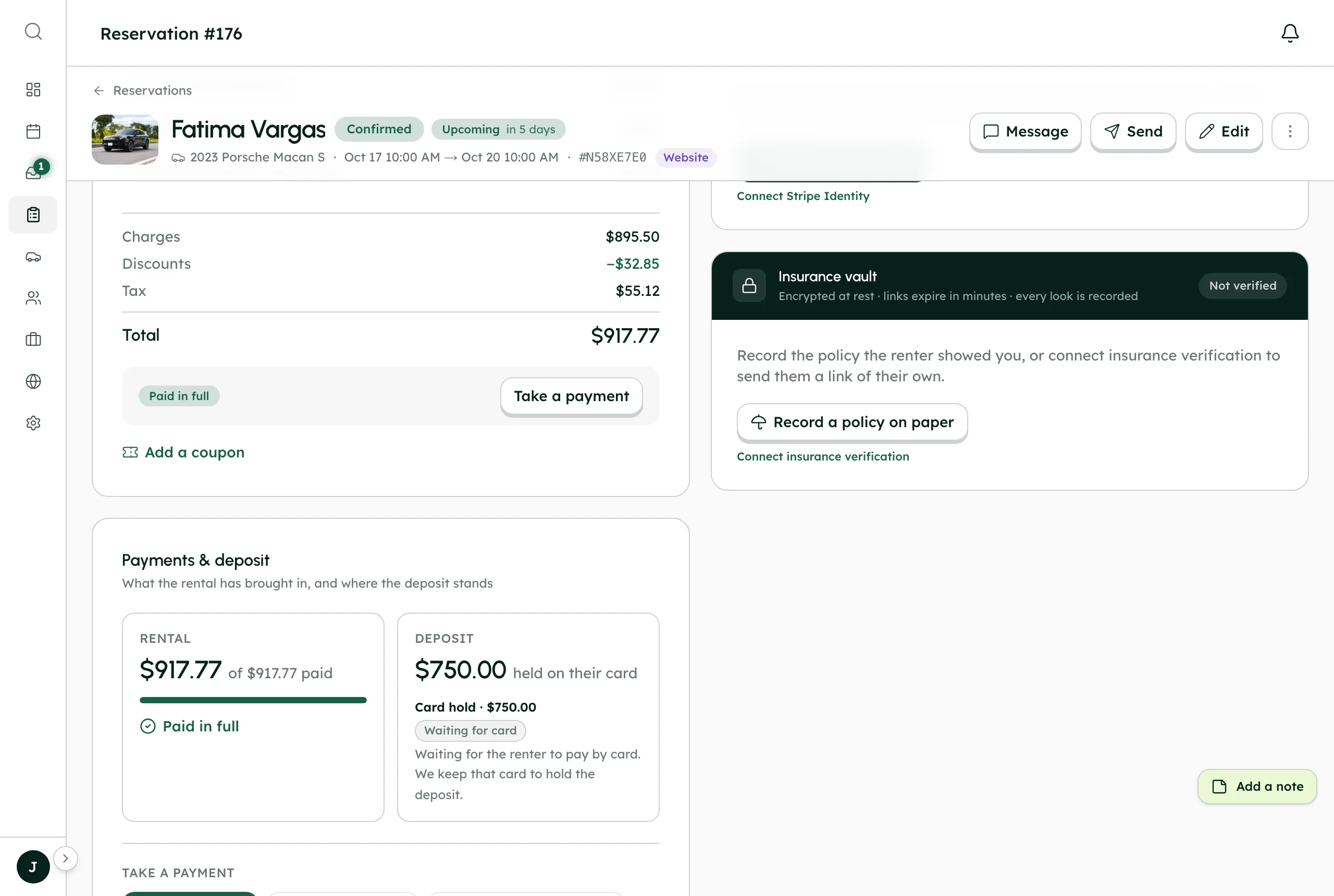
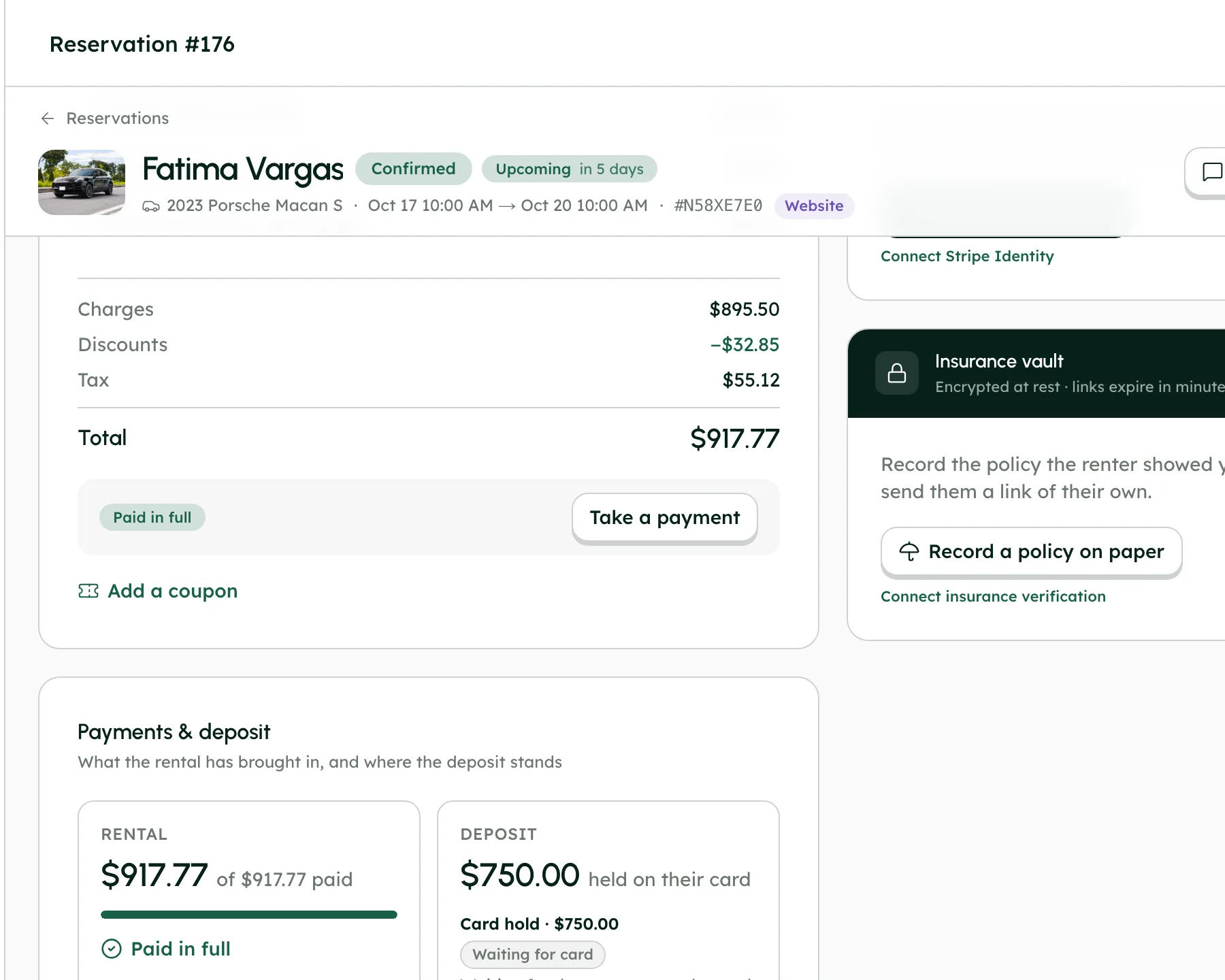
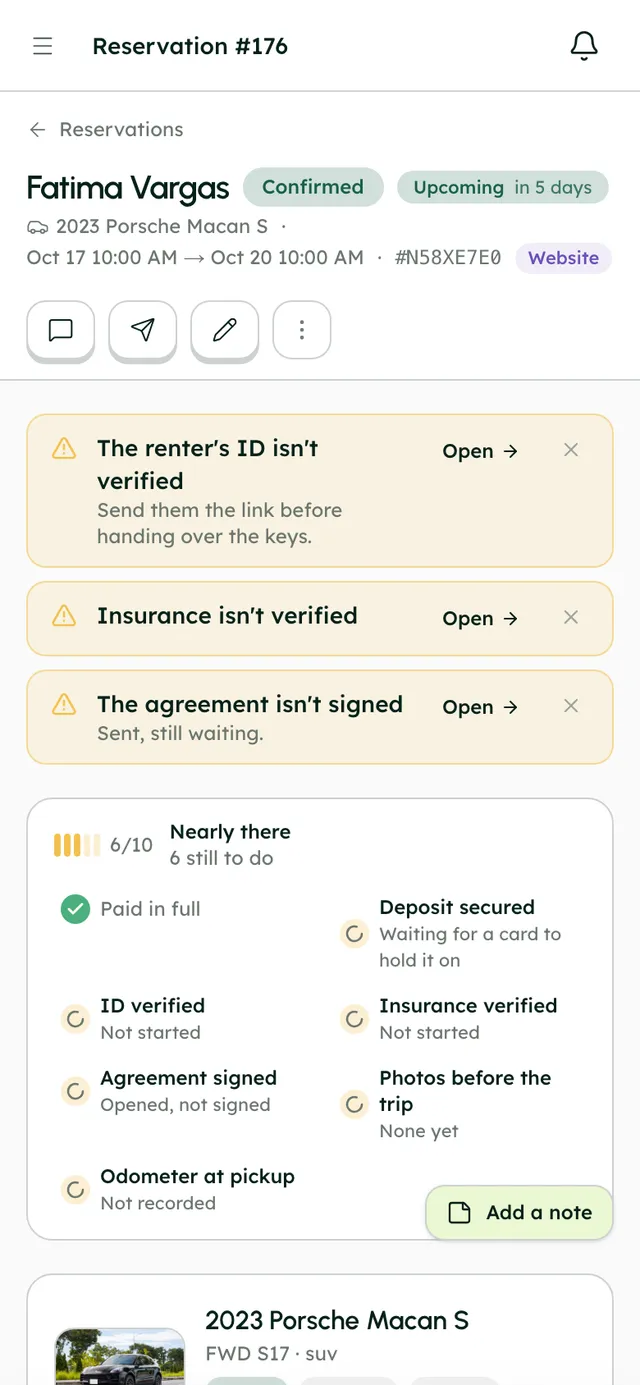
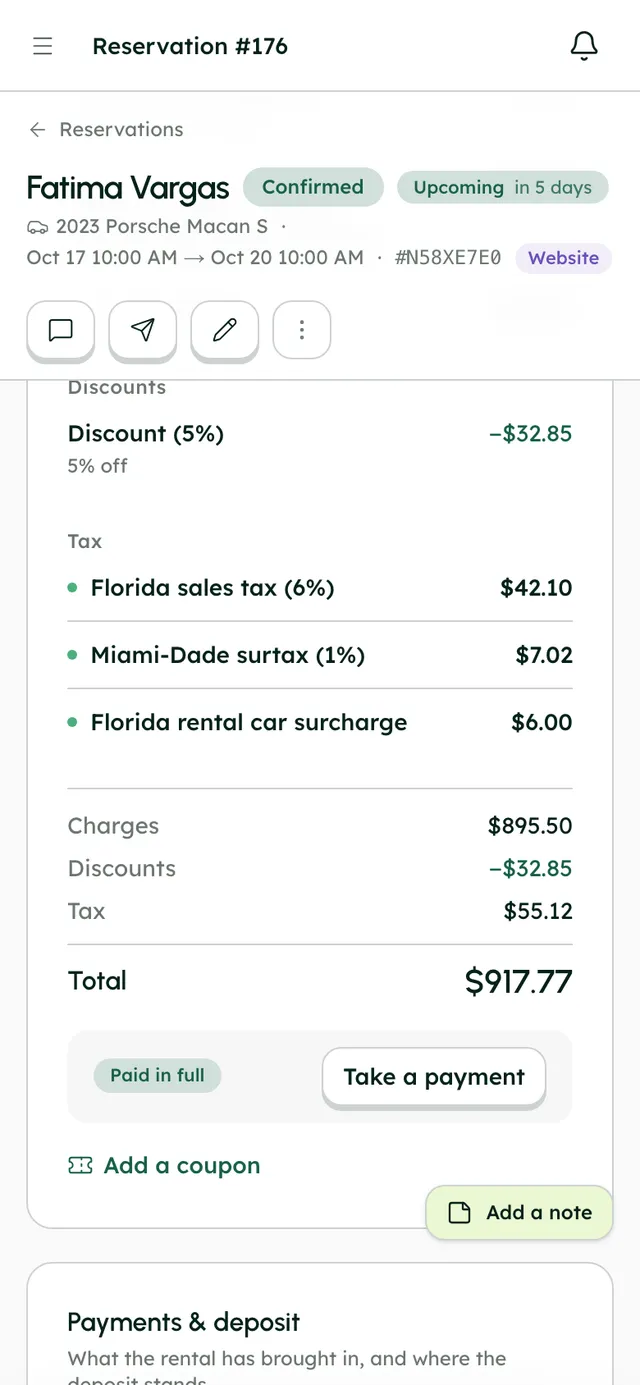
A booking's readiness checklist: payment, deposit, ID, insurance, agreement, photos and odometer.
How it works
- 1
Start a booking
Press Create reservation on Reservations, or New reservation on Calendar, or click an empty day on the calendar.
- 2
Work through the seven steps
Set pickup and return in When, the handover places in Where, then pick a Vehicle (the list shows which are free). In Customer, search or add a new customer. Add Extras, choose the renter's own insurance or one of your protection plans under Insurance, and leave team-only Notes.
- 3
Finish the invoice and confirm
Use Add a coupon, Add a discount (% or $) and the Security deposit line if needed. Press Confirm reservation. If the customer has an email address, they get a confirmation.
- 4
Collect payment
On the booking page, under Payments & deposit, press Record cash, Charge a card or Send a payment link.
- 5
Edit the booking
Press Edit. The panel shows the New total, what it Was, Paid so far, and either To refund or Still to collect. Press Save changes. Coupons, discounts and the deposit are changed on the booking's invoice instead.
- 6
Answer renter requests
When a renter asks to change or cancel, a card appears at the top of the booking with what they're asking for. Press Approve or Decline, with a reason if you decline.
- 7
Share links and documents
The Send menu copies links to the invoice, the manage trip page, trip photos, the rental agreement, insurance verification and a pay now link. The Invoice menu emails, prints or downloads the invoice as a PDF or an image.
- 8
Keep the list tidy
Reservations has tabs for All, Upcoming, Favourite, Assigned to me, Alerts and Archived. Press Select to favourite, archive, cancel, delete or export several bookings at once.
Best practices
- Always add the renter's email. Without it they get no confirmation and no links.
- Work the readiness checklist to Ready before you hand over the keys.
- Take before and after photos with Take photos on the booking. The in-app camera records the time and place, and you can send renters a link to add their own.
- Archive old bookings rather than deleting them.
Things to keep in mind
- Cancelling a booking yourself, from its page or the list, doesn't refund anything. Refund what's owed from Payments & deposit. Approving a renter's cancellation request is different: it follows your cancellation rules.
- Delete removes bookings for good, and renters aren't told. Archive hides them instead.
- Edits never move money by themselves. Collect or refund the difference shown.
- Advance notice and the trip buffer only stop renters booking themselves. When you create a booking they show as warnings you can override.
- Turo bookings are read-only. Change them on Turo.
What's automated
- Every choice is checked live, and the invoice is priced by the server.
- Each change to a booking makes a new invoice version, and Everything that happened keeps a readable history of the booking.
- If your agreement is set to send automatically, it goes out when the booking is confirmed.
- The readiness checklist updates itself as payments, checks, signatures and photos come in.
Common questions
Can I book a car outside a location's opening hours?
Yes. RentHive warns you that the time is outside the location's hours, but you can still confirm the booking.
Does the renter get an email when I create a booking?
Yes, if you add their email address. The confirmation goes out when you press Confirm reservation.
Can I see an earlier version of the invoice?
Yes. Open the version button on the invoice to see Earlier versions, and look at any of them.