Setting change and cancellation rules
Decide whether renters change or cancel on their own, ask you first, or contact you, and how much they get back. On card bookings, price differences are charged or refunded for you.
Overview
Renters manage their booking from their trip page. Your rules decide what they can do there. Set them once in Settings → General → Changes and cancellations, and override them for a car on its Rules tab.
Trip changes can be Off, Ask me or Instant. Cancellations can be Ask me or Instant. Refunds follow a preset: Full refund, Flexible, Moderate, Strict or Custom.
Each booking keeps the rules it was booked under. Changing your rules only affects new bookings.
 Tesla Model 3Miami Beach
 BMW X5Brickell
 Mustang GT ConvertibleMiami Beach
 Tesla Model YMIA Airport
 Jeep WranglerBrickell
 Mercedes C 300Miami Beach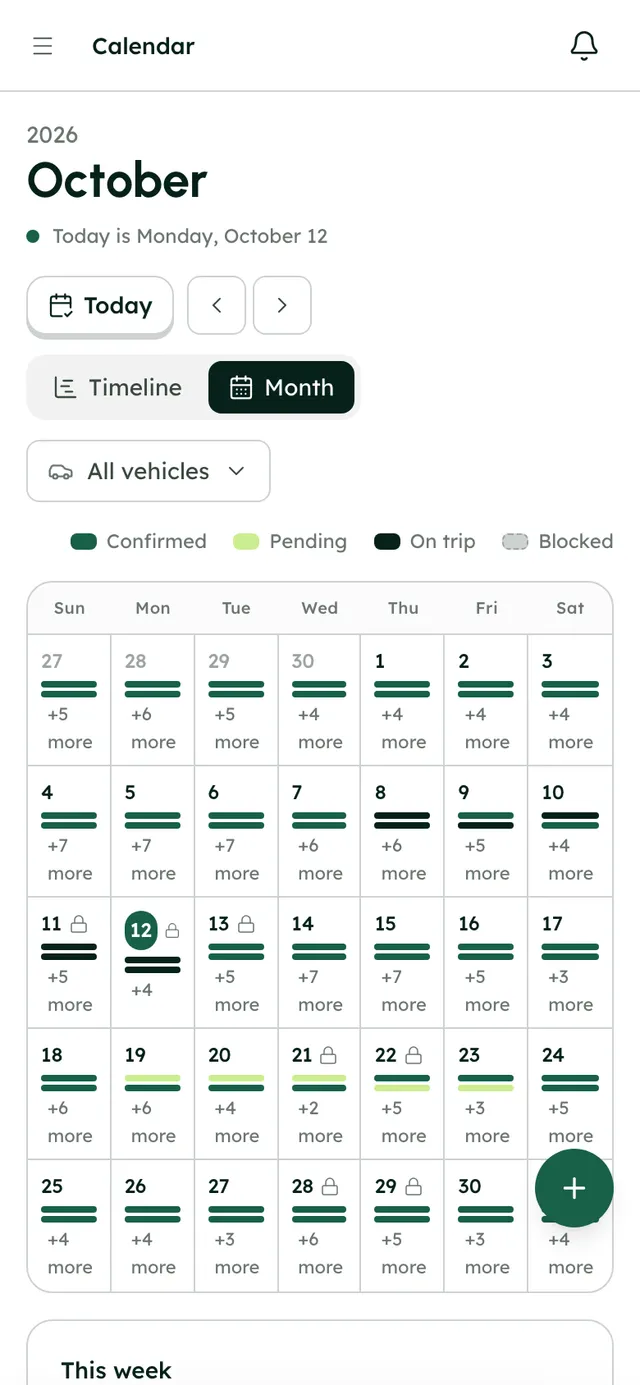
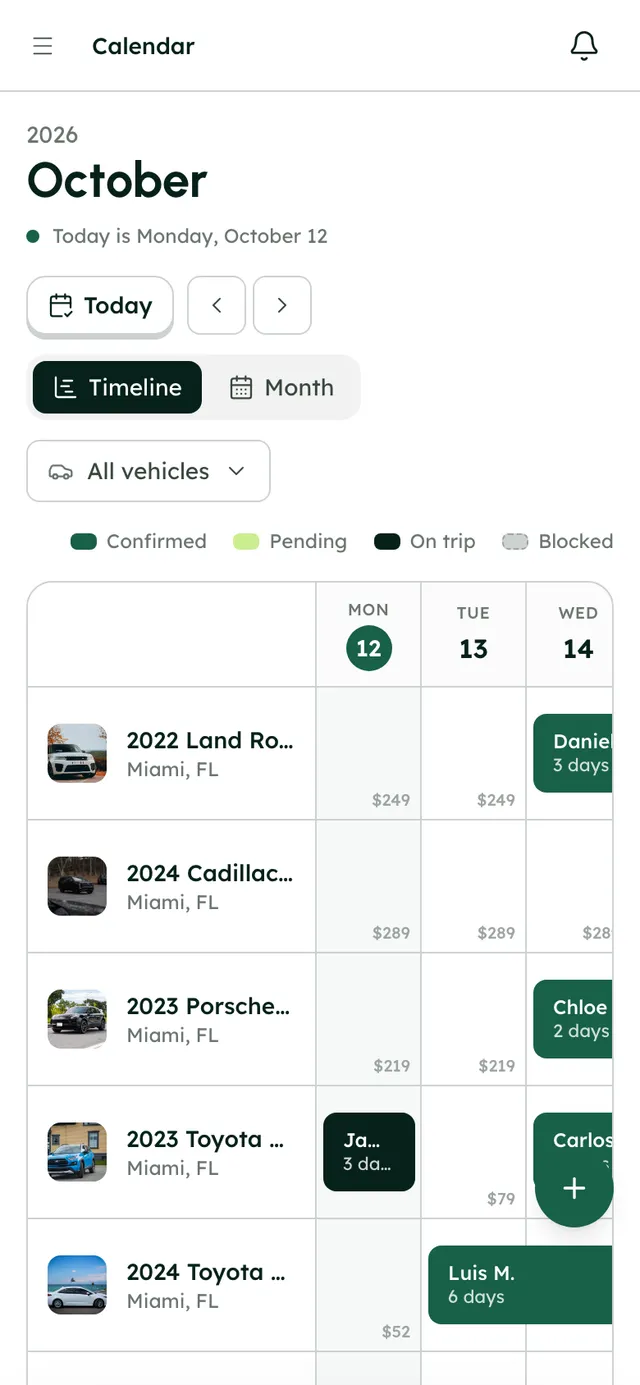
Changing a booking's dates: the server reprices it and you confirm the difference.
How it works
- 1
Open the rules
Go to Settings → General → Changes and cancellations.
- 2
Choose how trip changes work
Off: renters contact you to change dates. Ask me: renters send a request and you approve or decline it; tick Charge or refund the difference when I approve to settle the price on approval. Instant: changes go through at once and the card is charged or refunded the difference.
- 3
Choose how cancellations work
Ask me: renters send a request; tick Refund automatically when I approve to refund on approval. Instant: renters cancel on their own and the refund is sent automatically.
- 4
Pick a refund preset
Full refund: everything back, always. Flexible: full refund up to 24 hours before pickup, 50% until pickup, nothing after. Moderate: full refund up to 3 days before, 50% until pickup, nothing after. Strict: full refund up to 7 days before, 50% until 24 hours before, nothing after that. Deposits always come back in full.
- 5
Or build your own
Choose Custom and add rows: under a number of hours before pickup, deduct a percentage or a dollar amount, plus a row for after pickup. You can add up to 8 rules.
- 6
Override for one car
On the vehicle's Rules tab, in Changes and cancellations, switch off Use the company's change and cancellation rules and set the car's own.
- 7
Handle requests
A waiting request appears at the top of the booking page, marked Waiting on you. Press Approve or Decline.
Best practices
- Write the same terms in your Cancellation Policy in Settings → Legal. That's the text renters read; the rules here are what RentHive applies.
- Start with Ask me while you learn how renters use it, then move to Instant if you're comfortable.
- Answer requests quickly. Until you do, the renter doesn't know whether their new dates are confirmed.
Things to keep in mind
- Money only moves automatically on card bookings with Stripe connected. If charging the saved card fails, the renter is emailed a payment link. Cash bookings are left to you.
- Cancelling a booking yourself doesn't apply these refund rules. Refund by hand from Payments & deposit.
- Changes you make in the dashboard or by dragging on the calendar never move money.
- New rules don't apply to bookings already made.
What's automated
- When a renter owes more, their saved card is charged. When they've overpaid, the difference is refunded to their card, newest payment first.
- Refunds follow the preset the booking was made under.
- When your rules may need to charge a renter later, their card is kept on file at checkout.
Common questions
What happens to the deposit when a renter cancels?
Every preset returns deposits in full. Only the rental amount is subject to the refund rules.
I don't want renters changing dates online. Can I turn it off?
Yes. Set Trip changes to Off, and renters will need to contact you instead.
What are the defaults?
Trip changes and cancellations are both set to Ask me, with automatic charging and refunds on approval, and the Full refund preset.