Using the calendar
See every car on one timeline, drag bookings to new dates or another car with the new price worked out for you, block days off, and send bookings to Google Calendar.
Overview
Calendar has two views. Timeline shows each car on its own row over 14 days. Month shows the whole month on one grid, and phones use it automatically. Bars show bookings as Confirmed, Pending or On trip, and blocks as Blocked.
You can change a booking right on the timeline. Drag it to another car's row, or drag either end to change the dates. The server reprices the booking and shows the old and new total before you confirm.
The side panel shows This week (how much of the fleet is out, trips and earnings), Pickups today and Returns today.
 Tesla Model 3Miami Beach
 BMW X5Brickell
 Mustang GT ConvertibleMiami Beach
 Tesla Model YMIA Airport
 Jeep WranglerBrickell
 Mercedes C 300Miami Beach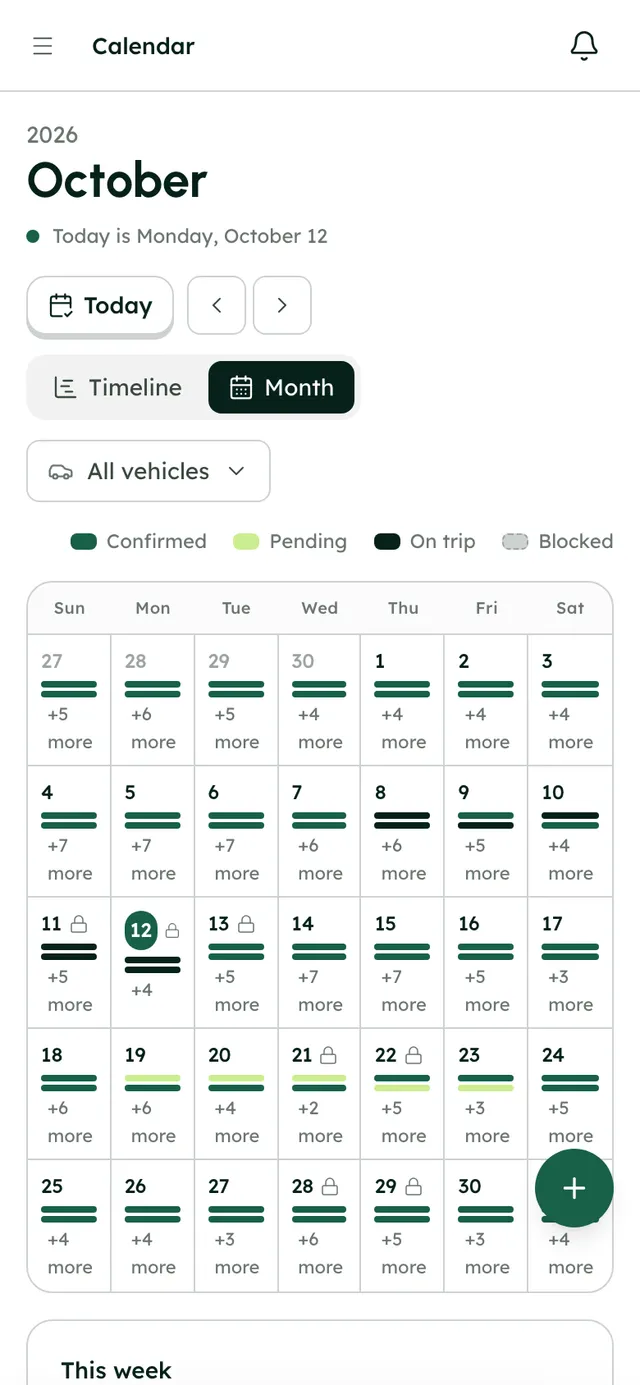
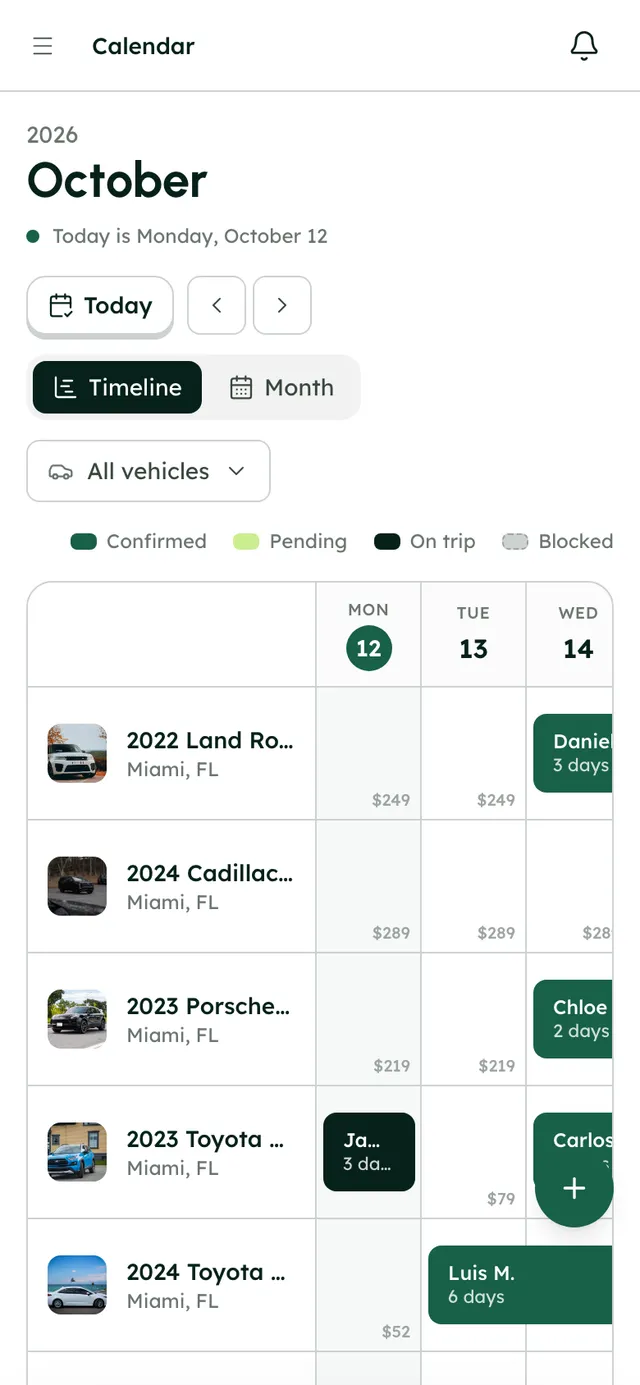
The Timeline view: one row per car, bookings as bars, and a booking dragged to new dates and repriced.
How it works
- 1
Pick a view
Choose Timeline or Month at the top. Today jumps back to the current date, and the arrows move a week at a time on the timeline. Use the All vehicles filter to show only some cars.
- 2
Open a booking
Click a bar to see pickup, return, the total, what's paid and what's still owed, where the booking came from (your website, added by your team, or Turo) and what's still to do. Press Edit or Open reservation.
- 3
Move or resize a booking
On the Timeline, drag a bar to another car's row to switch cars (the dates stay the same), or drag either end to change the start or end date. Check the old and new total in the dialog, then press Move booking or Save new dates. The renter gets an email about the change.
- 4
Book from an empty day
Click an empty cell and choose New reservation. The booking form opens with that car and day filled in.
- 5
Block dates
Press Block dates, or click an empty cell and choose Block dates. Pick one or more cars under Apply to, the dates, and a reason: Maintenance, Personal use, Cleaning, Off-season, Owner use or Other. Nobody can book the car on those days.
- 6
Edit or remove a block
Click the block and press Edit block or Remove block.
- 7
Send bookings to Google Calendar
Go to Settings → Integrations → Google Calendar, press Manage, then Connect Google Calendar and sign in with Google.
Best practices
- Set a trip buffer in Settings → General → Default booking rules, so renters can't book back to back with no time to clean.
- Book workshop visits in Management → Maintenance instead of blocking by hand. The job blocks the car and gives the days back when it's done.
- Check Pickups today and Returns today each morning.
Things to keep in mind
- Dragging changes the price, but it never moves money. Collect or refund the difference from the booking's Payments & deposit card.
- Turo trips show on the calendar but are read-only. Change them on Turo.
- Google Calendar is one-way: bookings go from RentHive to Google and nothing comes back. Pending bookings and blocks aren't sent. There's no Apple Calendar, Outlook or iCal feed.
- Remove block works straight away, with no confirmation step. Blocks made by a maintenance job can only be changed from the job.
What's automated
- Moved and resized bookings are repriced by the server before you confirm.
- Empty cells on the Timeline show that day's price for the car.
- Maintenance jobs block the car on the calendar and your website.
- Confirmed bookings reach Google Calendar within a few minutes and stay updated.
Common questions
Will moving a booking charge the renter?
No. You see the new total before you confirm, but no money moves. Take or refund the difference from the booking page.
Can I see my Google Calendar events in RentHive?
No. The Google Calendar connection only sends your RentHive bookings to Google.
Can I block several cars at once?
Yes. Pick as many cars as you need under Apply to in the Block dates window.