Overview
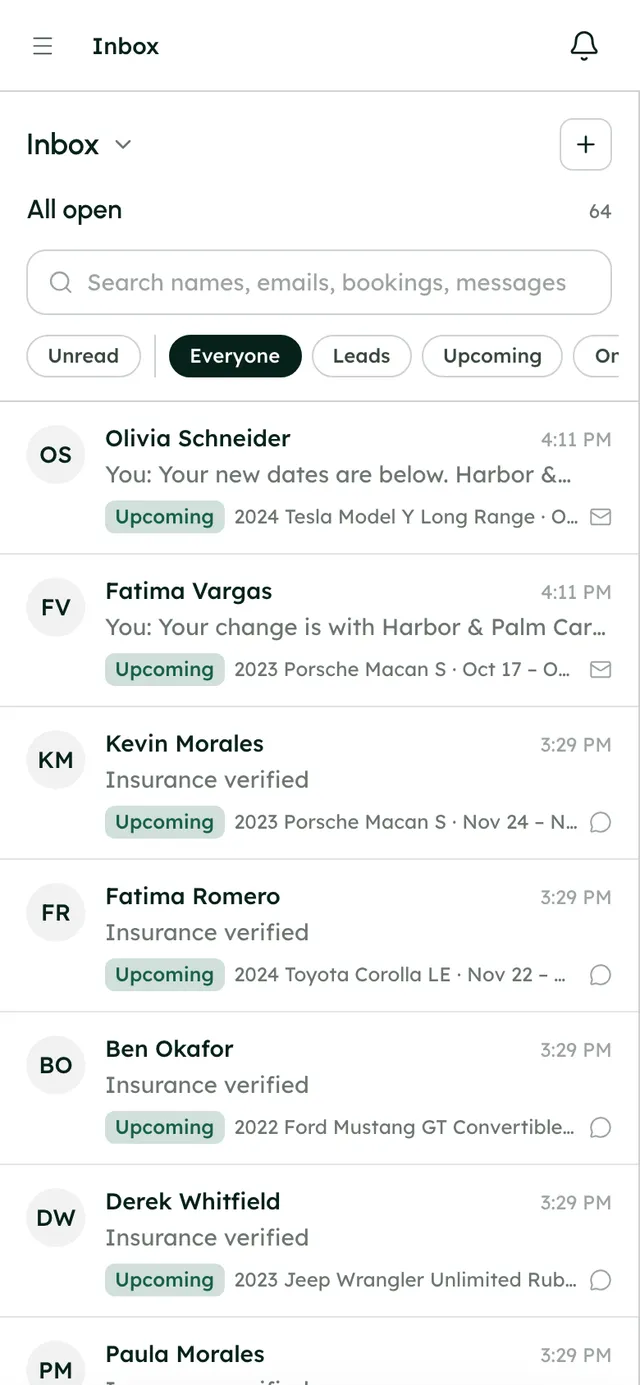
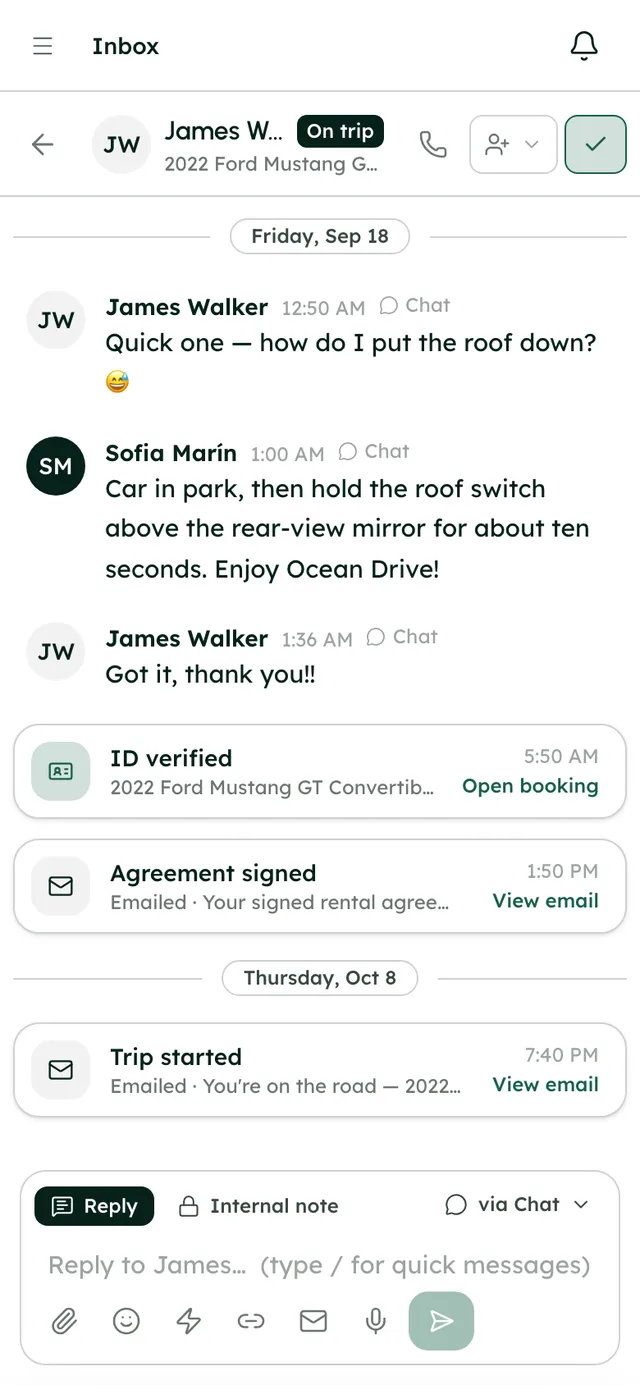
The bell collects what's new for you: renter messages, @mentions, tasks and jobs assigned to you, new sections you've been given, booking events (booked, paid, a failed payment, ID or insurance verified, agreement signed, cancelled) and any email that couldn't be sent. The unread count shows in your browser tab too.
Turn on desktop notifications and each new item pops up on your computer while RentHive is open in a tab, except for the conversation you're already looking at.
Email covers the rest. New bookings, cancellations, change requests and renter messages from your website's contact form are emailed to your company. You get an email when you're @mentioned and haven't had RentHive open for 5 minutes. Tasks and jobs assigned to you, and tasks coming due, are emailed to you.
Step by step5
- 1
Check the bell
Click the bell at the top right. Press an item to jump to it, or Mark all as read.
- 2
Turn on desktop notifications
In the bell menu, press Turn on desktop notifications and allow them when your browser asks. A test notification confirms they're on. If the browser blocks them, allow them for app.renthive.co in its settings.
- 3
Get renter messages by email
In SettingsMessagingEmail notifications, the owner can switch on Renter messages by email. Every renter message is then emailed to whoever is assigned to the thread, or to your company email.
- 4
Act on booking alerts
Each booking shows alerts for what needs you, like a renter's change request, money still owed close to pickup, a failed deposit hold or missing trip photos. The Alerts tab in Reservations lists bookings with money owed and a pickup or return within 2 days.
- 5
Assign so the right person hears
Assign conversations with inbox rules, and tasks with task rules. Whoever is assigned gets the bell, the reminders and, for renter messages, the email.
Best practices
- Turn on desktop notifications on the computer you work from, so a renter's question never sits unseen.
- Switch on Renter messages by email if nobody watches the Inbox all day.
- Use @mentions in internal notes rather than texting a teammate, so the context stays with the renter.
- Give every task a due date and an owner. Reminders only go to tasks that have both.
Good to know
- Desktop notifications only appear while RentHive is open in a browser tab. iPhone Safari in a tab can't show them.
- Company emails go to your company email address, or the owner's if none is set. Set it in SettingsCompany.
- There's no SMS or push notification to your phone. Use desktop notifications and email.
What runs on its own
- The bell checks for new items every few seconds while RentHive is open.
- Mention emails go out only when you haven't had RentHive open for 5 minutes.
- Task reminders start 6 hours before a task is due and repeat at most every 20 hours until it's done.
- Overdue returns are flagged 2 hours after the return time.
Questions
Why didn't I get a desktop notification?
RentHive needs to be open in a browser tab, and your browser needs to allow notifications for app.renthive.co. Items in the conversation you're viewing don't pop up.
Who gets new booking emails?
Your company email address, set in SettingsCompany, or the owner if none is set.
Can I get a text message when a renter writes?
No. Use desktop notifications, or switch on Renter messages by email.