Using the inbox, quick messages and automations
Keep one thread per renter across website chat and email, send payment and ID requests as tappable cards, and automate the messages you send on every trip.
Overview
Every renter has one thread. Messages from your website chat, their trip page and email land there, along with booking event cards like booked, paid and ID verified. Your replies go to the chat. If the renter hasn't been in the chat in the last couple of minutes, the reply is emailed to them too.
Email replies thread back in. Each conversation has its own reply address, so when a renter presses Reply in their email app, the message lands in the same thread.
Quick messages are saved replies with placeholders for the renter's details. Any of them can be sent automatically on a booking event, by chat, email or both. Rules decide who on your team picks up which conversations.
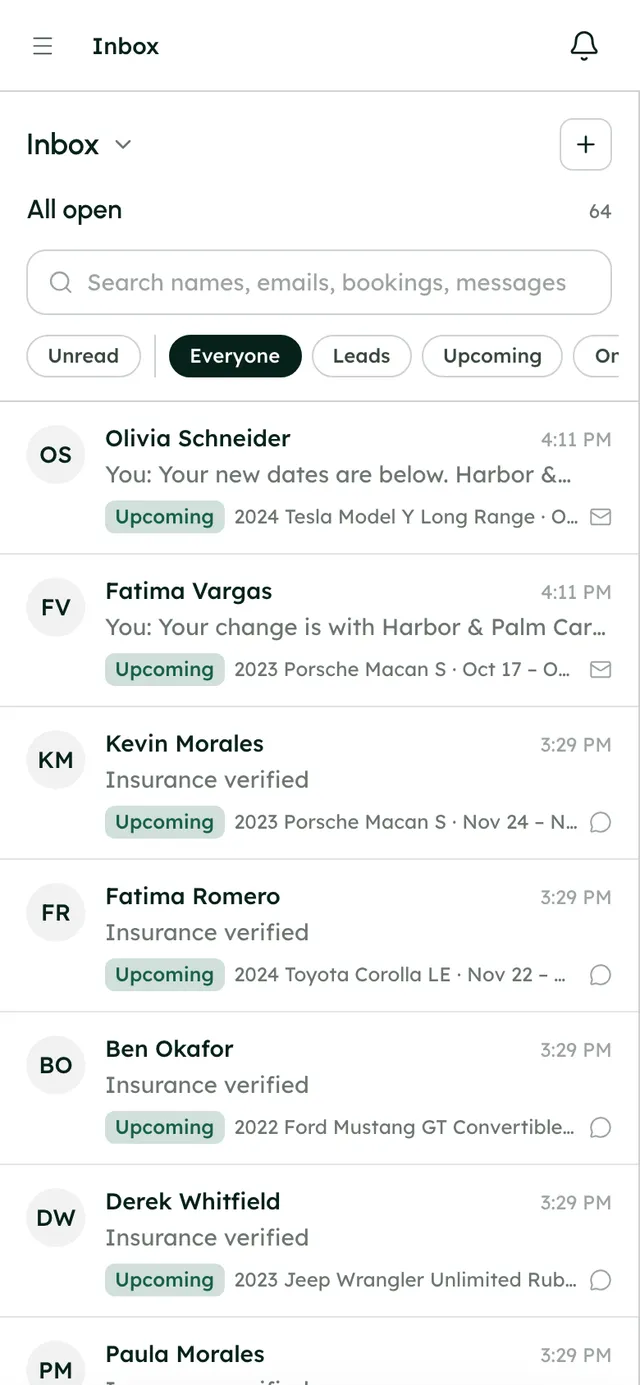
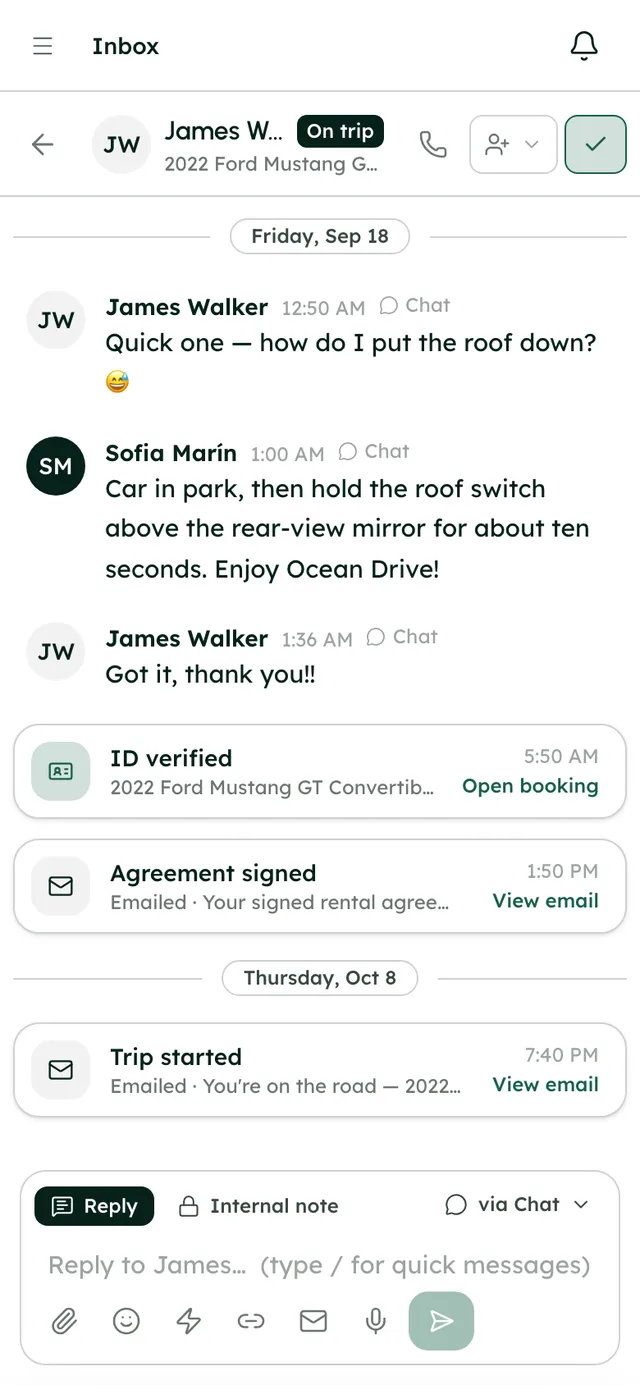
The Inbox: one thread per renter, with chat, email and booking events together.
How it works
- 1
Find the right conversations
Under Renters, use All open, Assigned to me, Unassigned, Mentions and Done. Under Reservations, use Leads, Upcoming, On trip and Past renters. The search box covers names, emails, bookings and messages.
- 2
Reply or leave a note
Use the Reply tab to write to the renter, by chat or email. Use Internal note to write to your team; @mention someone to loop them in. You can attach files (25 MB each, 50 MB for video) and record voice messages of up to 5 minutes.
- 3
Send a request as a card
Press the Payment, ID and insurance links button and choose Request a payment, Ask for an ID check, Ask for insurance, Send their trip page or Send the agreement. The renter gets a button to tap, and the card updates when they act.
- 4
Create quick messages
Go to Settings → Messaging → Quick messages and press New quick message. Give it a name, a shortcut, and the message, using placeholders like the renter's first name, the vehicle and the pickup time. In a reply, type / to pick one.
- 5
Send them automatically
Turn on Send it automatically and choose when: a booking is made, a payment comes in, their ID is verified, their insurance is verified, a booking is cancelled, before pickup, before return or after return. Choose how long before or after, and whether it goes by chat and email, chat, or email.
- 6
Assign conversations
In Settings → Messaging → Who picks up what, press New rule. Set conditions such as payment, ID check, insurance, where the booking came from, the renter's stage and vehicles, then pick who it Goes to.
- 7
Turn on website chat
In Settings → Messaging → Where renters reach you, switch on Chat on your website and write the greeting renters see first.
- 8
Edit the emails renters get
In Settings → Messaging → Email notifications, edit the wording of renter emails, switch off the optional ones, or press New email to write your own, sent on a booking event or a set number of days before pickup or after return.
Best practices
- Start from the starter quick messages, and switch on automatic sending for the ones you send on every trip, like pickup details.
- Use internal notes and @mentions instead of a separate team chat, so the context stays with the renter.
- Mark a thread Done when it's handled. It comes back if the renter writes again.
- Send payment requests as cards rather than pasting links. The card shows when they've paid.
Things to keep in mind
- There's no SMS. Renters are reached by chat and email.
- Automatic quick messages go out once per booking. Turo bookings and cancelled bookings are left alone.
- Only 7 MB of attachments travel with an email. Larger files stay in the chat, and the email says so.
- Every team member can use the Inbox, whatever sections they have access to.
- SVG files can't be attached.
What's automated
- Booking events show as cards in the renter's thread.
- Messages from your website's contact form arrive in the Inbox as leads.
- Replies by email land in the right thread, with quoted history and phone signatures stripped.
- Notifications come through the bell, and through desktop notifications once you turn them on. Teammates get an email when they're mentioned and haven't been active for a few minutes.
- With Renter messages by email switched on (at the top of Email notifications), renter messages are emailed to your team as well.
Common questions
Do renters need an app to chat with me?
No. They chat on your website or trip page, or simply reply to your emails.
Can renters see internal notes?
No. Internal notes are only visible to your team.
Can I text renters from RentHive?
Not at the moment. Messages go by chat and email.