Adding vehicles and setting prices
Add a car with the six-step wizard, then set its rate, length discounts, fees, taxes, deposits, extras, protection plans and coupons. Set company defaults once and override per car only where needed.
Overview
Every car starts in the add-vehicle wizard: Basics, Location, Capacity, Amenities, Pricing and Photos. Your progress is kept as a draft, so you can stop and finish later.
Prices are built in layers. Each car has a base rate per day, per week or per month. On top of that sit length discounts, booking fees, location prices, tax profiles, a mileage allowance, security deposits, extras, protection plans and coupons. Most of these are set once as company defaults, and every car follows them unless you give that car its own.
Bookings keep the prices they were sold with. Changing a rate later doesn't change the total of a booking that's already been made.

2022 Land Rover Range Rover Sport HSE
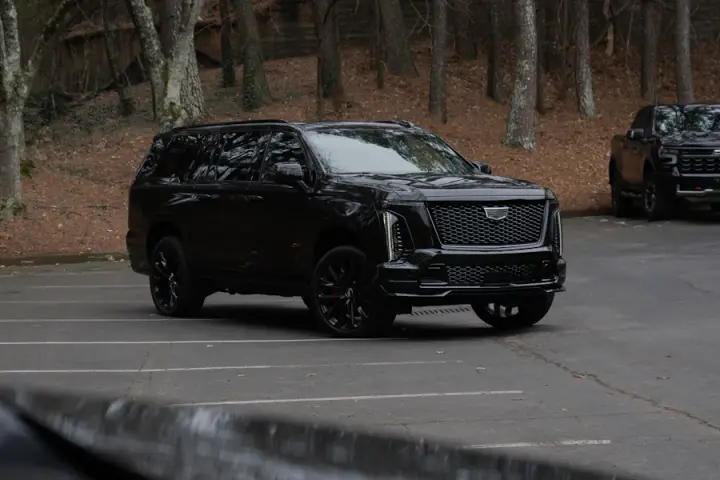
2024 Cadillac Escalade Premium Luxury
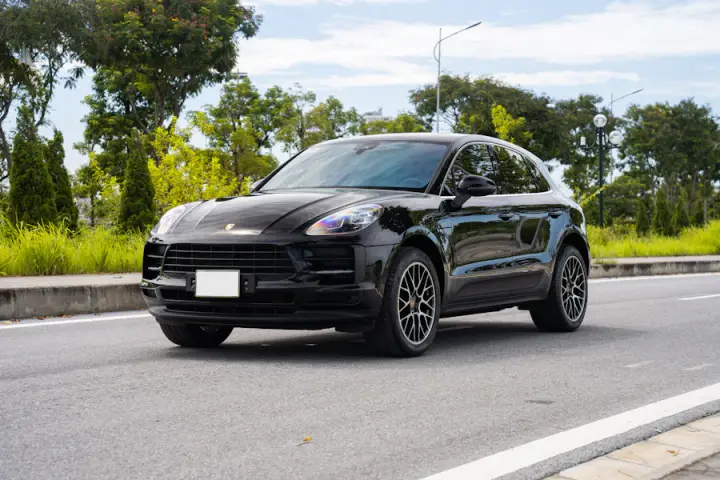
2023 Porsche Macan S
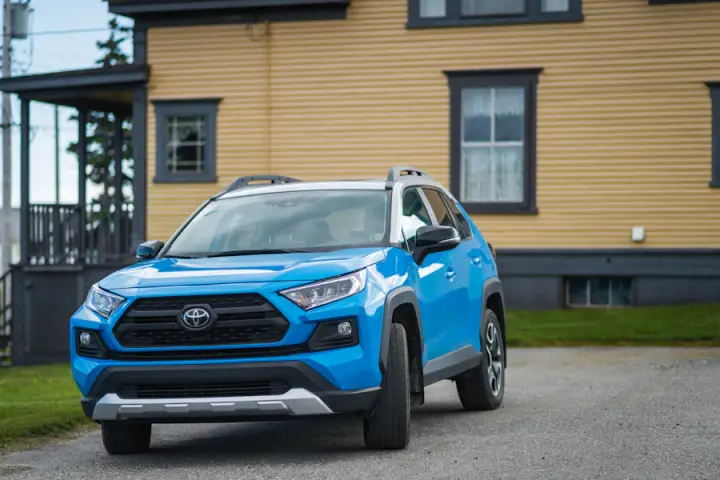
2023 Toyota RAV4 Hybrid XLE
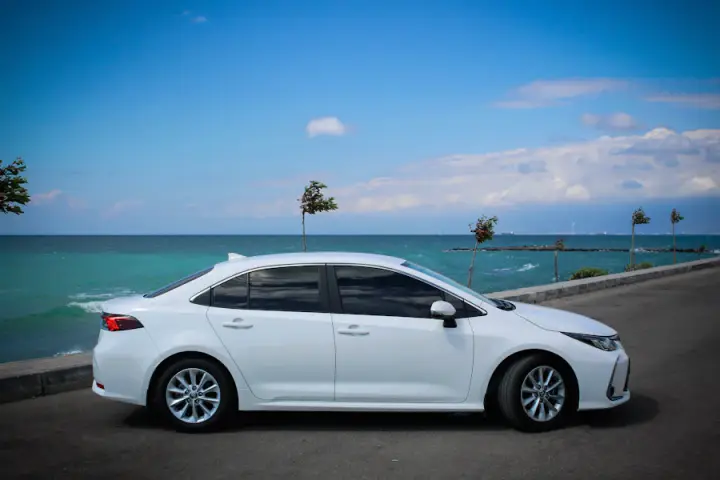
2024 Toyota Corolla LE

2024 Toyota Camry SE
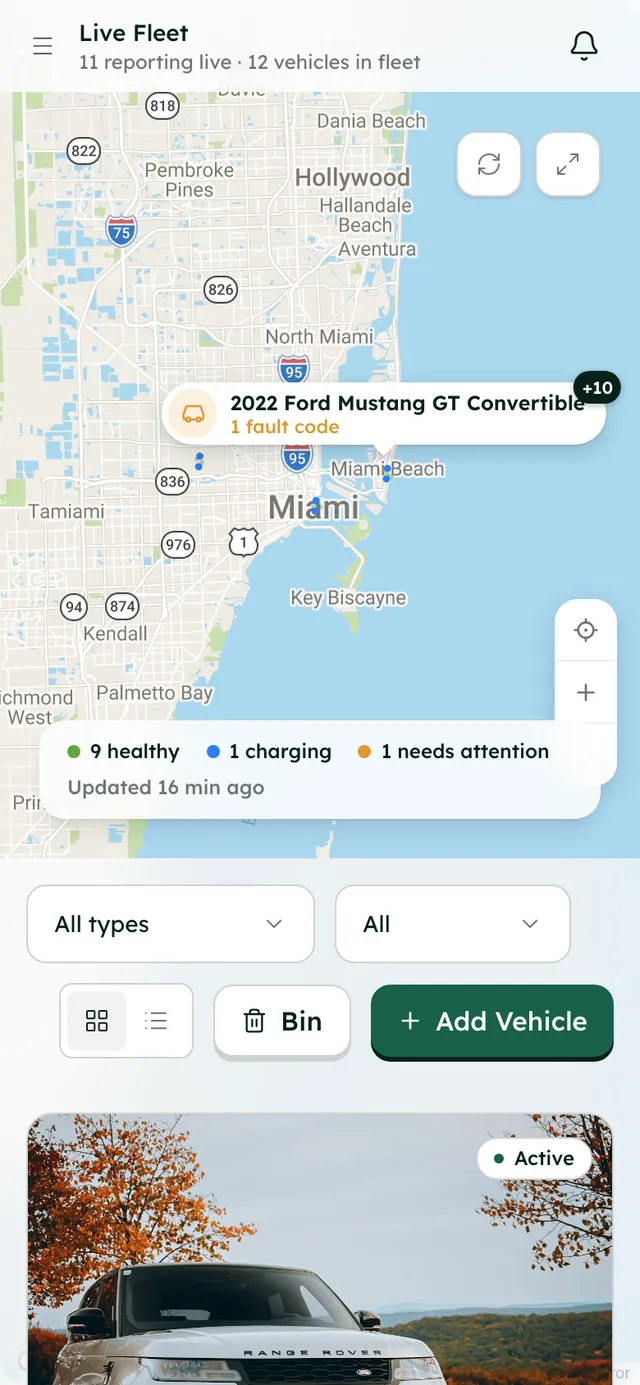
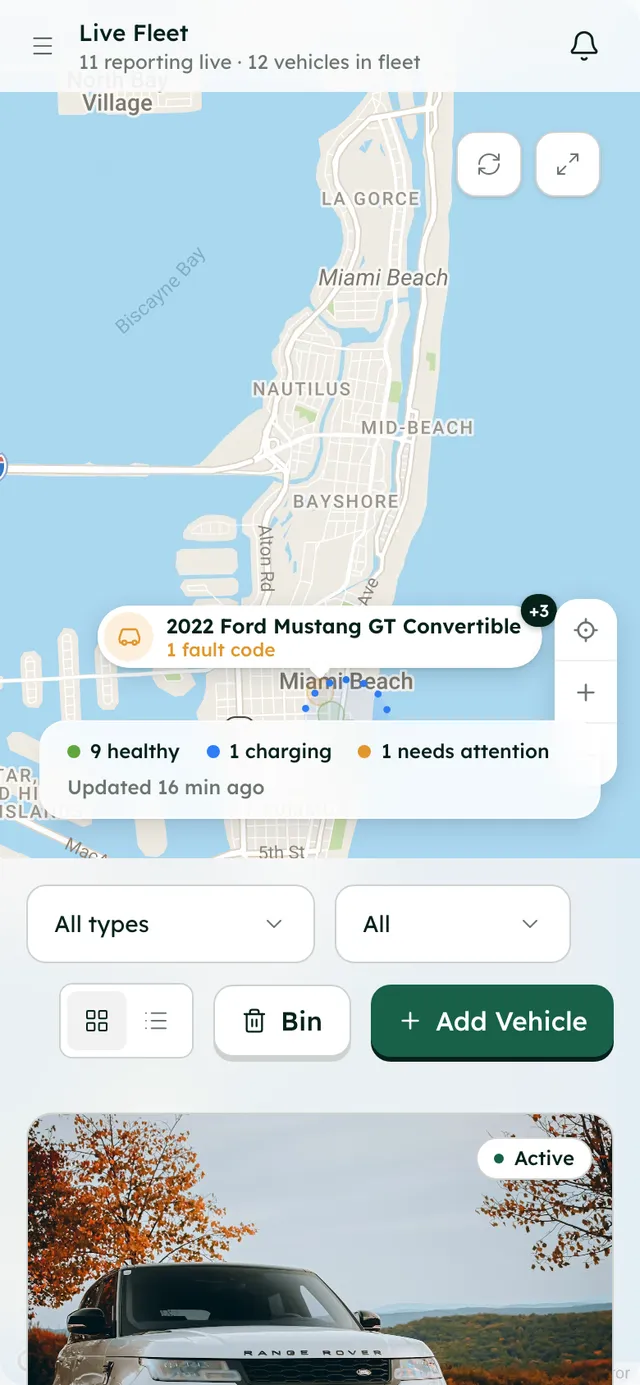
Your fleet: every car with its photo, rates and status.
How it works
- 1
Start the wizard
Go to Fleet and press Add Vehicle. Work through Basics, Location, Capacity, Amenities and Pricing, pressing Continue after each. Save & exit keeps a draft you can resume later.
- 2
Add photos and create the vehicle
On the Photos step, add at least one photo, then press Create Vehicle. Photos are converted to WebP and their location data is removed. On the vehicle's Photos tab you can reorder them and pick the cover with Set as cover.
- 3
Set the base rate
On the vehicle's Overview tab, the Base rate card holds the rate and its period: per day, per week or per month. The same tab has the plate and VIN.
- 4
Set company defaults in Settings → Invoicing
Create Tax profiles (each rate a percentage or flat amount, per trip or per day) and star one as the default. Add Booking fees and Security deposits, set Mileage (miles included per day and an extra mile fee), and add length discounts, such as rentals of 7 days or more get 10% off.
- 5
Add coupons
In Settings → Invoicing → Coupons, press New coupon. Set a code, a percentage or amount off, the vehicles it applies to, and optionally an end date, a limit on total uses, or First booking only. You can pause a coupon at any time.
- 6
Add extras, protection plans and locations
Extras, charged per rental or per day, live in Settings → Fleet → Extras. Protection plans you sell at checkout are set up in Settings → Integrations on the Rental cover card, each as a plan the renter picks or an add-on, priced per day or per trip. Pickup and return locations, each with an optional Location price and opening hours, are in Settings → Company.
- 7
Override for one car
On the vehicle's Settings tab, the Tax, Discount, Booking fees, Security deposit, Mileage and Legal policies cards follow the company default until you switch it off and set the car's own. The Extras card switches each extra on or off for this car. The Rules tab works the same way for booking rules, changes and cancellations, and rental rules.
Best practices
- Set company defaults first. A new car then only needs its rate and photos.
- Add several clear photos and choose a strong cover. It's the first thing renters see on your website.
- Use length discounts and coupons to reward longer or repeat rentals.
Things to keep in mind
- Prices are in US dollars. There are no seasonal, weekend or demand-based rates. Use length discounts and coupons instead.
- A car priced per week or per month is booked in whole weeks or months.
- Deleting a vehicle moves it to the Bin. You can restore it for 30 days. After that its details and photos are deleted for good, but its bookings, payments and invoices are always kept.
- Protection plans are your own products, priced and honored by you. RentHive is not an insurer and doesn't provide coverage.
What's automated
- The wizard saves your progress as a draft, and you're offered the draft when you come back.
- Length discounts, taxes, fees, deposits and coupons are worked out by the server for every quote and booking.
- Each booking keeps the prices and mileage allowance it was sold with, so a later price change can't re-bill it.
Common questions
Can one car have different rules from the rest of my fleet?
Yes. Every setting can follow the company default or be set for that car alone, on the vehicle's Settings and Rules tabs.
What happens to existing bookings if I change my prices?
Nothing. Bookings keep the prices they were sold with. New prices apply to new bookings.
Can I take a car off my website for a while?
Yes. Pause the vehicle from its page. It's hidden from renters and takes no new bookings until you reactivate it. Existing bookings aren't affected.