Getting started with RentHive
Create your account, use the 7-day free trial, and work through the six-step setup list: a vehicle, your website, payments, policies, extras and a rental agreement.
Overview
RentHive is a web app for running a car rental business. You sign up at app.renthive.co with an email and a password. There's no card to enter, and your 7-day free trial starts right away.
Every plan includes every feature. Plans differ only by how many vehicles they cover: Starter covers up to 10, Growth up to 50, and Enterprise is set up with our team for larger fleets. Nothing is locked when the trial ends. You pick a plan to carry on.
Setup has six parts, listed on the Onboarding page. The list checks itself: each item ticks off when the real thing exists, so there's nothing to tick by hand.

2022 Land Rover Range Rover Sport HSE

2024 Cadillac Escalade Premium Luxury

2023 Porsche Macan S

2023 Toyota RAV4 Hybrid XLE

2024 Toyota Corolla LE

2024 Toyota Camry SE
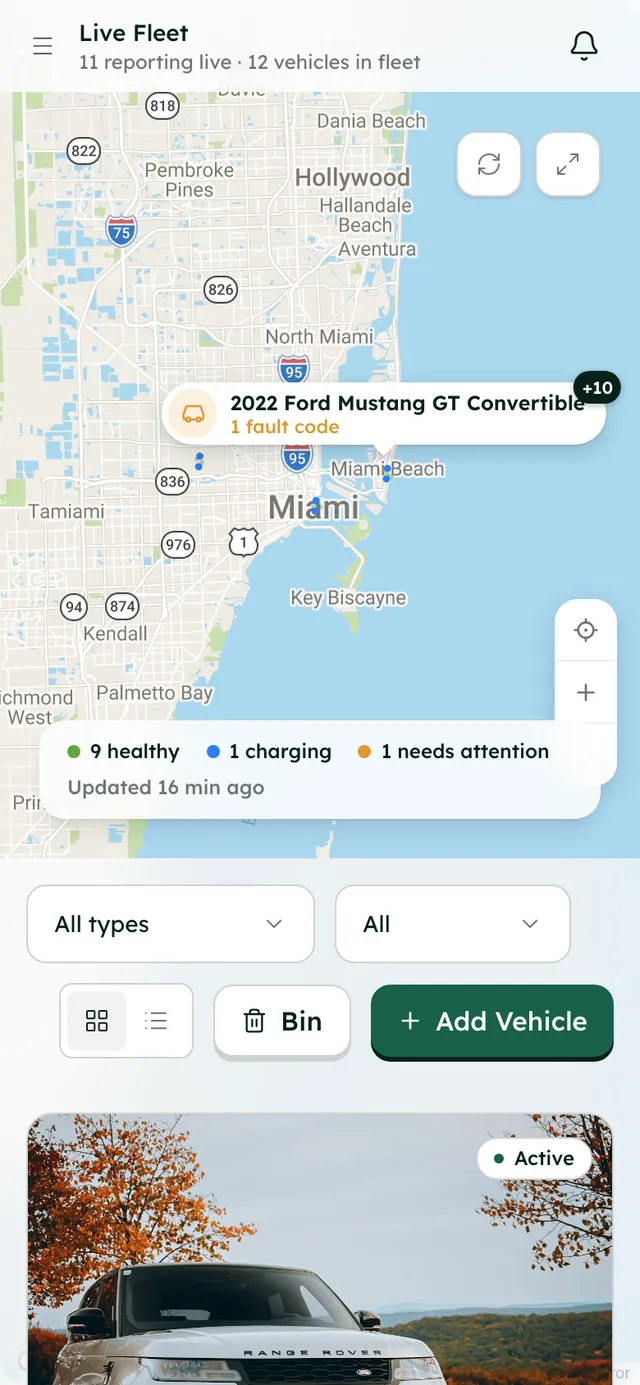
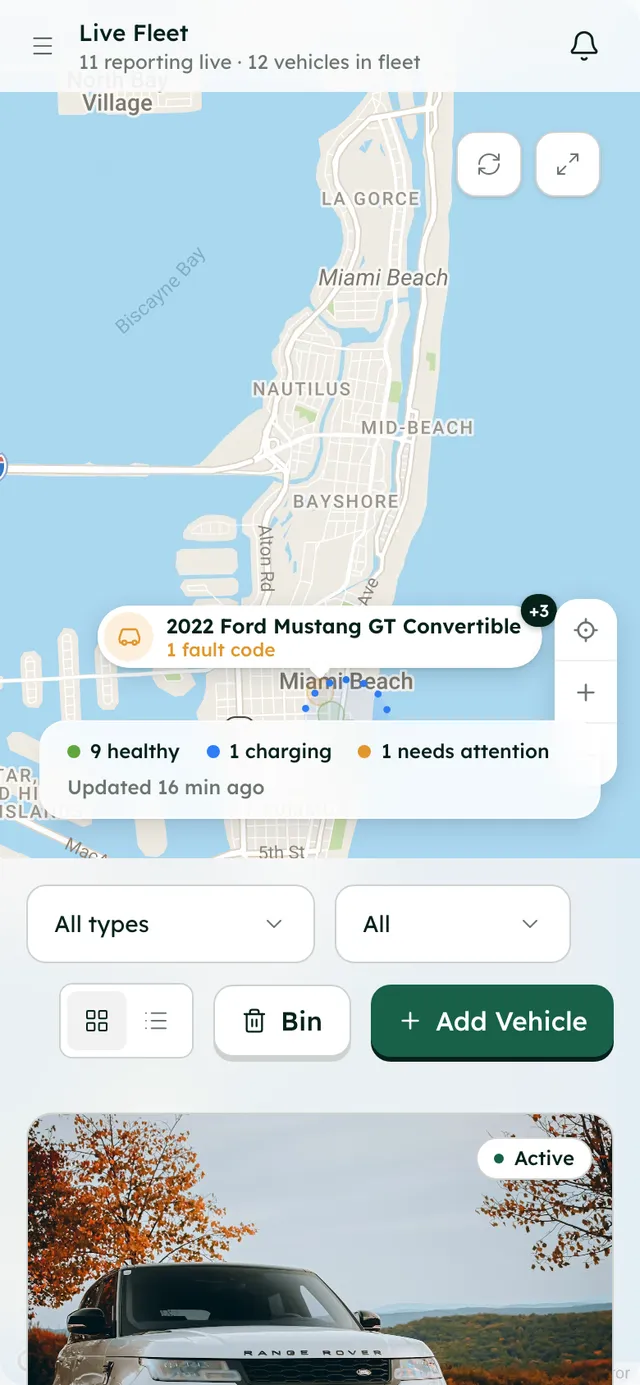
The Fleet page, where setup starts with your first vehicle.
How it works
- 1
Create your account
Go to app.renthive.co/signup. Enter your email and a password of at least 8 characters, and press Continue. Then add your full name, company name and phone number, and press Create Account. You land on the Overview dashboard.
- 2
Open the setup list
Click the Setup in progress pill at the bottom right of any page. It opens Onboarding, which lists the six steps and shows how many are done.
- 3
List your first vehicle
Press Add a vehicle. The add-vehicle wizard walks you through basics, location, capacity, amenities, pricing and photos. The guide on adding vehicles covers it in detail.
- 4
Publish your website
Press Launch the website. You pick one of three designs and a free address, and the site goes live.
- 5
Set up online payments
Press Connect payments. Stripe opens so you can create or connect your Stripe account. Once Stripe has what it needs, renters pay by card straight into that account.
- 6
Add policies, extras and your agreement
Set up policies and Set up the agreement open Settings → Legal, where you write your terms, privacy and cancellation policies and your rental agreement. Set up extras opens Settings → Fleet → Extras for add-ons like a child seat.
- 7
Choose a plan
Click your name at the bottom of the sidebar and open Billing Settings. Pick Monthly or Yearly (two months free), then choose Starter or Growth. For Enterprise, press Talk to us.
Best practices
- Set your company defaults before adding many cars: booking rules in Settings → General, and taxes, fees, deposits and discounts in Settings → Invoicing. New cars follow them automatically.
- Add a vehicle and connect Stripe before you share your website. Renters need cars to book and a way to pay.
- If you'd like a walk-through, book a free 45-minute setup call at renthive.co/request-demo.
Things to keep in mind
- Plans are sized by fleet: Starter covers up to 10 vehicles and Growth up to 50. The Billing page shows how many you're using.
- Some costs are paid to other providers, not to RentHive: Stripe's card fees and Stripe Identity ID checks are billed by Stripe to your own account, and Smartcar bills you per car if you use it. Insurance checks use credits: 5 free, then $2 per check.
- RentHive is a web app. It works in a phone's browser, but there is no separate iOS or Android app.
- To cancel, change plan or update your card, press Manage billing on the Billing page. A cancelled plan runs to the end of the period you've paid for.
What's automated
- The setup list ticks itself off from your real data, and un-ticks if you remove something. Skip for now hides a step until you set it up.
- If the vehicle, website or payments steps are still open, reminder emails go out on days 2, 4 and 7 after signup.
- You get an email 3 days and 1 day before your trial ends, and on the day it ends.
Common questions
Do I need a credit card to start the trial?
No. Signup asks for your email, a password, your name, company name and phone number. No card.
What happens when the trial ends?
Nothing is locked or deleted. Your vehicles, bookings and website stay as they are. You choose a plan in Billing Settings to carry on.
Are some features only on the bigger plans?
No. Every plan includes every feature. Starter, Growth and Enterprise differ only by how many vehicles they cover.
Does RentHive take a cut of my bookings?
No. RentHive takes 0% commission. Renters pay into your own Stripe account, and Stripe charges its usual card fees there.