Overview
Customers build themselves. Every booking is matched to a customer by email address, so a renter who comes back joins their own history. You can also add someone by hand, and their first booking with that email joins them.
Each profile shows what they've brought in, collected and still owe, their trips with status and source, the average trip, when you first saw them, and the cars they've driven. Their newest ID and insurance checks sit on the profile too, with which booking they came from.
Notes on a customer are only seen by your team and stay with the customer across every trip. Blocking someone stops them booking: your website quietly shows the dates as unavailable, and your team's booking form refuses to save.
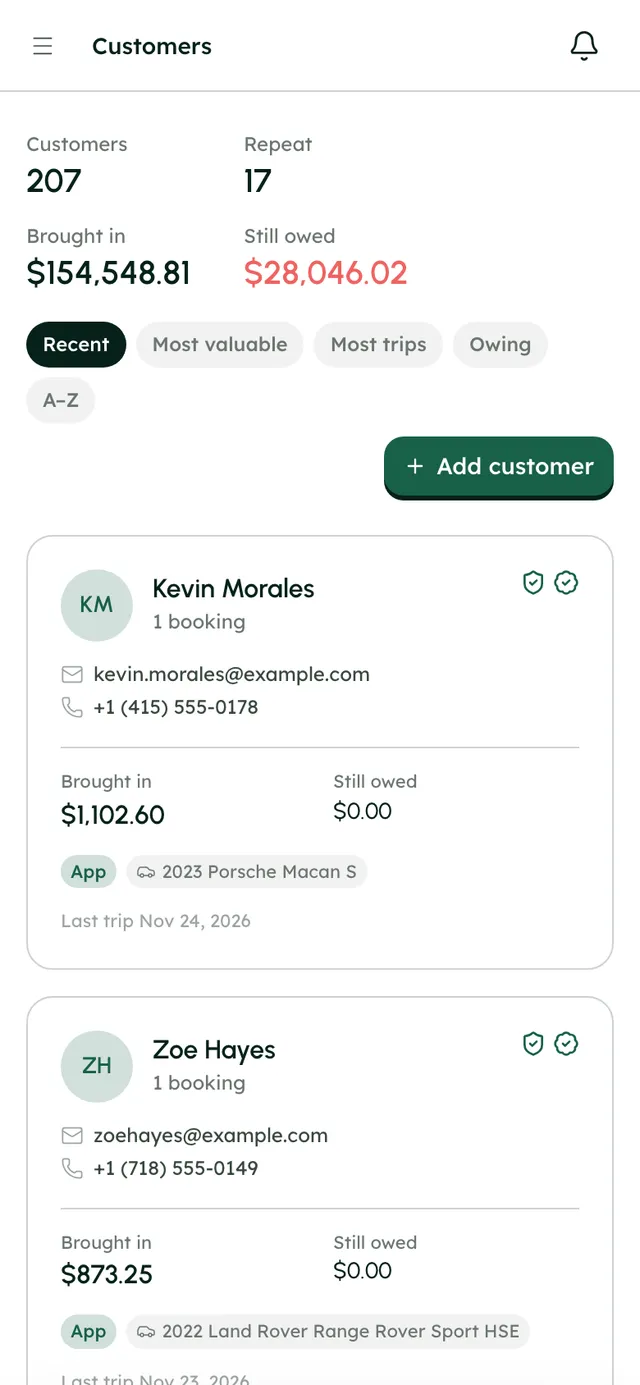
Kevin Morales
1 booking
- Brought in
- $1,102.60
- Still owed
- $0.00
Last trip Nov 24, 2026
Zoe Hayes
1 booking
- Brought in
- $873.25
- Still owed
- $0.00
Last trip Nov 23, 2026
Step by step7
- 1
Find a customer
Open Customers. Sort by Recent, Most valuable, Most trips, Owing or A–Z. The header shows how many customers you have, how many came back, what they've brought in and what's still owed.
- 2
Add someone by hand
Press Add customer, enter their full name, email and phone, add a note if you like, and press Save customer. If the email already belongs to someone, you're offered their page instead.
- 3
Open their profile
See their trips, totals and history. Email, Call and Message reach them straight away; Message opens their Inbox thread.
- 4
Check them before they book
On the Identity or Insurance card, press Generate verification link to copy a check link, or email it from the line underneath. For documents you've seen in person, use Record one by hand or Record a policy on paper.
- 5
Keep private notes
Write in the notes box. It saves as you type, and only your team sees it.
- 6
Correct their details
Press Edit to fix their name, email or phone. The change is made on every booking, and the Details history card shows what changed, and whether they or a teammate changed it.
- 7
Block a customer
Press Block this customer, say why (your team sees this) and press Block them. Press Lift the block to undo it.
Best practices
- Always take an email on bookings you add yourself. It's how repeat renters are recognized.
- Note anything the next person at the counter should know: a late return, a great renter, a preferred car.
- Sort by Owing each week and chase anything outstanding.
- Run an ID check before a first-time renter's pickup if they booked by phone.
Good to know
- A booking without an email can't be matched to anyone else's bookings, and stays on its own.
- Blocked renters aren't told they're blocked. Your website just shows the dates as unavailable.
- Editing a customer's details doesn't change an agreement they've already signed.
- Opening ID images needs the Reservations or Customers section, and the images open through links that expire after 15 minutes.
What runs on its own
- Bookings join the right customer by email address.
- The profile's figures update as bookings, payments and refunds come in.
- A renter who changes their name on their trip page shows in the Details history.
Questions
Can two bookings with different emails be one customer?
No. Customers are matched by email address, so the same renter under two emails shows as two customers.
Does a blocked customer find out?
No. On your website the dates simply show as unavailable.
Can I still edit a blocked customer's existing booking?
Yes. Existing bookings stay as they are, with a warning. New bookings are refused until you lift the block.
Where are their ID images?
On the booking they came from, in the Identity vault, or on their profile if they were checked before booking.