Overview
Each booking has a Photos and video card with two sets: Before the trip and After the trip, the two halves of any damage question. Photos are taken with the in-app camera, not picked from a phone's library, so each one is a real record of that moment.
Every capture records the time on the device and when it reached RentHive, the location, the device, who took it and a checksum that shows the file hasn't been changed. Removing a photo hides it, but the record stays and the booking's history notes that it was taken out.
Renters can add their own from their trip page, before and after the trip. They're marked as from the renter, next to yours.
Step by step7
- 1
Take photos at pickup
On the booking, under Photos and video, press Take photos in Before the trip. Allow camera and location when asked, and walk around the car: each corner, the wheels, the interior, the odometer and the fuel gauge.
- 2
Take photos at return
Do the same under After the trip when the car comes back, from the same angles.
- 3
Ask the renter for theirs
Use SendCopy add trip photos link on the booking, or point them to Photos on their trip page. They choose Before the trip or After the trip and take photos with their camera.
- 4
Review side by side
Filter by Everything, Photos, Video or From the renter, and open any photo to see when, where, by whom and on what device it was taken, with its checksum. Press Download to keep a copy.
- 5
Keep what's owed from the deposit
If there's damage and a deposit hold, press Capture on the booking's deposit and enter the amount. The rest of the hold is released.
- 6
Or add it to the invoice
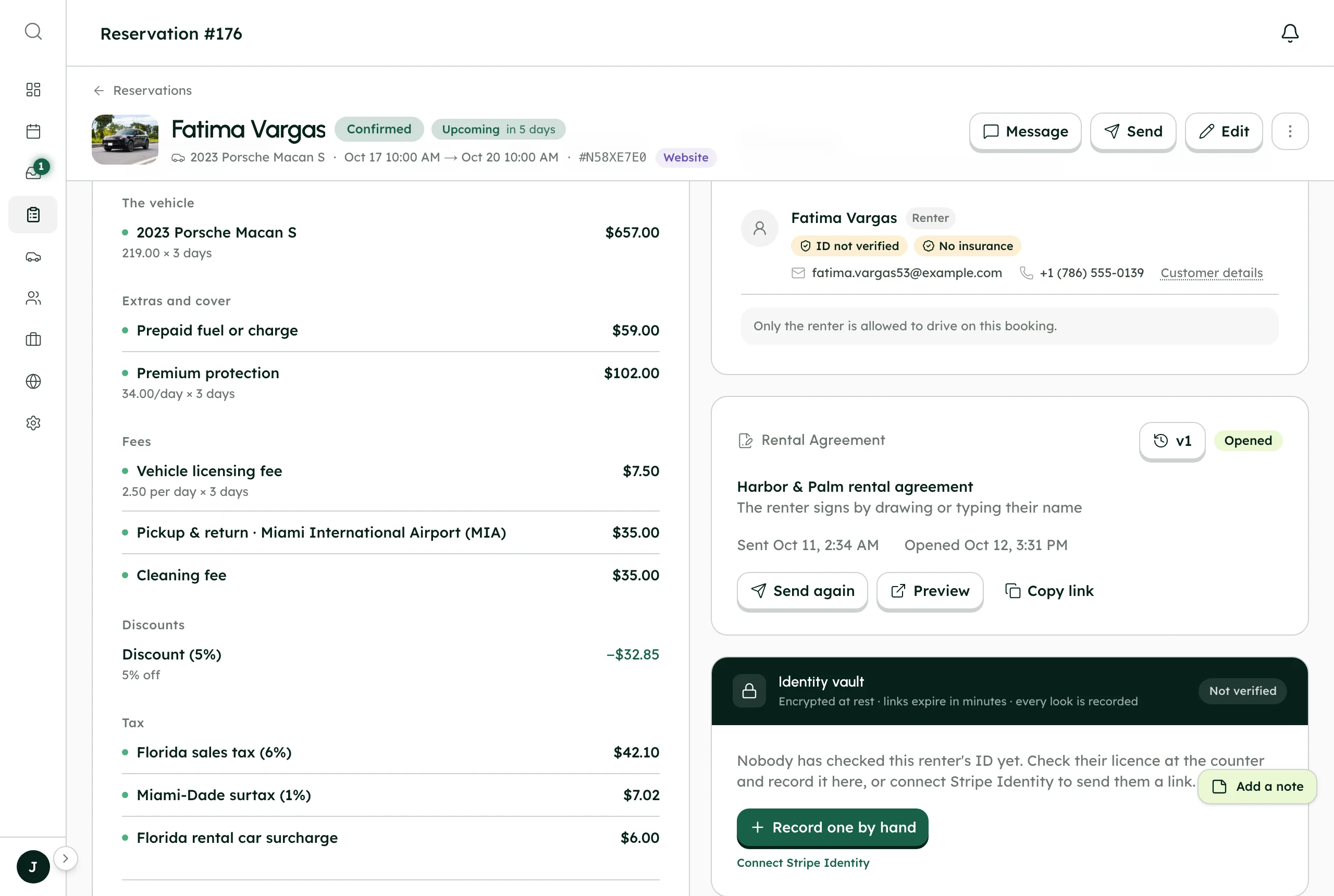
On the invoice, press Add a line and choose Charge (damage, fuel, cleaning…), then collect it with a payment link or the card on file.
- 7
Track the repair
Add a Damage or a claim task for whoever handles it, and book the car into the workshop from ManagementMaintenance so it's off the calendar until it's fixed.
Best practices
- Take after-trip photos as soon as the car is back, well before the deposit hold is released 2 days after the trip.
- Photograph the odometer and fuel gauge at both ends. They settle mileage and fuel questions.
- Ask renters to take their own photos at pickup. Damage they recorded themselves is hard to dispute.
- Use video for a quick walk-around when you're short of time.
Good to know
- The camera needs location permission. If it's denied, photos can't be taken; allow location for app.renthive.co in the phone's settings.
- Each set holds up to 60 photos and 5 short videos, under two minutes each.
- Photos can't be added to a cancelled booking.
- A deposit hold can be captured once. Charges beyond the deposit go on the invoice.
What runs on its own
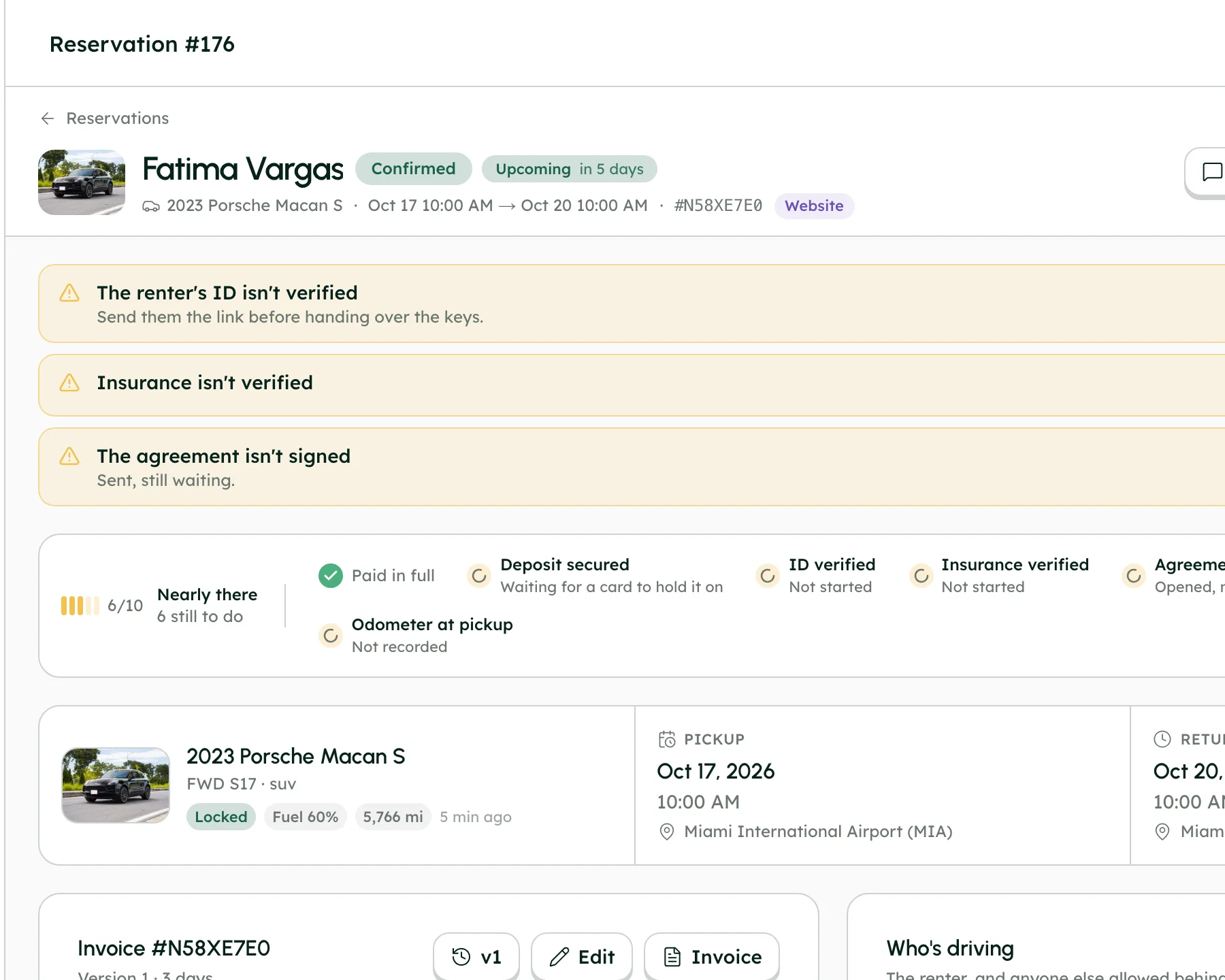
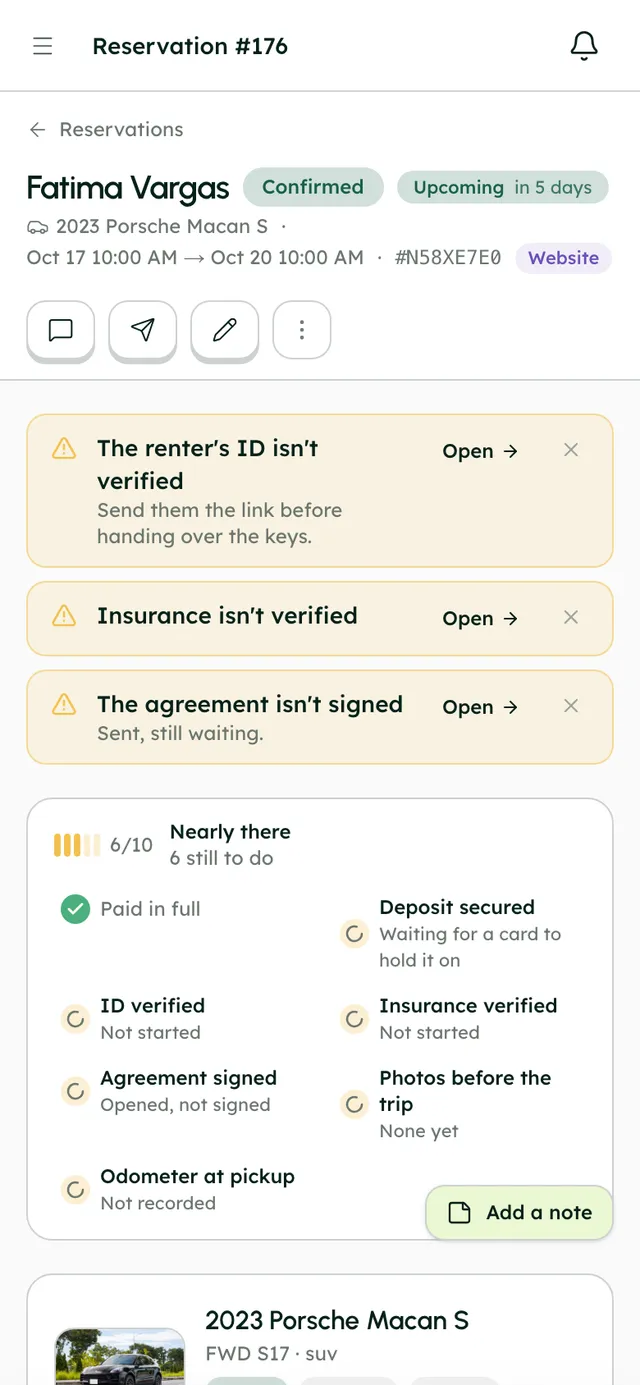
- Photos before the trip ticks off on the readiness checklist once the first one is taken.
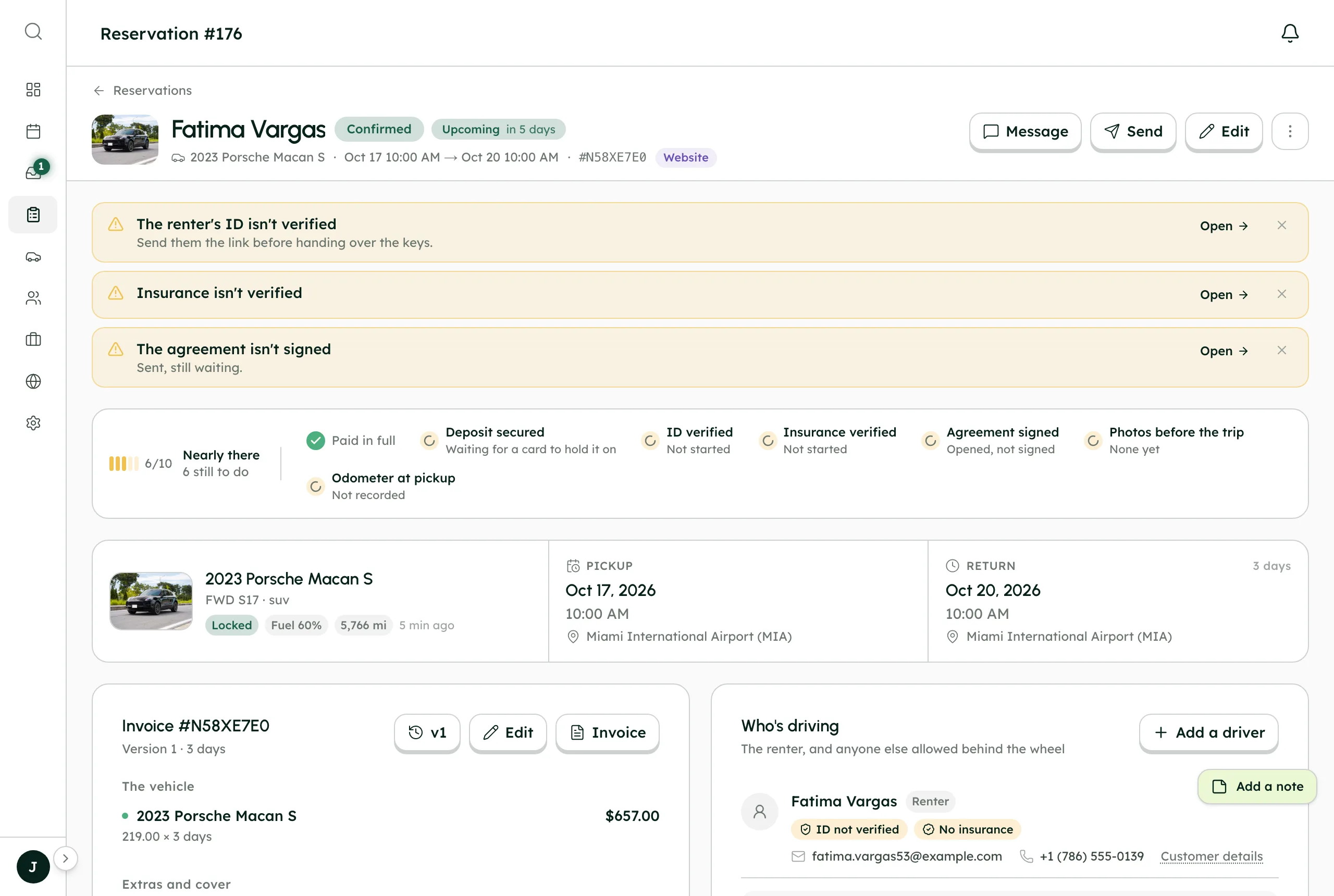
- Bookings show an alert when no photos were taken before the trip, or none after it.
- The Photos before the trip and Photos after the trip tasks close themselves when photos arrive, if you've set rules for them.
Questions
Can I upload photos from my phone's gallery?
No. Trip photos are taken with the in-app camera, so the time, place and checksum are recorded as they're taken.
Can a photo be deleted?
It can be taken out of view, but the record stays, and the booking's history shows who removed it.
Can renters see my photos?
No. Renters see only the photos they took themselves.