Overview
Expenses use categories and sub-categories you create, so they match the way you or your accountant think about costs. Each one can be tied to a vehicle, and carries its receipts: photos from the in-app camera, or images and PDFs you upload.
Regular bills, like insurance, loan payments or parking, are set up once as repeating expenses, and their entries are created ahead of time. Older costs come in from a CSV file, such as a bank or card statement, with each column matched to the right field before anything is saved.
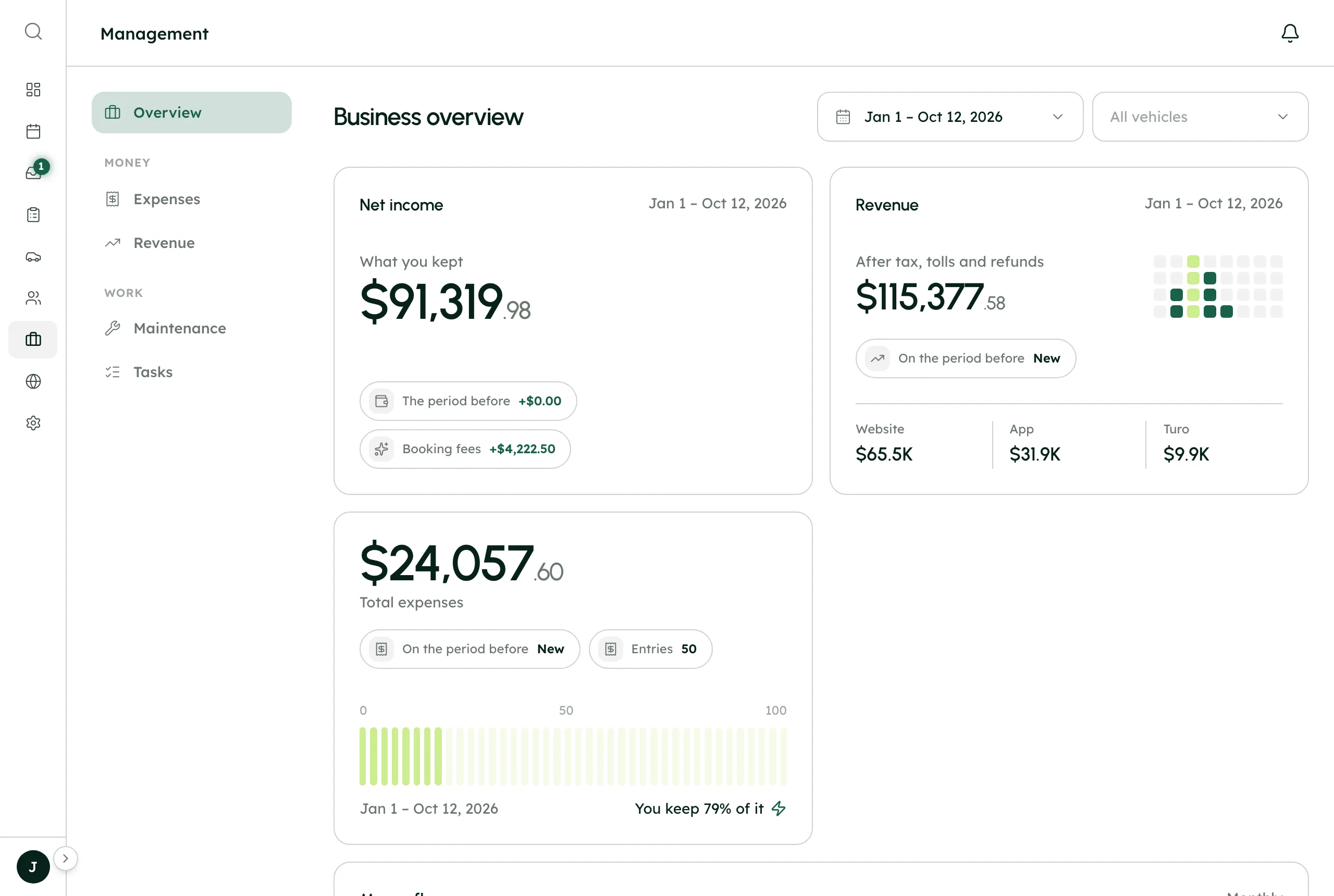
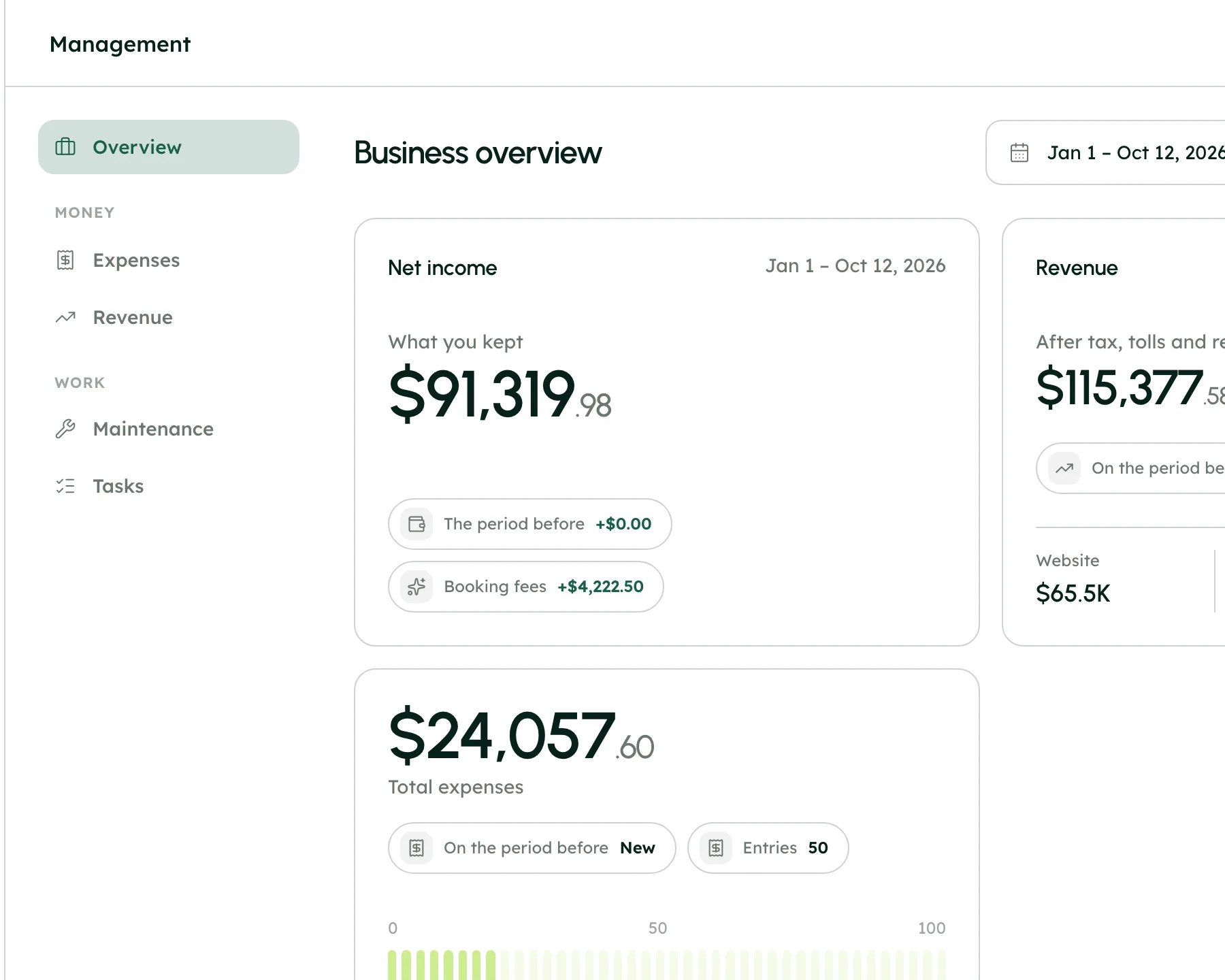
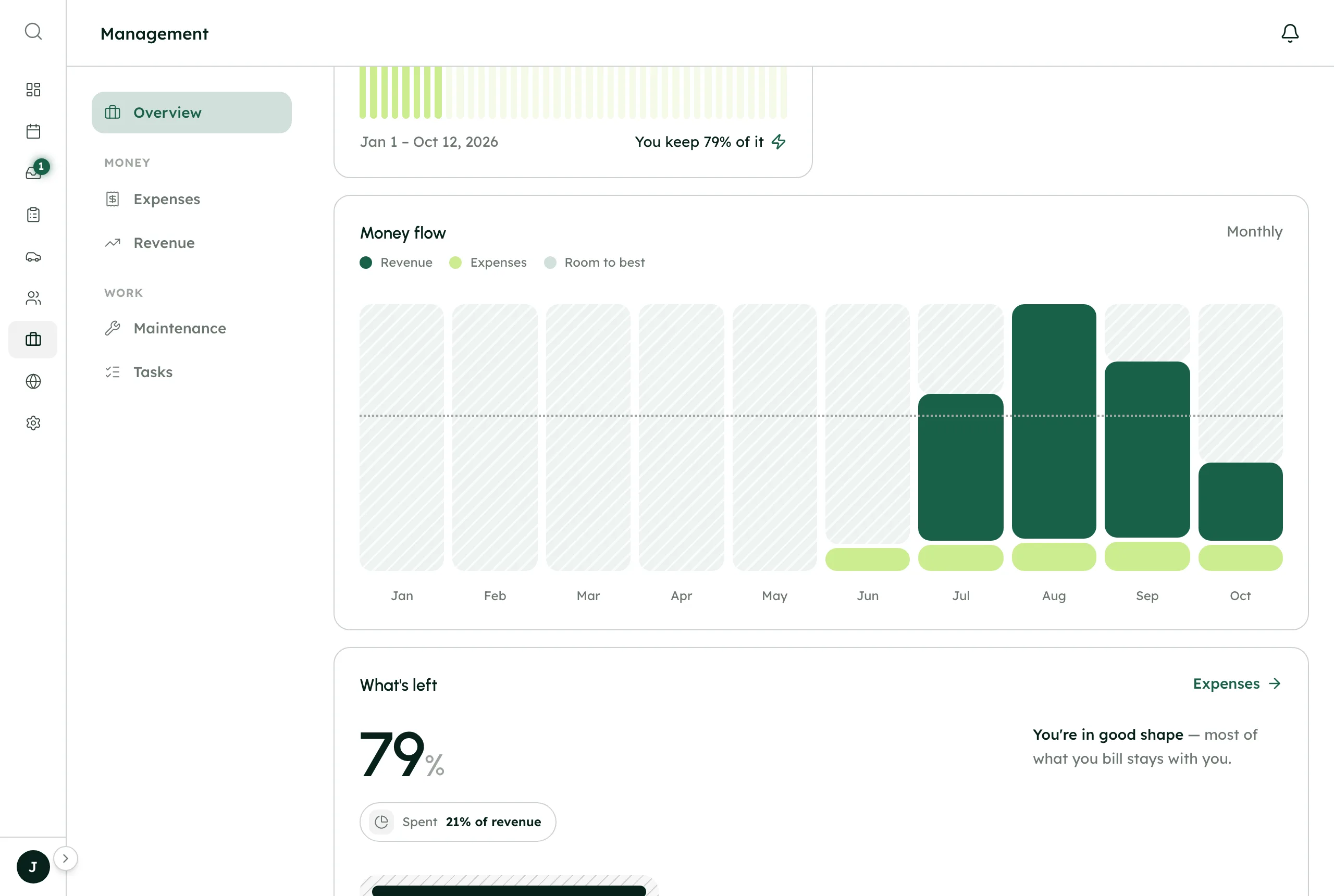
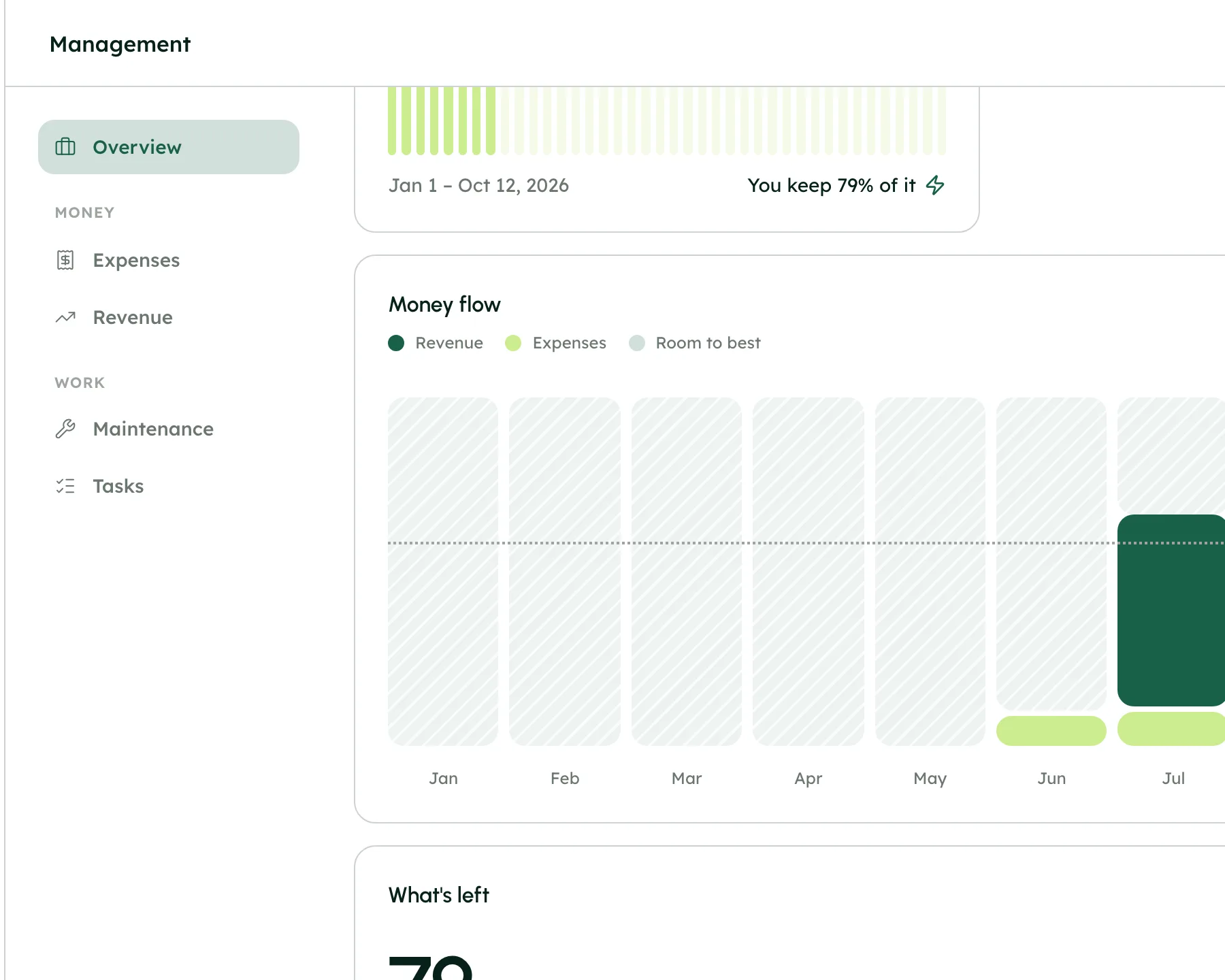
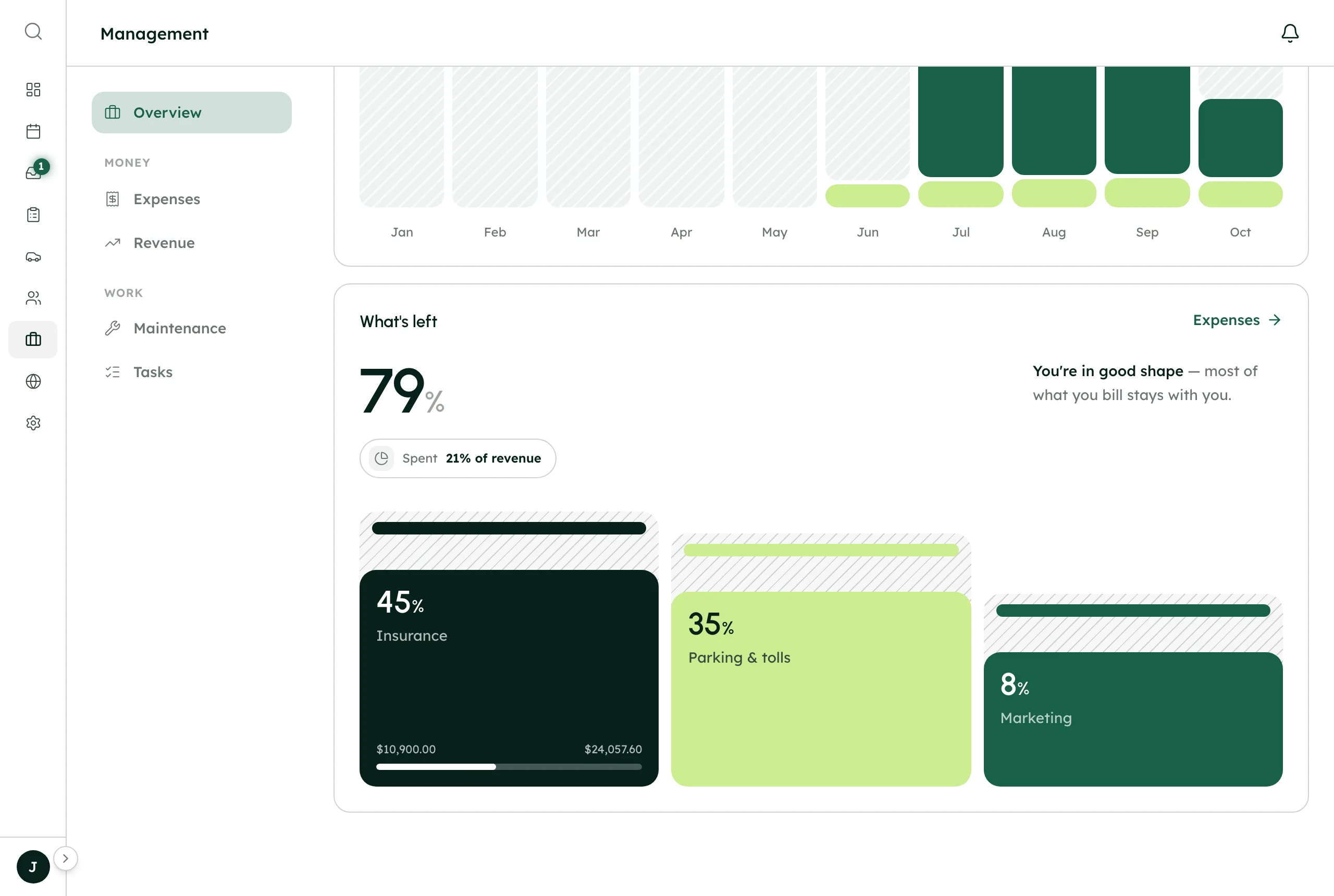
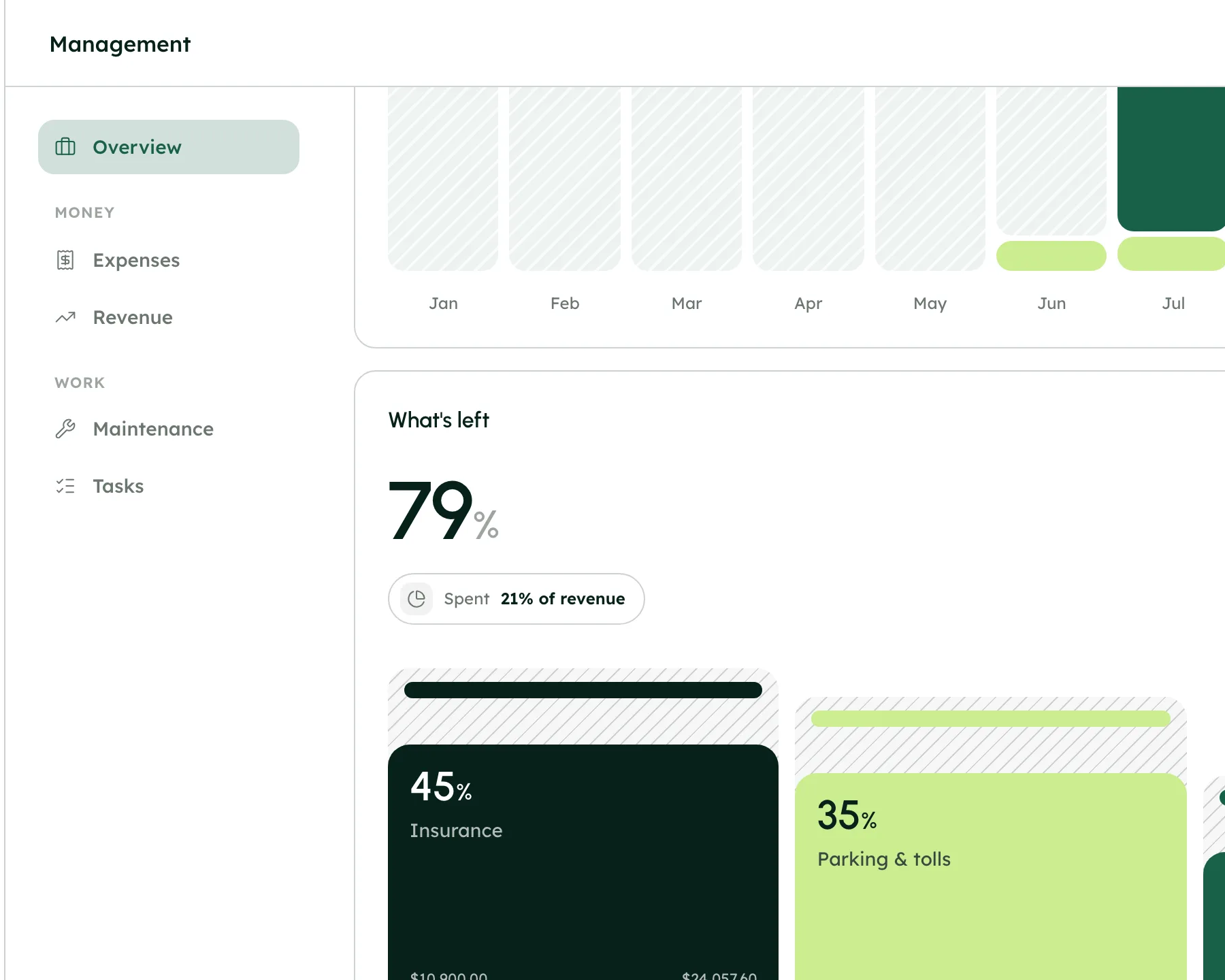
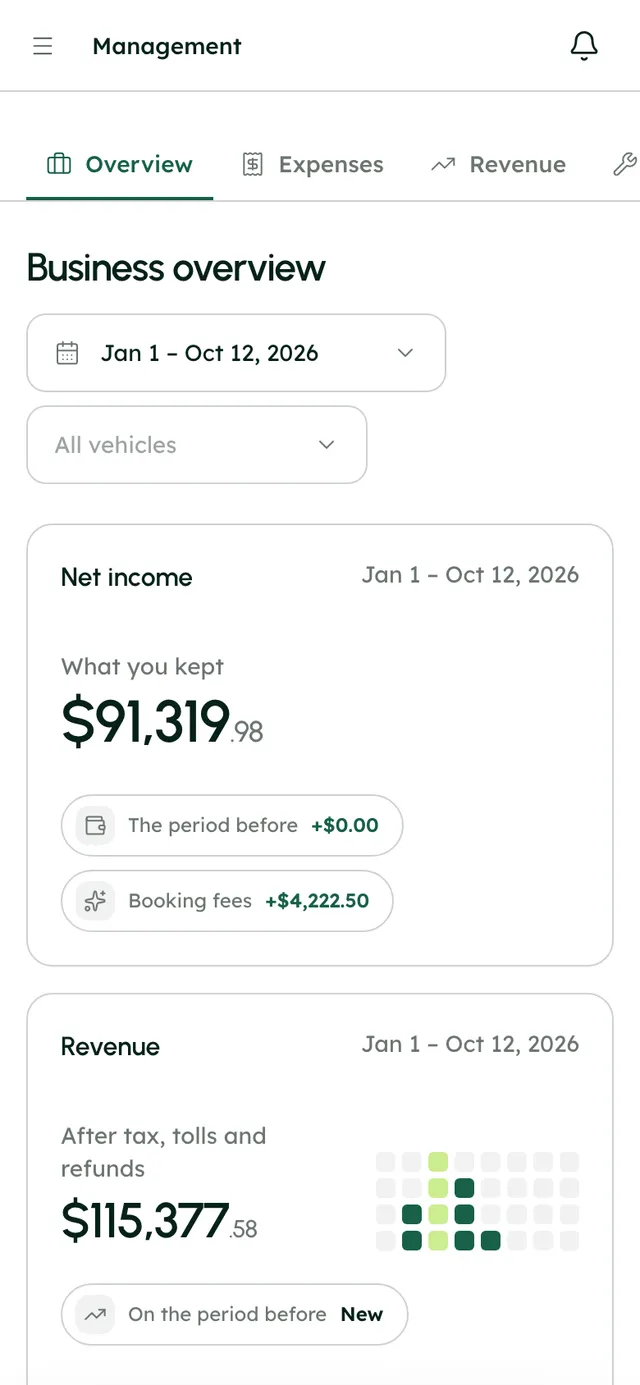
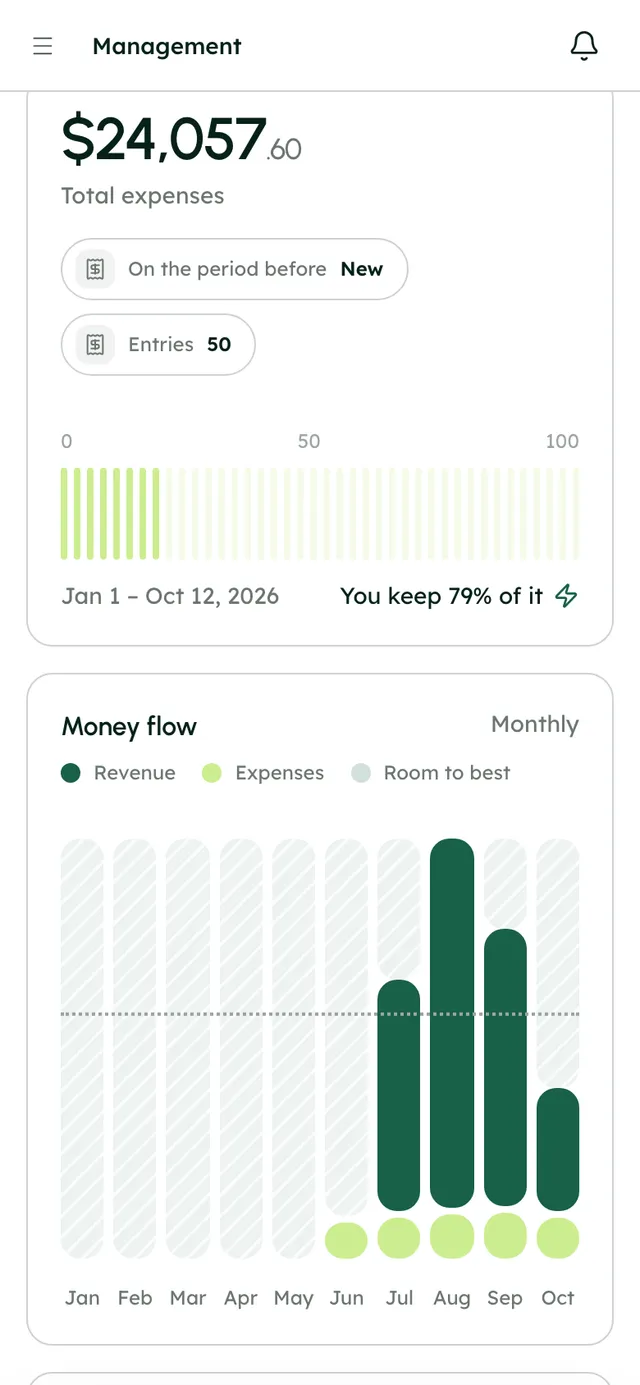
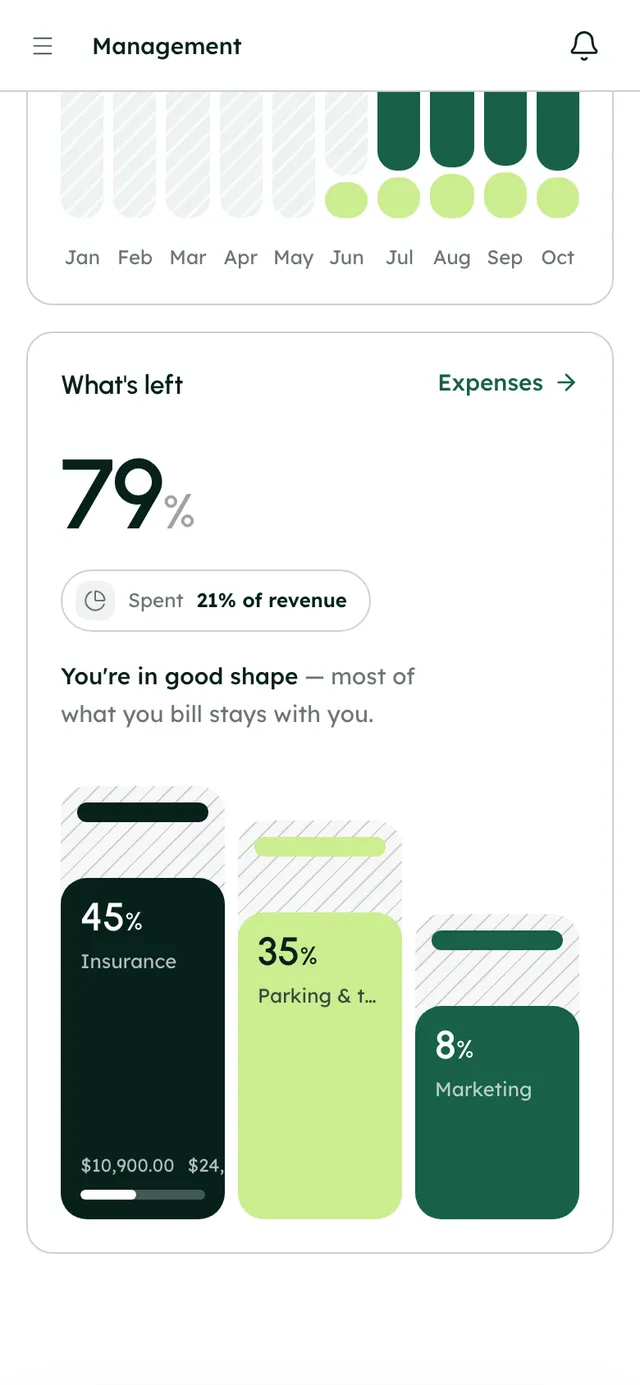
Everything you log shows in ManagementOverview, against revenue and by car.
Step by step6
- 1
Create your categories
In Expenses, press + next to Categories, name the category, add sub-categories and press Create category. You can also pick + New category straight from the category dropdown while you're adding an expense.
- 2
Add an expense
Press Add expense. Fill in what it was, the category, amount and date, and the vehicle if it's for one car. Press Save Expense.
- 3
Attach the receipt
Under Receipts, press Take a photo to use your phone's camera, or Upload for an image or PDF.
- 4
Set up repeating costs
Create a repeating expense: how often (weekly, monthly, quarterly or yearly), when the first one lands and, if it ends, when it stops. Press Set it up. Pause or resume it at any time.
- 5
Import a CSV
Choose Import CSV, upload the file and match its columns to Amount, Date, Description, Category and Sub-category. Pick a default category and vehicle, choose whether to bring in money out only or every row, then review and import.
- 6
Find and export
Search, or filter by vehicle and dates. The header shows what you've spent, how many entries, the average and what repeats over a year. Press Export CSV to download the page you're looking at.
Best practices
- Photograph receipts the moment you pay. They're the hardest thing to find at tax time.
- Tie fuel, repairs, cleaning and insurance to the car they belong to.
- Use repeating expenses for anything with a fixed amount and date, so the month adds up without you.
- Run a CSV import once a month from your business card statement.
Good to know
- A category that's still used by expenses can't be deleted. RentHive shows you which entries use it, so you can move them first.
- Export CSV saves the page you're viewing, not every expense at once.
- Revenue has no CSV import. Only expenses do.
- All amounts are in US dollars.
What runs on its own
- Repeating expenses create their entries up to 12 months ahead.
- Maintenance costs land in Expenses as soon as you add them to a job.
Questions
Can I import my bank statement?
Yes, as a CSV. You match the columns and review the rows before anything is saved.
Can receipts be PDFs?
Yes. Upload images or PDFs, or take a photo with the in-app camera.
How do I see what one car costs me?
Filter Expenses by that vehicle, or pick it in ManagementOverview to see its costs against its revenue.