Overview
Press Edit on a booking to open Edit booking. It has the same seven steps as a new booking, already filled in: When, Where, Vehicle, Customer, Extras, Insurance and Notes. Every change is checked and priced as you make it, and nothing is saved until you press Save changes.
The invoice beside the steps shows the New total, what it Was, and the difference. Once anything has been paid, it also shows Paid so far and either To refund or Still to collect. Saving never charges or refunds anyone. You collect or give back the difference from the booking's Payments & deposit.
A booking keeps the rate it was sold at while its car and dates stay the same, even if you've changed the car's price since. New dates or a different car are priced like a new sale: the whole trip at the car's rate and date prices today, not only the added days.
When the car, dates, times or total change, the renter gets an email saying their booking was updated. If the car, dates, times, places, total or deposit change, the rental agreement gets a new version, and a signed one needs signing again.
Step by step15
- 1
Open the editor
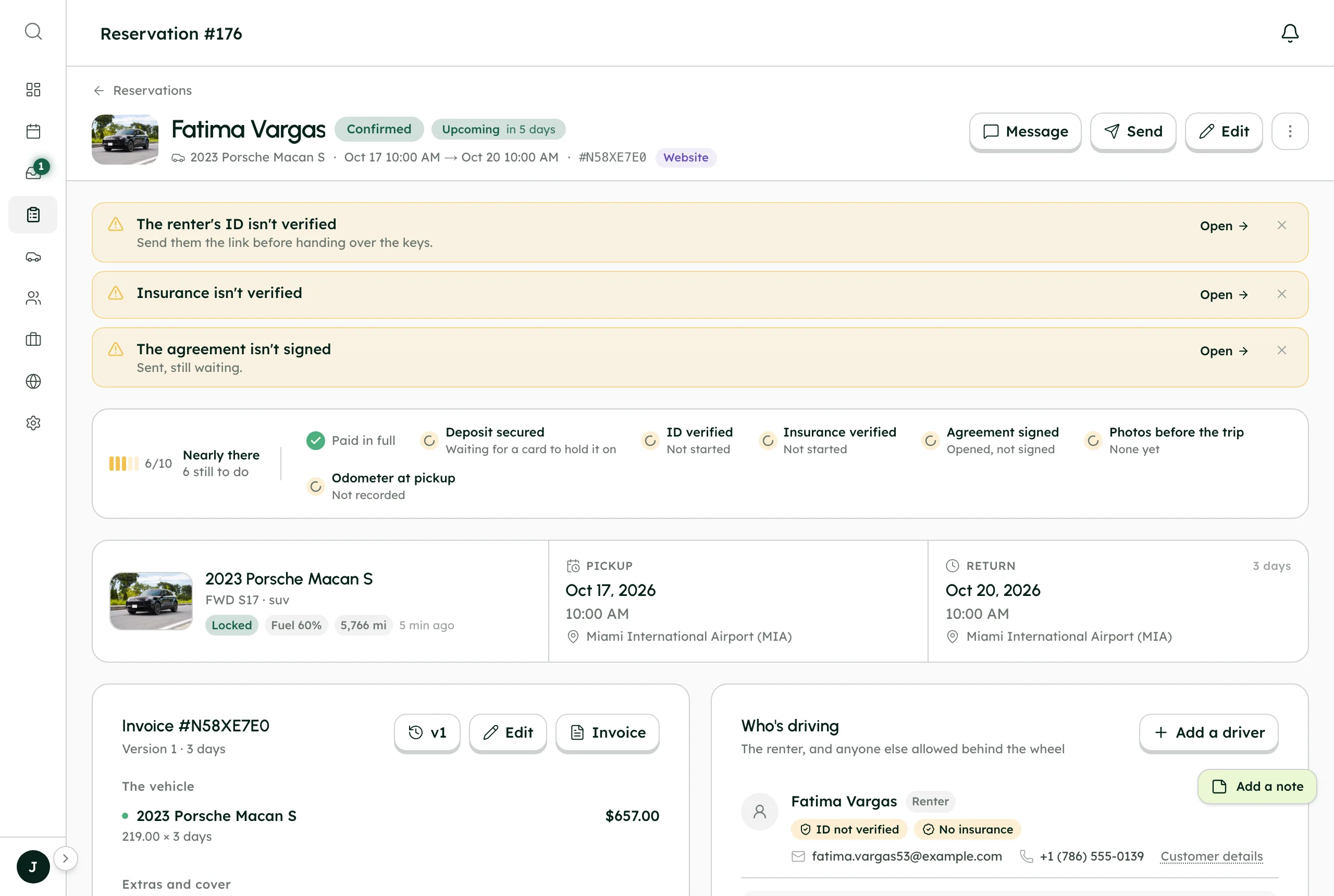
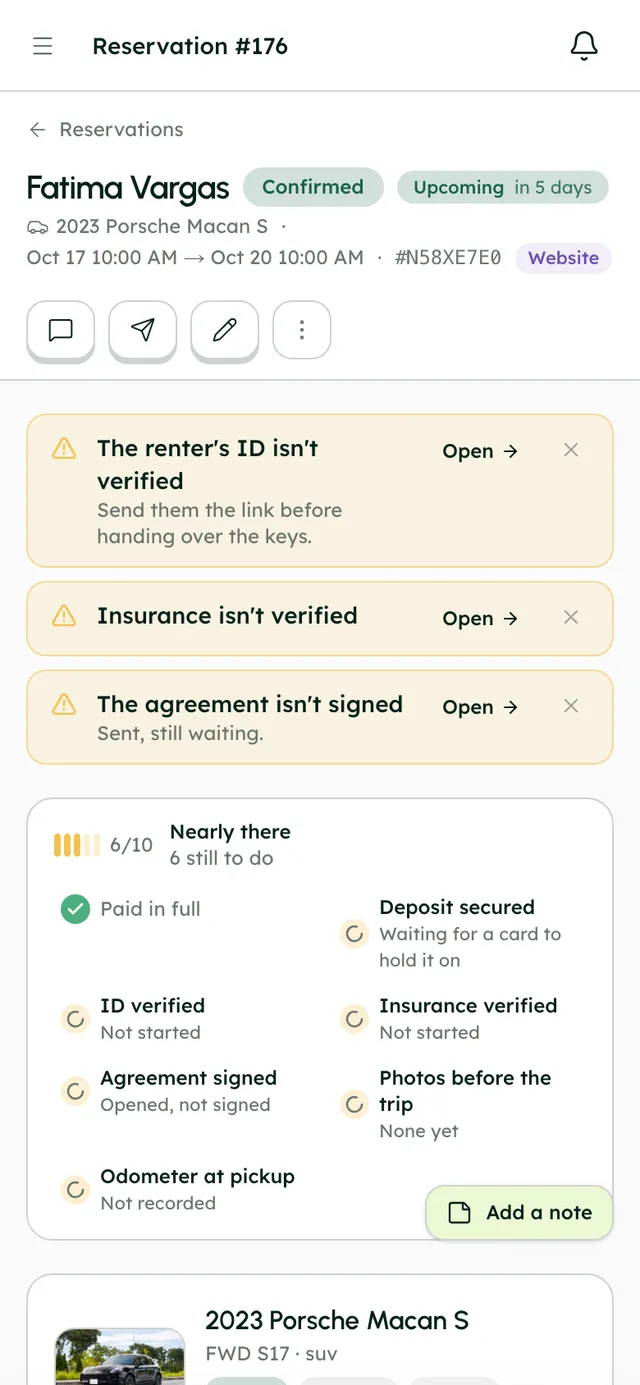
Open the booking and press Edit. You can also press Edit after clicking a booking on the Calendar, or choose Edit from a booking's menu in the Bookings list. On a phone, the round Edit button sits under the booking's photo, and the total and Save stay in a bar at the bottom. Finished and cancelled bookings can't be edited, so Edit isn't offered on them.
- 2
Change the dates and times
In When, pick the new pickup and return dates on the calendar, then the Pickup time and Return time. The return has to be at least a day after pickup. Leave a time blank to use the car's usual pickup and return times. The chips under the dates show the car's trip length, usual pickup time, advance notice and the gap you keep between trips. Changing only the times keeps the price as it is. New dates reprice the whole trip at today's rate.
- 3
Or drag it on the calendar
On a computer, open Timeline on the Calendar. Drag either end of a booking's bar to change its dates (the times stay the same), or drag the bar to another car's row to swap cars. A move onto days that are booked or blocked is refused straight away. Otherwise a window shows the new total, what it was and the difference, with anything to know. Press Save new dates or Move booking, or Keep it as it was. On a phone, use Edit instead.
- 4
Change where it's picked up and returned
In Where, choose a pickup place. Each one shows its fee (+$X or Free) and its opening hours. Turn off Return to the same place to pick a different return place. Places that don't serve this car say so, like No pickups here or Not for this vehicle. A place you've since deleted stays on the booking, marked as kept, until you choose another. The place fees are worked out again when you change them.
- 5
Swap the car
In Vehicle, every car is marked: Available, Booked, Blocked, Paused, Too short, Too long, Not at this place, or a number of things to know. A booked car names the booking it clashes with. You can still pick it, so check before you save. A paused car can't be picked until you activate it. Swapping the car clears the extras, because each car offers its own, so add them again in Extras.
- 6
Change the renter or their details
In Customer, edit the Full name, Email and Phone, or press Choose someone else and search your customers or add a New customer. If you have a minimum driver age, Driver's date of birth appears and shows how old they'll be at pickup. A customer you've blocked shows a warning. Changing contact details doesn't change the price and doesn't email the renter.
- 7
Add or remove extras
In Extras, you see the extras this car offers and that are switched on. Tick one and set how many, from 1 to 9. An extra you no longer offer stays on the booking, marked No longer offered, at the price it was sold for. Untick it and it comes off when you save. Extras you still offer are priced at today's prices.
- 8
Change the insurance
In Insurance, choose Renter's own insurance or one of your protection plans, and any add-ons. A booking has one main plan at a time; add-ons stack on top. Your own plans are charged per day or per trip, as you set them. RentalCover is charged per calendar day, so the pickup and return days both count.
- 9
Leave a note for your team
Notes are for your team only; the renter never sees them. It's the same note as the one on the booking page, so you can also change it there without opening the editor. A note alone doesn't change the price or send anything.
- 10
Check the price and save
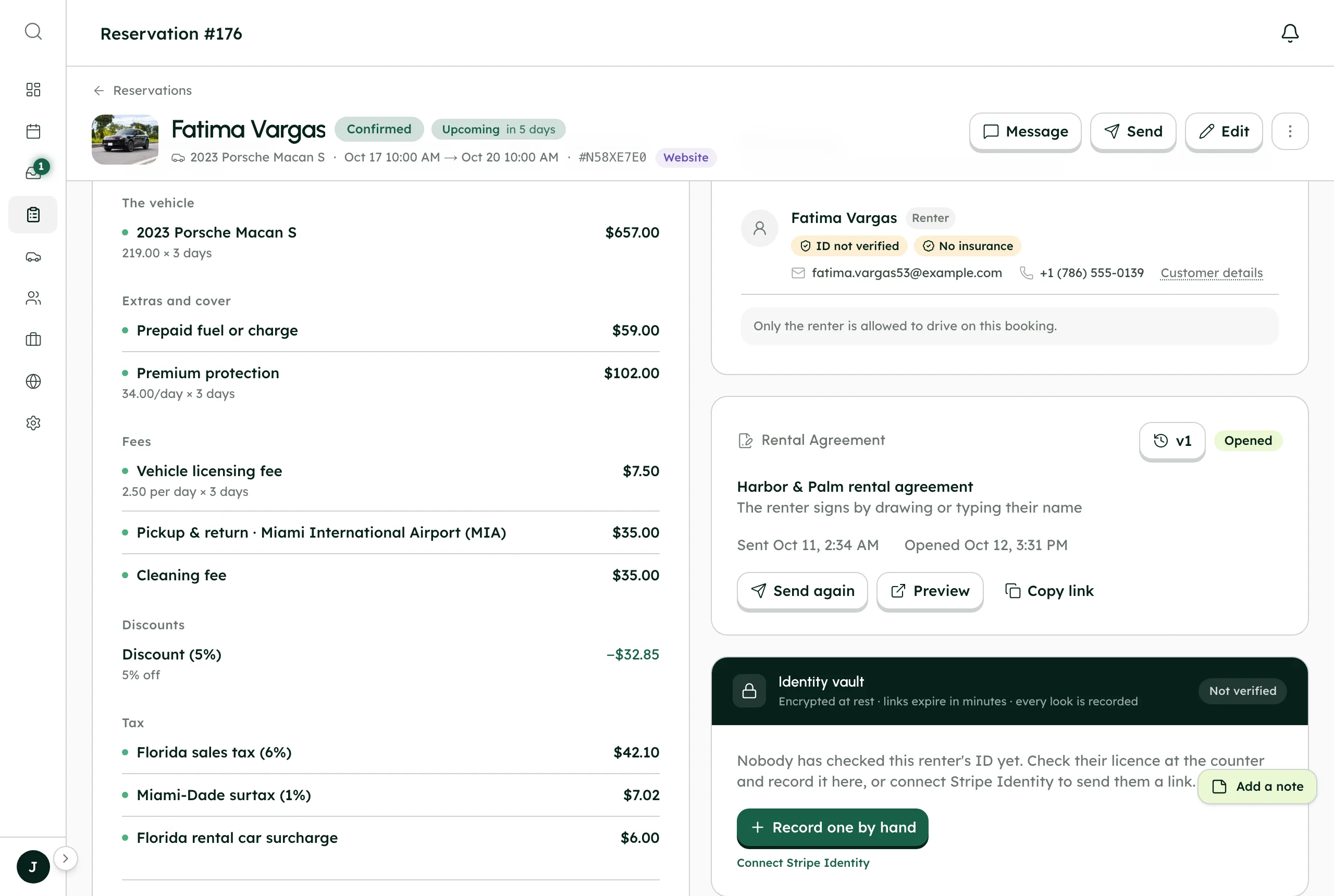
Look over the invoice: the lines, the New total, what it Was, and To refund or Still to collect. If something needs a look, the invoice says how many things there are to know, and each one is marked on its step. Above the button it says whether the renter gets an email about the change. Press Save changes. Until you change something, it says Nothing has changed yet.
- 11
Change coupons, discounts, the deposit and charges on the invoice
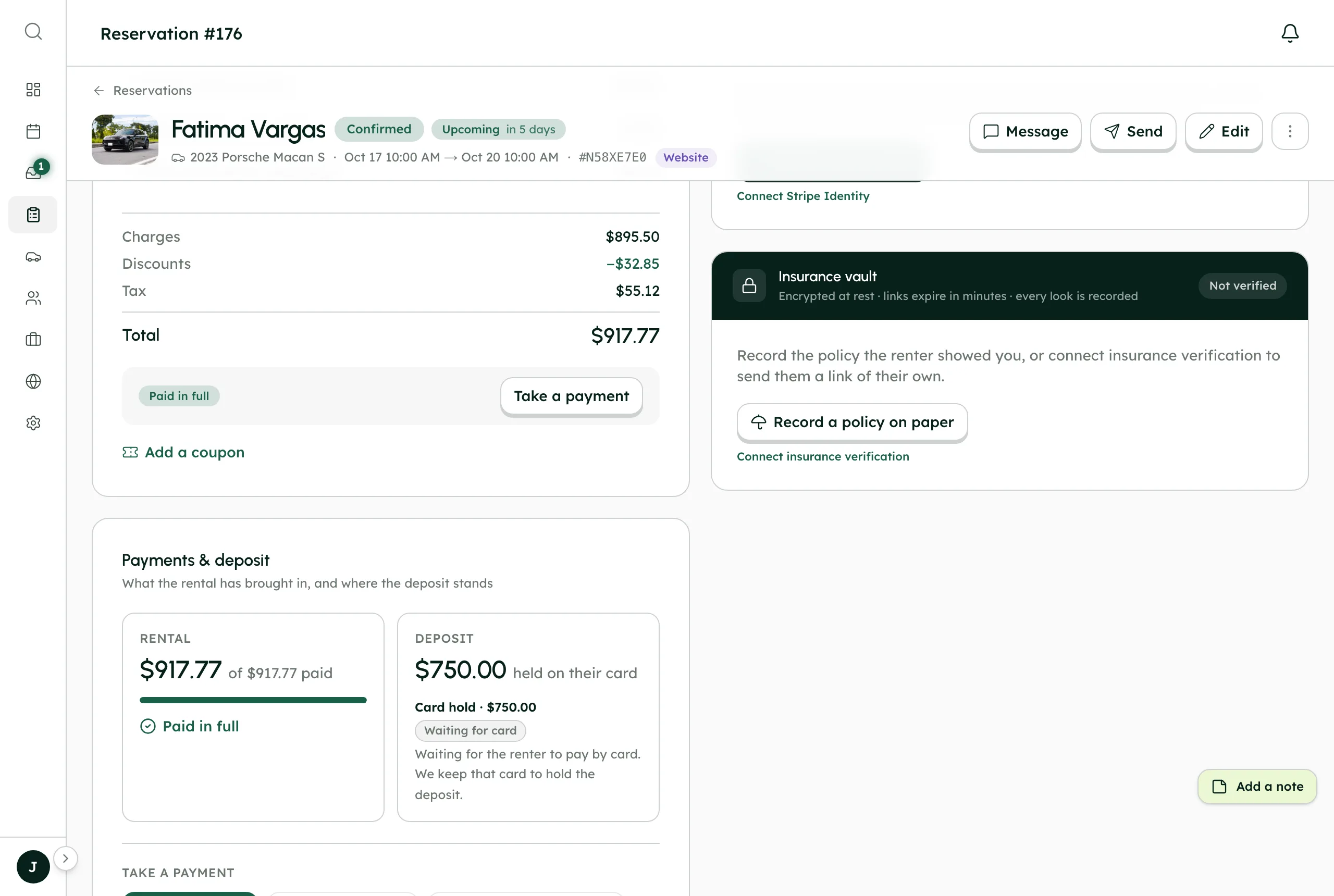
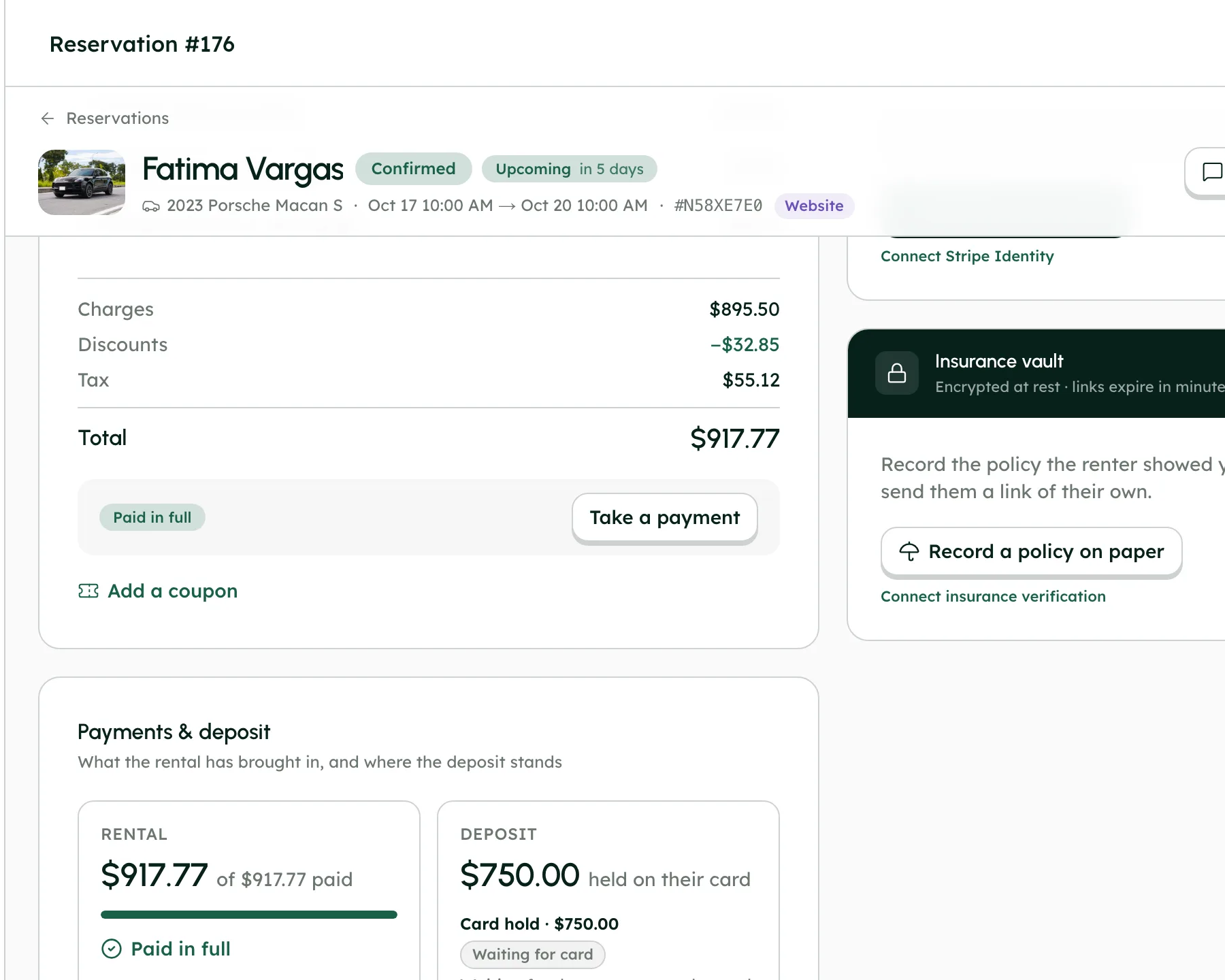
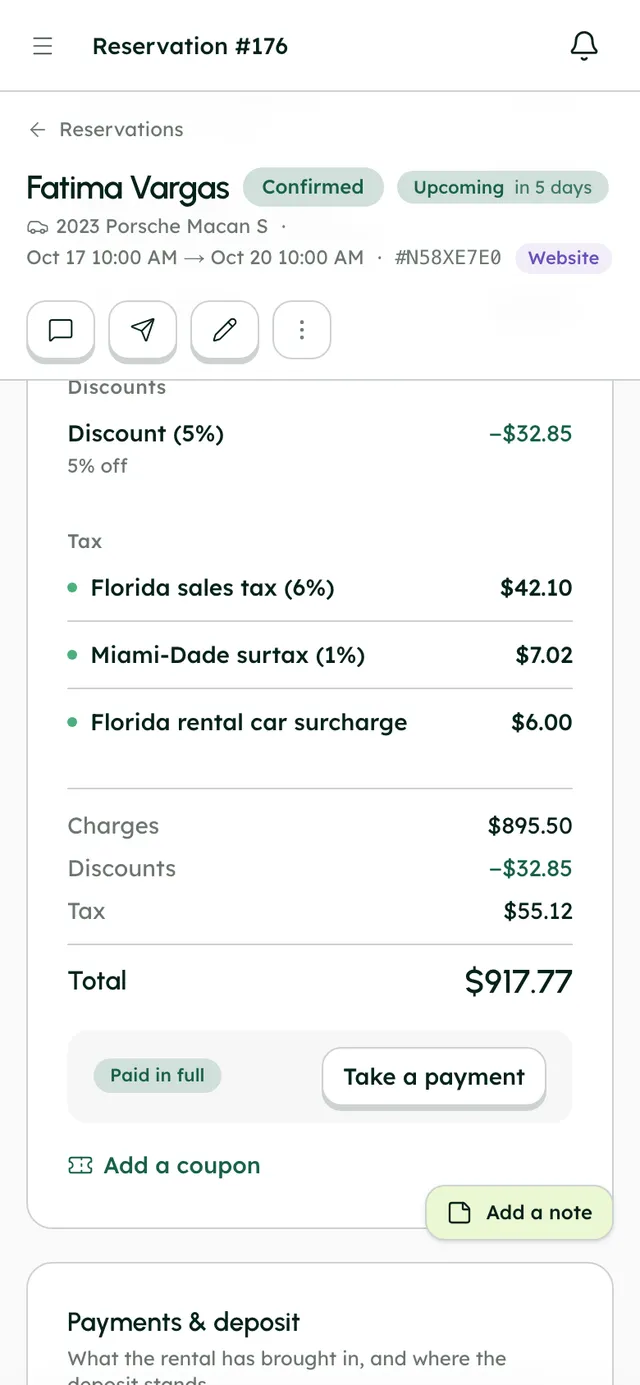
These live on the booking's invoice, not in the editor. Use Add a coupon to apply or remove a coupon. To change anything else, press Edit on the invoice: change a line's quantity, price or amount, Reset it to its priced amount, or Remove it. Add a line asks What is it?: a charge (damage, fuel, cleaning), a fee, a discount (% or $), tax or a deposit. Add a reason under Why (optional) and press Save changes. Each save keeps a new invoice version. Toll lines are changed in Tolls & tickets.
- 12
Settle the difference
Go to Payments & deposit on the booking. If it says Still owed, press Charge it to their card to charge the card saved on the booking, or use Record cash, Charge a card or Send a payment link. If it says Over-paid by, the owner presses Give it back to return the extra the way it was paid: to their card, or marked as handed back for cash.
- 13
Add another driver
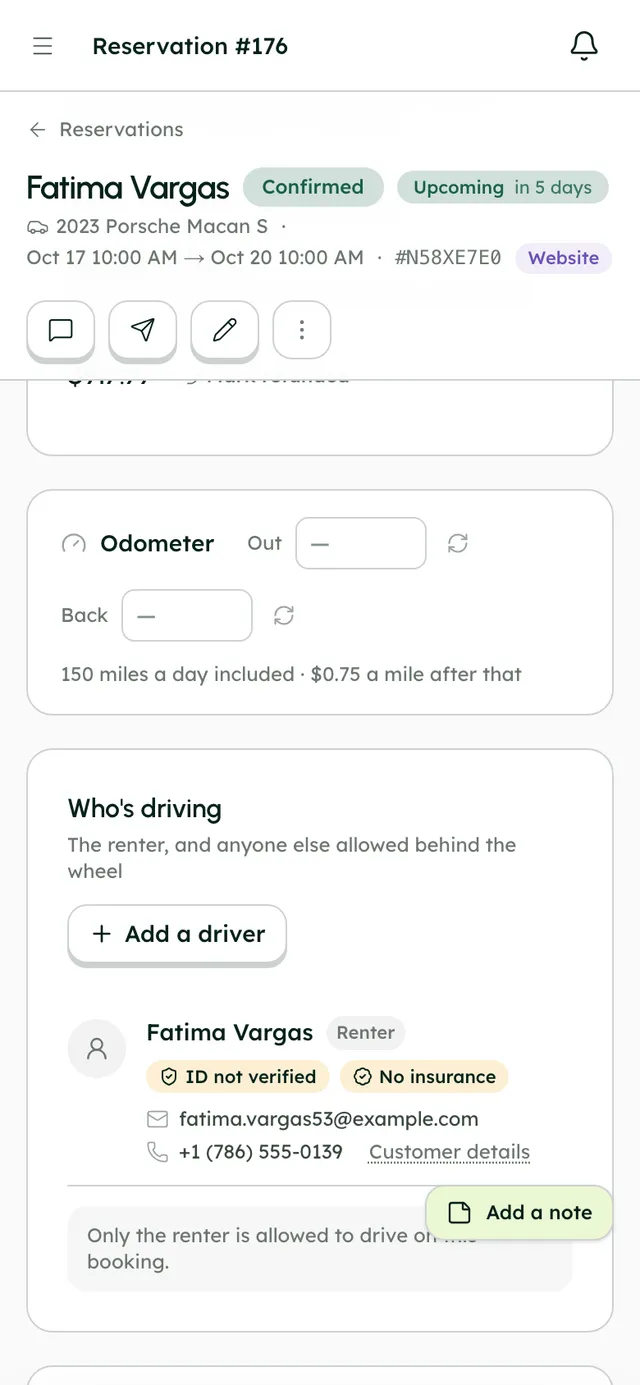
Drivers aren't in the editor. On the booking page, find Who's driving and press Add a driver. Enter their name, email and phone, and a note if you like. There's no charge for it. The new driver gets an email, unless you've switched that email off.
- 14
Get the agreement signed again
If the car, dates, times, places, total or deposit changed, the agreement becomes a new version with the new details. If the renter had signed it, it goes back to waiting for a signature. RentHive never sends it again by itself, so press Send to renter on the booking's agreement. Earlier versions, and the signatures on them, are kept.
- 15
Answer a renter's change request
When trip changes are set to Ask me in SettingsGeneralChanges and cancellations, renters ask from their trip page to change the dates and times, where they pick up and return, extras, protection or the car. Cancellations set to Ask me arrive the same way. A card marked Waiting on you appears at the top of the booking, showing the trip now and what they're asking for, with both totals. Press Approve or Decline, with a reason if you decline. Approving checks the car is still free. On card-paid bookings, the difference is charged to their saved card (or they're sent a link to pay), or given back to it. Money paid in cash is yours to settle.
Best practices
- Settle the difference straight after you save, while you're on the booking.
- After changing the dates, car, places or total, press Send to renter on the agreement so the new terms get signed before pickup.
- Read the things to know before saving. The editor lets you overlap another booking or a block, so a clash is only a warning.
- Moving a trip to new dates prices it at today's rates. To keep the old price for the renter, add a discount line on the invoice with a reason.
- After swapping the car, add the extras back. Swapping clears them.
- Use the invoice's Why (optional) box. The reason stays with that invoice version, so your team can see why it changed.
Good to know
- Saving an edit never charges or refunds anyone. Collect or give back the difference yourself.
- New dates or a new car reprice the whole trip at the car's rate and date prices today, not only the added days. Changing only the times keeps the price.
- Booked, blocked, too-short and too-long trips, advance notice, opening hours and driver age are warnings for you, not stops. Only renters booking for themselves are held to them.
- A signed agreement goes back to waiting for a signature after a change to the car, dates, times, places, total or deposit, and it isn't sent again automatically.
- The renter's booking updated email is always sent when the car, dates, times or total change. You can change its words in SettingsMessagingEmail notifications, but not switch it off.
- Finished and cancelled bookings can't be edited. A finished trip's invoice can still be changed, for fuel, damage or extra miles.
- There's no undo. Every version is kept, so you can see what it was and edit it back.
What runs on its own
- Every change is checked and priced as you make it, and the invoice updates before you save.
- Each save keeps a version of the booking and a new invoice version. Everything that happened lists what changed.
- The old dates are freed and the new ones taken at once, on your calendar and your booking website.
- When the car, dates, times or total change, the renter gets an email that their booking was updated, with a button to manage their trip.
- A deposit hold follows the new dates: it's placed the day before pickup and released two days after the trip.
- If you change the dates while the renter has a request waiting, the request is withdrawn.
Questions
Why did the price change when I only moved the dates?
New dates are priced like a new sale: the whole trip at the car's rate and date prices today. A booking keeps the rate it was sold at only while its car and dates stay the same. To honour the old price, add a discount line on the invoice.
Will the renter be charged if the trip gets longer?
Not by the edit. It shows what's still to collect, and you charge it from Payments & deposit with Charge it to their card, a payment link, a card or cash. When the renter asks for the change themselves and you approve it, the difference is charged to their card.
Can I change a booking that's already started?
Yes. A booking that's on trip can still be edited, for example to move the return date. Only finished and cancelled bookings are locked.
Does the renter have to sign the agreement again?
If it was signed and you changed the car, dates, times, places, total or deposit, yes. The new version waits for a signature. Press Send to renter to send it.
Does the renter know I changed their booking?
They get an email when the car, dates, times or total change. Changing their contact details, the places alone or your notes sends nothing. The editor tells you which before you save.
Can I undo an edit?
There's no undo button. Every version of the booking and its invoice is kept, so open the earlier one, see what it was and edit it back.